








Skip to the main content.

WEBSITE GROWTH & CONVERSION

• Web Design & Development


• SEO & AEO


• Conversion Rate Optimization


• Lead Generation Strategies


HUBSPOT SUPPORT & ENABLEMENT

• HubDesk


• HubSpot Training


• HubSpot Change Management

FREE TOOLS & ASSESSMENTS

• HubSpot Portal Audit


• HubSpot Al Readiness Scorecard


• HubSpot Al Solutions Design


LEARN & WATCH

• View All Resources


• Ebooks & Templates


• Webinars On-Demand


• Expert Videos

HUBSPOT INSIGHTS

• AEO & AI Search


• Automations


• HubSpot Software


• Migration & Replatforming

• Marketing & Content


• Lead Generation


• Integrations


INDUSTRY & PLATFORM GUIDES

• HubSpot for Healthcare


• HubSpot for IT Services


• HubSpot for Saas


• HubSpot for Franchises


• HubSpot for Consumer Products & Retail


• HubSpot for Financial Services


• HubSpot for Construction


• HubSpot for Real Estate


• HubSpot vs. Zendesk

11 min read

What ACES and PIES Fitment Data Should Aftermarket Brands Sync Into HubSpot?

What ACES and PIES Fitment Data Should Aftermarket Brands Sync Into HubSpot?

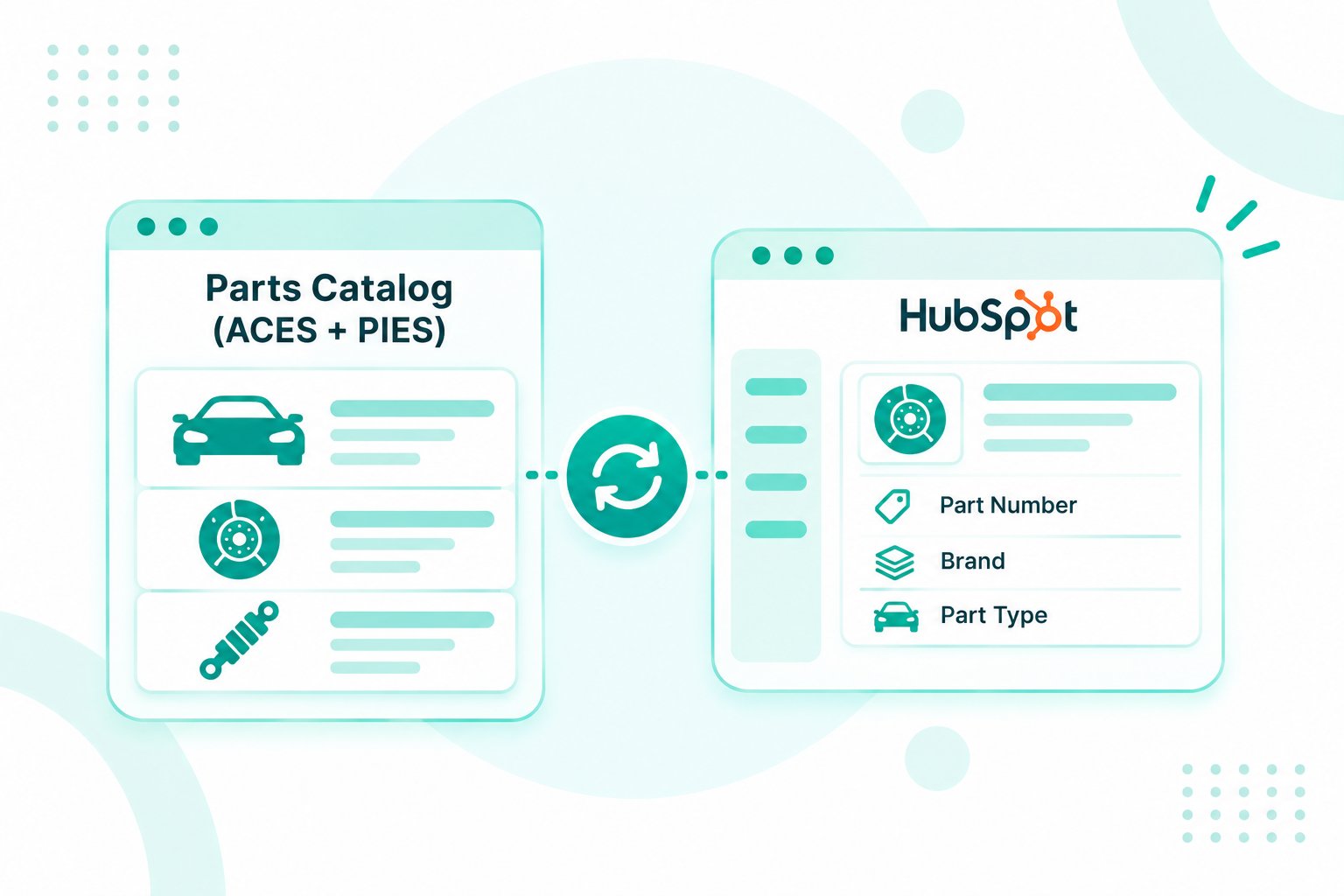
ACES and PIES are the automotive aftermarket's data standards for parts catalogs. ACES records the vehicles a part fits, and PIES describes the part itself. Aftermarket brands keep the full files in a catalog or PIM tool and sync a smaller slice into HubSpot. That slice covers part number, brand, and part type on products, the customer's vehicle on contacts, and fitment problems on tickets.

Parts buyers shop by year, make, and model, so a fitment error costs you twice, once in the return and again in the support ticket. If marketing and service can't see the vehicle behind an order, they can't reach the right buyers or spot the part numbers that keep coming back.

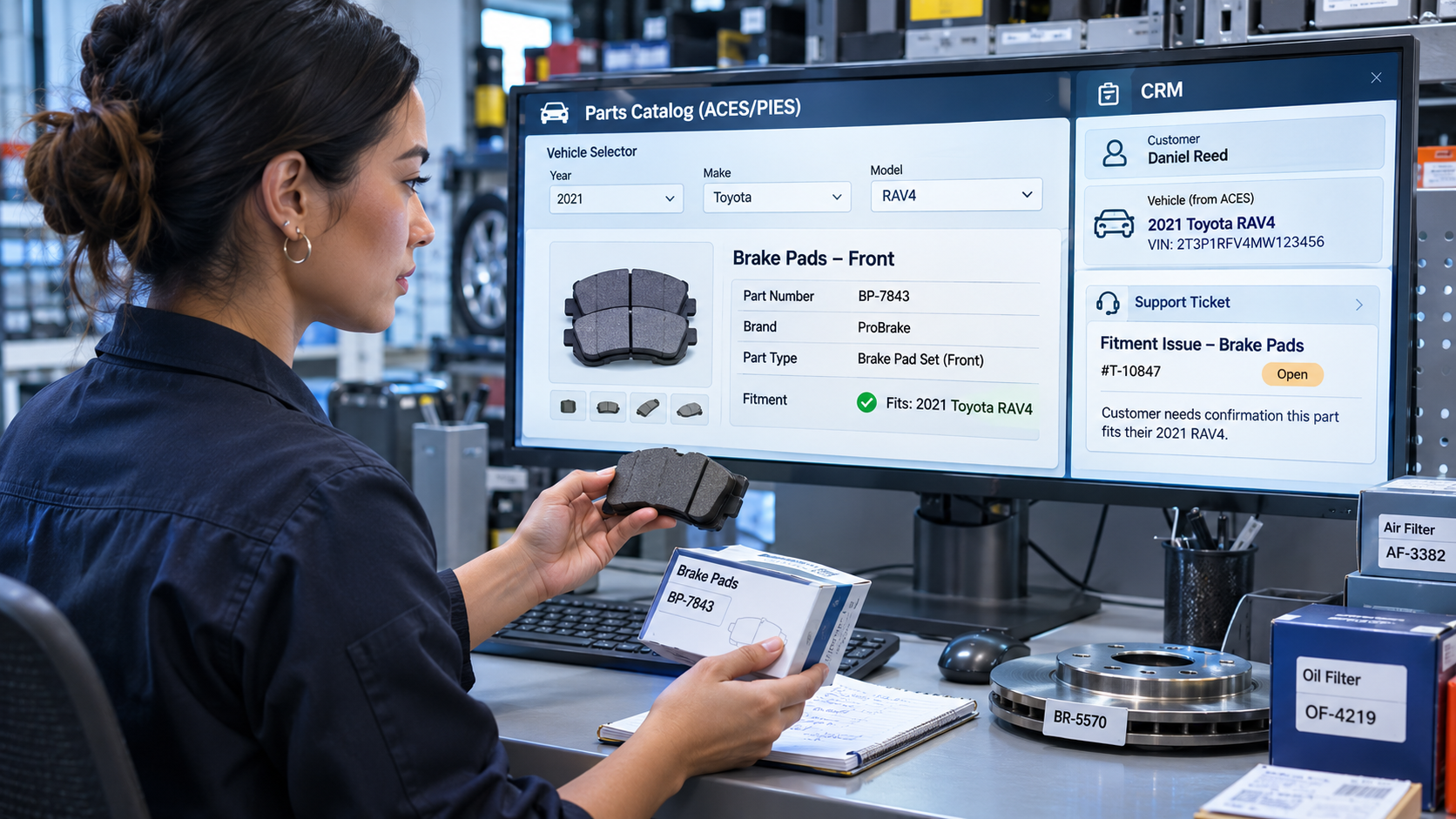
Brake Pad Catalog Workshop Scene

If your catalog, store, and ERP need to share fitment data with HubSpot, our HubSpot integration team can build those connections.

Key Takeaways

  • ACES carries vehicle fitment, and PIES carries product details, and the Auto Care Association maintains both as XML standards.
  • The full ACES and PIES files belong in your catalog or PIM, and HubSpot holds only the fields your teams act on.
  • Custom properties you create on HubSpot products also appear on line items, so one Part Type property can filter both products and orders.
  • HubSpot's Shopify data sync doesn't carry Shopify metafields, so fitment data stored there needs a custom integration to reach HubSpot.
  • A Service Hub Professional knowledge base holds up to 2,000 articles, enough for install guides and fitment FAQs across every product line.

Table of Contents

  1. What Are ACES and PIES?
  2. Should ACES and PIES Data Live in HubSpot?
  3. What Fitment Data Belongs in HubSpot?
  4. How Do You Store Year, Make, and Model on a Contact?
  5. How Do You Segment Customers by Vehicle in HubSpot?
  6. How Does Fitment Data Cut Returns and Support Tickets?
  7. How Does Fitment Data Get Into HubSpot?
  8. How Can Campaign Creators Help Connect Fitment Data to HubSpot?
  9. What's the Short Answer on ACES, PIES, and HubSpot?
  10. Frequently Asked Questions

What Are ACES and PIES?

ACES (Aftermarket Catalog Exchange Standard) tells trading partners the vehicles a part fits. PIES (Product Information Exchange Standard) covers everything else about the part, from descriptions and pricing to packaging and images. Brands, distributors, retailers, and marketplaces use the two together, so a part listed once shows up correctly wherever it's sold.

ACES Covers Vehicle Fitment

An ACES file links each part number to the vehicles it fits, described by year, make, model, engine, and other qualifiers. Each vehicle-to-part link is called an application. A brake rotor can have dozens of applications, and a universal accessory can have hundreds.

Brands don't invent their own vehicle names in ACES. The standard draws on shared reference data, including the Vehicle Configuration database (VCdb), the Qualifier database (Qdb), and the Product Classification database (PCdb). Because everyone uses the same names, a distributor can load a supplier's file without reconciling five spellings of "F-150."

PIES Covers Product Details

PIES carries the content about the part itself, such as weight, description, country of origin, images, and pricing. It also holds warranty details, hazardous materials, kits, and interchanges. Shoppers read the PIES side of a listing to decide on a part and check the ACES side to confirm it fits.

How ACES and PIES Compare

  ACES PIES
Question it answers Does this part fit my vehicle? What is this part, and what does it cost?
Typical fields Year, make, model, submodel, engine, position, qualifiers Description, brand, part type, dimensions, weight, price, images, warranty
Reference databases VCdb, Qdb, PCdb PCdb, PAdb (Product Attribute database), Brand Table
Current version ACES 5.0 PIES 8.0
Format XML XML
Who owns it Auto Care Association Auto Care Association

The reference databases behind both standards are subscription-based. Brands usually manage their files through a catalog provider or PIM tool that already pays for that access.

Where Brands Send ACES and PIES Files

Marketplaces and distributors expect fitment in a standard format. Walmart Marketplace, for example, takes vehicle compatibility as ACES XML through a FITMENT_ACES feed and matches it to each listing by brand and manufacturer part number. A part with missing or rejected fitment won't appear for shoppers who filter by vehicle.

Should ACES and PIES Data Live in HubSpot?

No. The full ACES and PIES files should stay in your PIM, catalog tool, or ERP. HubSpot should hold the slice of fitment data that sales, marketing, and service use every day, since it's a customer platform and not a tool for managing thousands of vehicle applications per part.

ACES Data Doesn't Fit a Product Record

Record count isn't the limit. The sample response in HubSpot's limits API docs shows a product record limit of 15,000,000, far more records than a parts catalog needs.

The structure is the limit. ACES is a many-to-many list of parts and vehicles, with qualifiers such as "with factory tow package," and a HubSpot product is one record with flat properties. Putting every application on a product record means hundreds of fields or one long text blob, and you can't easily segment, report on, or update either one.

The Catalog Team Owns Fitment

Fitment changes with each new model year, each superseded part, and each catalog fix. The people who manage the catalog make those updates. If fitment also lives in HubSpot, that copy falls behind, and sooner or later someone emails the wrong buyers.

What Stays and What Comes Over

Stays in the catalog or PIM Comes into HubSpot
Every vehicle application for every part A short fitment summary per product, such as "Fits 2015 to 2023 Ford F-150"
Qualifiers, positions, and notes The part type, brand, and product line
Full PIES attribute sets Three to five attributes that marketing or service ask about
Interchanges and supersessions The current part number and its status
Digital asset libraries One image URL per product
Pricing for each trading partner The price your own store or quote uses

Each field in the right column should answer a question your team actually asks. Two common ones are "Who bought leveling kits for Tacomas?" and "What part numbers come back as wrong fit?"

What Fitment Data Belongs in HubSpot?

Five kinds of fitment data earn a place in HubSpot. They are product facts, the customer's vehicle, the vehicle each order was for, the product lines your partners carry, and fitment problems on tickets. Each one sits on a different HubSpot record.

Data HubSpot home Source system What your team can do with it
Part number or SKU Product (SKU property) PIM or ERP Match orders, returns, and tickets to the right part
Brand, part type, and product line Custom product properties PIES file Build segments and reports by category
Fitment summary Product text property Generated from ACES Show buyers and agents what the part fits
Product image Product image URL PIES digital assets Use the right photo in emails and quotes
The customer's vehicle Contact properties or a Vehicle custom object Store garage, forms, or orders Target buyers by year, make, and model
The vehicle an order was for Line item property Store checkout Analyze returns and plan reorder emails
Product lines a partner carries Company property (multiple checkboxes) Sales team or ERP Target distributors and installers
Fitment problem Ticket property Service Hub Report wrong-fit returns by part number

Product Properties Also Appear on Line Items

HubSpot's product library comes with every plan and supports custom product properties. Any custom property you create on the product object is also added to the line item object. A Part Type property set once in the product library can then filter contacts who bought shocks and orders that included shocks.

Pick the PIES Attributes With Care

A PIES file can hold dozens of attributes per part, and few of them belong in a CRM. Pick the three to five that come up in buying questions or support calls. For a suspension brand, that might be lift height, finish, and a drilling-required flag.

Before adding an attribute, check that a segment, a report, or an agent answer will use it. If none will, leave it in the catalog.

How Do You Store Year, Make, and Model on a Contact?

Use contact properties if each customer usually has one vehicle, and use a Vehicle custom object if customers own several. Properties work on any HubSpot plan. Custom objects need an Enterprise subscription, and they handle multi-vehicle garages and fleets properly.

Use Contact Properties for One Vehicle

Three contact properties cover a single vehicle. These are a Vehicle Year number property, a Vehicle Make dropdown, and a Vehicle Model dropdown or text field. Dropdowns keep the values clean, and each one can hold up to 5,000 options.

Match the make and model values to the names in your catalog's VCdb data. If HubSpot holds "Chevrolet" and the catalog holds "Chevy," a segment for a new fitment release misses half its audience. A short value list owned by the catalog team keeps the two in line.

Use a Vehicle Custom Object for Several Vehicles

Off-road builders, fleet buyers, and collectors often own more than one vehicle. Contact properties hold one, so the second truck ends up in a notes field. A Vehicle custom object stores each vehicle as its own record, with year, make, model, and trim, linked to its owner and to the tickets raised about it.

Creating custom objects needs an Enterprise edition of a HubSpot hub, Smart CRM, or Revenue Hub. HubSpot's developer docs use a Cars object with year, make, and model properties as their worked example, so the pattern is well established.

  Contact properties Vehicle custom object
Best fit One vehicle per customer Several vehicles per customer, fleets
HubSpot tier Any Enterprise
Segmenting Simple filters on the contact Filters on associated vehicle records
Ties to tickets Indirect, through the contact Direct, vehicle to ticket
Upkeep Overwrites the old vehicle when it changes Keeps vehicle history

If you're deciding between the two for the first time, our guide Custom Object or Custom Property walks through the decision with examples.

Capture the Vehicle Without Asking Twice

Customers already enter their vehicle while they shop, so collect it from those places.

  1. Sync the vehicle from your store's "My Garage" or year, make, and model selector to the contact.
  2. Write the vehicle chosen at checkout to a line item property on each order.
  3. Add vehicle fields to warranty registration and support forms.
  4. Use progressive fields on marketing forms, so returning visitors get asked for their vehicle once.

Point every capture method at the same properties. If three forms each create their own "make" field, your segments end up split across all three.

How Do You Segment Customers by Vehicle in HubSpot?

Build segments from the contact's vehicle, the part types they bought, and the product lines a partner company carries. Those three filters cover new fitment releases, cross-sell, win-back, and partner marketing.

HubSpot's Shopify app also brings in order and checkout data for segmentation, so store activity can feed the same segments.

These five segments work well for parts brands.

  1. Contacts with a 2024 Toyota Tacoma: send an announcement when you release a part for that truck. These buyers are the likeliest to want it.
  2. Contacts who bought a leveling kit but no shocks. A Part Type property on products and line items gives this segment a clean filter.
  3. Contacts with a Jeep Wrangler who haven't ordered in 12 months, paired with the newest parts for their model.
  4. Distributors and installers who carry your lighting line but not your suspension line, for partner newsletters and sales outreach.
  5. Buyers of parts with a known install question, sent the matching install guide a few days after delivery.

Keep Segments to Fields That Are Filled

A segment built on a half-empty property misses buyers and makes the campaign look weaker than it is. Before launching a vehicle-based campaign, report on how many contacts have a make and model filled in. If coverage is low, run a short "tell us what you drive" campaign first.

Vehicle data also sharpens product emails, since "New for your 2021 Ram 1500" gets more attention than "New suspension parts." Putting order and vehicle data in one place is also a core test when you choose ecommerce CRM services.

How Does Fitment Data Cut Returns and Support Tickets?

Fitment data cuts returns when buyers can check it before checkout, and your service team can see it afterward. Clear fitment answers prevent wrong orders, and tagged tickets show the part numbers that keep causing trouble. Bad fitment leads to returns, extra fulfillment costs, and customer service problems, and repeated returns can hurt a supplier's standing with its retailers and marketplaces.

Tag Every Fitment Ticket

Add a Return Reason property to tickets, with "Wrong fitment" as one of its options. Associate each ticket with the product and the line item, so the vehicle the buyer chose comes along. Then build a report of wrong-fitment tickets by part number.

Share that report with the catalog team on a regular schedule. A spike in wrong-fit returns on one part number often points to a fitment error, a confusing qualifier, or a missing photo. The report only works when tickets stay tied to CRM records such as products and line items.

Publish Install Guides and Fitment FAQs

Questions like "Will this fit a crew cab?" and "Do I need the factory tow package?" come up again and again, and they belong in a knowledge base. The HubSpot knowledge base comes with Service Hub Professional and Enterprise. Professional holds up to 2,000 articles, and Enterprise holds up to 10,000 across 100 knowledge bases.

Organize articles by product line and vehicle, and link each one from the matching product page. Copy the fitment summary from the HubSpot product property into the article, so buyers get the same answer everywhere.

Let the Customer Agent Answer Fit Questions

HubSpot's customer agent can answer common fitment questions from your approved content. It draws on knowledge base articles, website pages, and uploaded files, and it needs a Professional or Enterprise subscription plus HubSpot Credits.

Limit the agent to published fitment FAQs and install guides, and have it hand off to a person when a buyer asks about an unusual build. An agent that guesses on fitment causes the returns you set it up to prevent.

How Does Fitment Data Get Into HubSpot?

Fitment data reaches HubSpot through a store integration, an ERP sync, a PIM or catalog connection, or a product import. The right route depends on where your clean product data lives today, and many parts businesses use more than one.

Route What it brings over Watch out for
HubSpot's Shopify data sync Contacts and products both ways, orders and abandoned checkouts one way Products match on product name, and Shopify metafields don't sync
ERP sync (NetSuite, Dynamics 365, Epicor) Items, orders, invoices, and accounts Decide how much order detail HubSpot needs
PIM or catalog tool Product facts and the fitment summary Usually needs a custom integration
Product import A one-time or periodic product load Manual upkeep unless it's automated

Know the Shopify Sync's Limits

HubSpot's Shopify data sync updates records within about 10 minutes of a change. It doesn't support Shopify metafields, and custom field mappings need Data Hub Starter or higher.

Some fitment apps for Shopify write ACES data to products, variants, and metafields, and anything held only in metafields won't reach HubSpot through the standard sync. A custom integration or a middleware step closes that gap.

Plan the Sync Before You Build It

  1. Name the system of record for each field. The PIM owns fitment, the ERP owns price and stock, and HubSpot owns marketing and service fields.
  2. Match products on part number or SKU, not product name, since two brands can sell parts with the same name.
  3. List the HubSpot fields from the earlier table and leave everything else in the catalog.
  4. Set the sync direction and frequency. Product facts can sync daily, and orders and tickets should sync close to real time.
  5. Test with one product line. Check segments, reports, and ticket associations before loading the full catalog.
  6. Assign an owner to review sync errors and conflicts each week, so small mismatches don't build into thousands of bad records.

With these decisions made up front, adding a second store or a new distributor feed later doesn't mean redesigning the sync.

How SAFR Got Item and Order Data Into HubSpot

Our client SAFR, part of RealNetworks, wanted reps to see fulfillment details on their own. We built a NetSuite sync covering 15+ object types and validated 737 non-inventory item records. Reps can now see inventory levels, order status, and tracking numbers in HubSpot.

Parts brands need the same item check. If HubSpot products don't match ERP items one-to-one, every report on fitment returns or part-type sales starts from bad data.

How Can Campaign Creators Help Connect Fitment Data to HubSpot?

Fitment data often sits in the catalog, where marketing and service can't use it. Our integration team maps the ACES and PIES slice each team needs and picks the shared IDs. Then we connect your store, ERP, and catalog to HubSpot with clear ownership rules.

For our client SAFR, we validated 737 non-inventory item records during NetSuite sync testing. Every build starts with a custom API integration and data model strategy, so the vehicle and product fields match your catalog from day one.

What's the Short Answer on ACES, PIES, and HubSpot?

Keep the full ACES and PIES files in your catalog or PIM, and bring a focused slice into HubSpot. That means product facts, the customer's vehicle, the vehicle on each order, partner product lines, and fitment problems on tickets. With that slice in place, marketing can target buyers by vehicle, and service can spot the part numbers behind wrong-fit returns.

Need HubSpot to talk to a tool without a native integration? See how we build custom ones.

Frequently Asked Questions

Can HubSpot Import an ACES or PIES XML File Directly?

No. HubSpot imports spreadsheet files, not ACES or PIES XML. Convert the slice you need in your catalog tool or integration first, then import or sync it into HubSpot products.

Does HubSpot Have a Built-In Year, Make, and Model Lookup?

No. The lookup belongs on your store or in a fitment app, and HubSpot stores the result. Sync the vehicle a shopper selects to their contact record and to the order's line items.

Is ACES Only for Cars and Light Trucks?

No. ACES also covers medium and heavy-duty trucks, powersports, off-highway vehicles, and equipment. The same HubSpot setup works for UTV, motorcycle, and heavy-duty truck parts brands.

Can Distributors or Installers Report Fitment Problems in HubSpot?

Yes. A HubSpot form or support portal can create a ticket with the part number, vehicle, and problem. Tag those tickets by partner, so you can tell a catalog error apart from one installer's mistake.

What Happens in HubSpot When a Part's Fitment Changes?

Update the fitment in your catalog first, then let the sync refresh the product's fitment summary in HubSpot. Past line items keep the vehicle the buyer chose, so your order history stays accurate.

How Publishers Can Automate Renewals With HubSpot Integrations

How Publishers Can Automate Renewals With HubSpot Integrations

Magazine subscription management software and HubSpot do different jobs, so publishers run them together. The subscription platform stays the system...

Read More
Build Aftermarket Sales and Service Pipelines in HubSpot

Build Aftermarket Sales and Service Pipelines in HubSpot

Manufacturers grow aftermarket sales in HubSpot by building a separate deal pipeline for parts, service contracts, and upgrades. Each pipeline starts...

Read More
What OEMs and Aftermarket Brands Should Track for Dealer Network Management in HubSpot

What OEMs and Aftermarket Brands Should Track for Dealer Network Management in HubSpot

Dealer network management in HubSpot means keeping every dealer, distributor, and installer on a company record. Each record holds the partner's...

Read More