



A HubSpot Elite Solutions Partner built to help organizations unify strategy, systems, and execution. We design HubSpot systems that scale.

See how we've solved complex HubSpot challenges across migrations, integrations, CMS, automation, and optimization.

Join a team building smarter HubSpot systems. We value strategic thinkers who move proactively, care about quality, and want to do meaningful work.

8 min read

How to Integrate Facebook Lead Ads With Your CRM

How to Integrate Facebook Lead Ads With Your CRM

Facebook Lead Ads can produce a steady flow of prospects, but a lead sitting in Meta is not a lead your sales team can work with. Someone still has to move the data, assign the follow-up, and figure out which submissions turn into real opportunities.

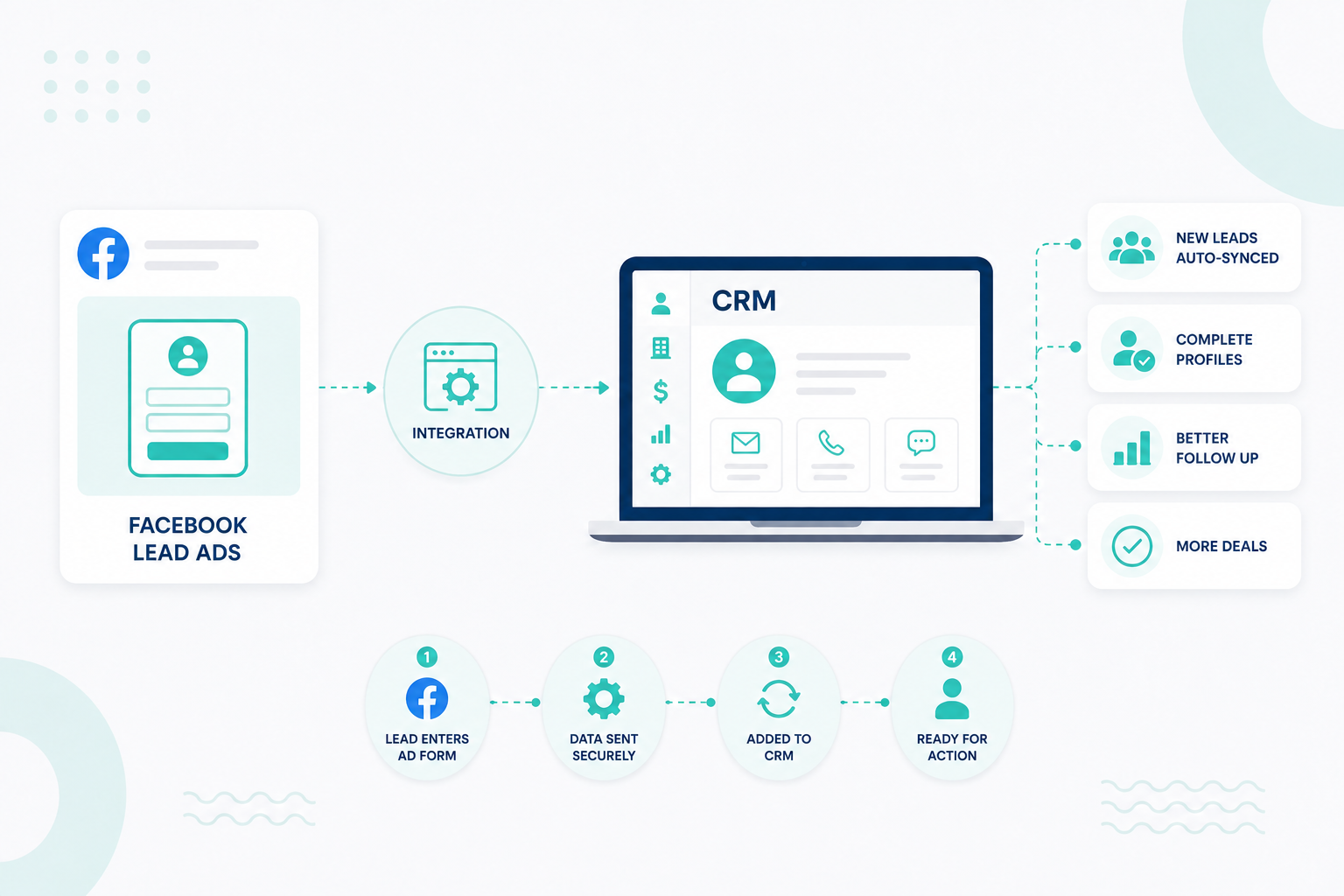
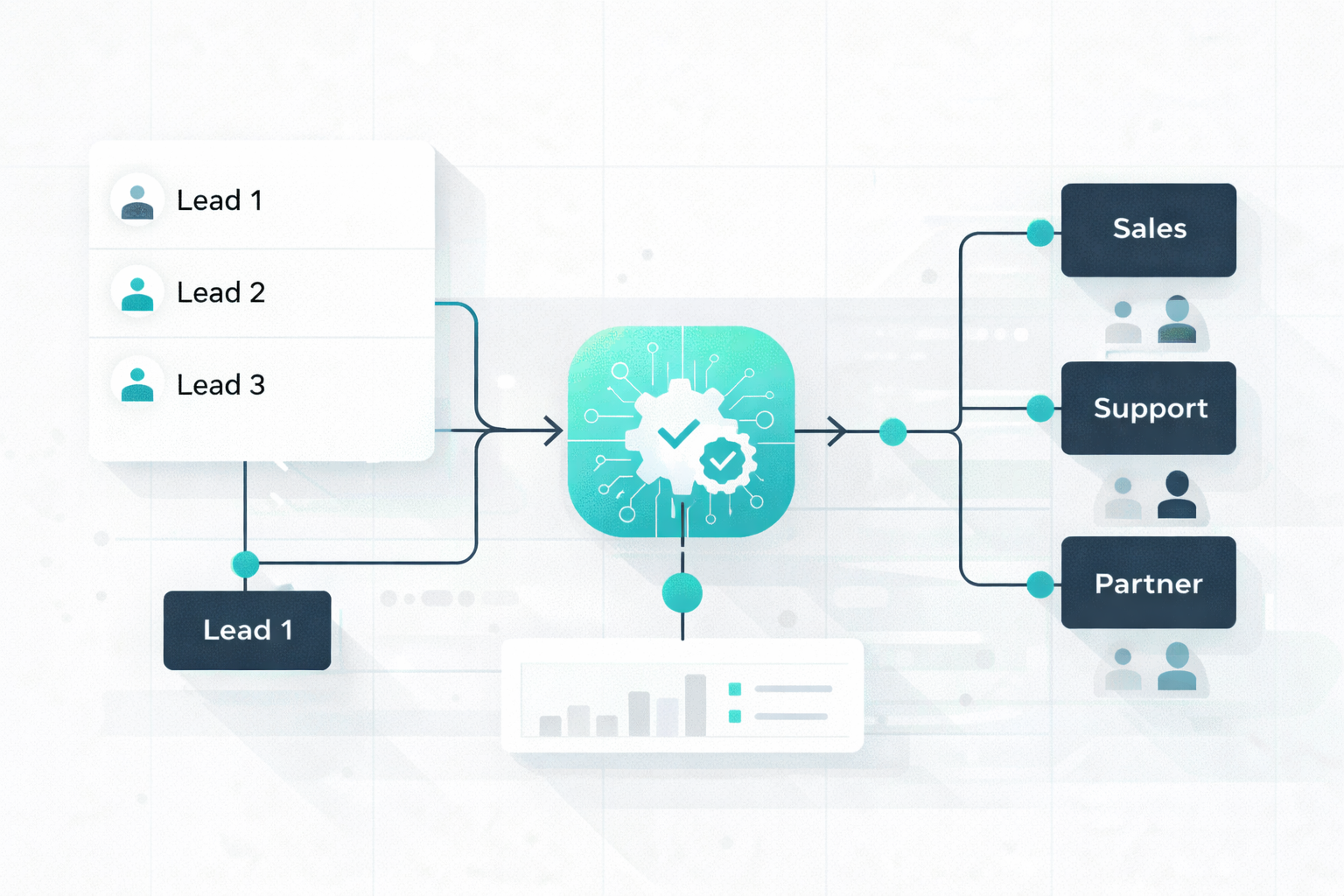
Connecting Lead Ads to a CRM like HubSpot creates a direct path from ad click to customer record. New leads sync into HubSpot, where your team can qualify prospects, route them, automate follow-up, and track what happens after the form submission. HubSpot can also send conversion events back to Meta, so campaigns optimize for outcomes beyond raw lead volume.

This guide covers what Lead Ads collect, why the CRM connection matters, how to set up the HubSpot integration step by step, and what to do with the lead data once it lands.

What Are Facebook Lead Ads?

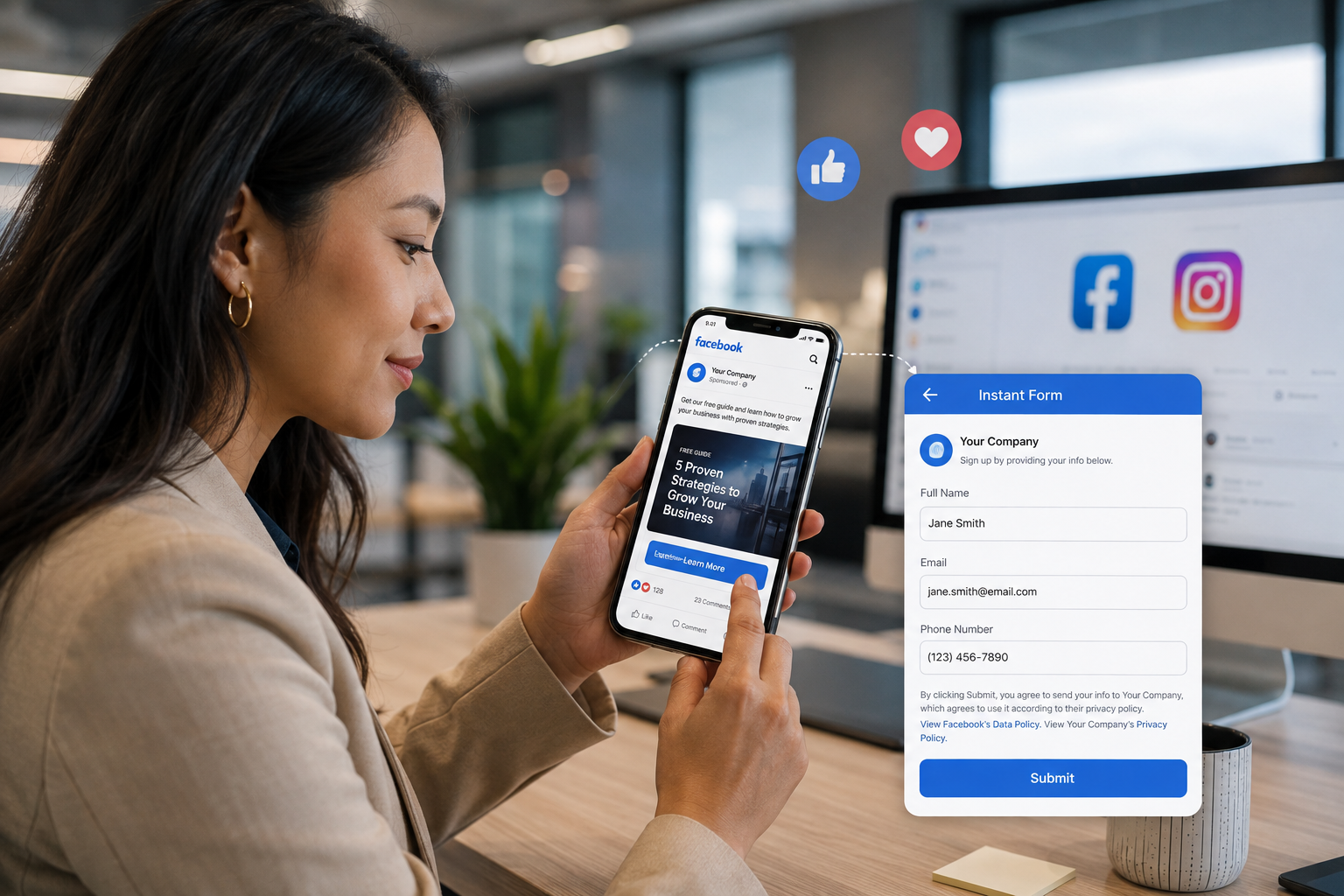
marketing-manager-sitting-at-a-desk-looking-at-a-smartphone-displaying-a-facebook-lead-ad

Facebook Lead Ads are Meta campaigns built to collect prospect information directly inside Facebook or Instagram. The ad can open an Instant Form in the platform, where the person submits details like name, email address, phone number, or answers to custom questions, with no separate landing page involved.

How the Instant Form Flow Works

Someone sees your ad on Facebook or Instagram and taps the call to action. An Instant Form opens inside Meta, often pre-filled with information Meta already has on file, so there is less typing. The person answers your questions and submits. The lead becomes available to your business through Meta's lead tools, a connected CRM, or another connected system, and your follow-up process takes over.

The traditional path runs ad, landing page, website form, confirmation page. Instant Forms cut that to ad, form, submit. That gap matters most on mobile, where every extra step is another chance for someone to drop off.

What Information Lead Ads Collect

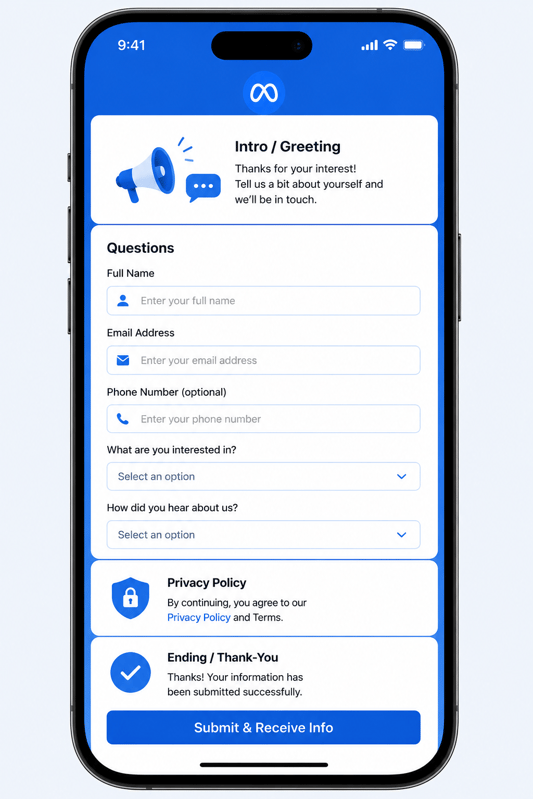
visualization-of-instant-form-meta

Instant Forms handle standard contact fields (name, email, phone number, and/or location) plus custom qualifying questions, and consent fields where privacy rules apply. The exact mix depends on how you build the form. Meta recommends asking questions that improve lead quality over questions that simply maximize submissions.

Examples of qualifying questions include:

  • What service are you interested in?
  • What is your estimated budget?
  • When are you looking to get started?
  • What type of property or project do you need help with?
  • What is your biggest challenge right now?
  • How many employees does your business have?
  • What is the best way to contact you?
  • Have you worked with a provider like us before?

The Four Lead Ad Formats

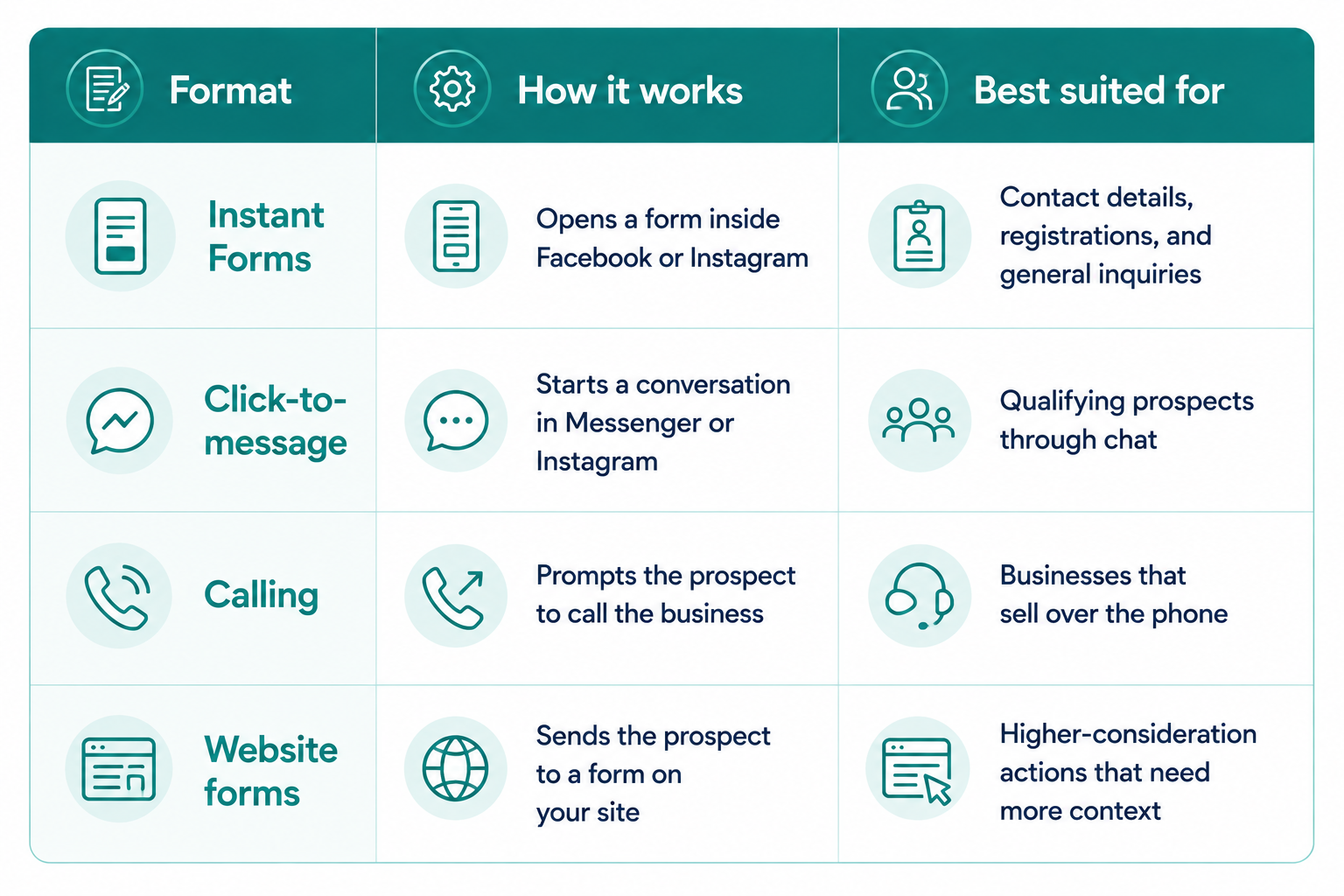
four-lead-ad-formats-meta

Meta positions Instant Forms as the fast, mobile-first option and website forms as the better fit when prospects need more information before acting, such as requesting a quote or booking an appointment.

How Do Lead Ads Differ From Standard Facebook Ads and Landing Pages?

A standard Facebook ad can point anywhere: a website, product page, app, or landing page. A Lead Ad is configured specifically to capture contact information or start a lead conversation. The goal is to have an identifiable lead who can enter your sales process.

Against landing page lead generation, the difference comes down to where the conversion happens.comparison-table-facebook-leads-vs-landing-page-leads

We recommend matching the format to the campaign objective and the level of effort required from the person completing the conversion.

  • Instant Forms when ease of submission matters most, and you want to reduce friction during the lead capture process.
  • Website forms when the offer needs more explanation, requires additional context, or asks for a bigger commitment before someone submits their information.

Why Should You Connect Facebook Lead Ads to Your CRM?

A low cost per lead tells you nothing about lead quality. A CRM connection moves each submission into the system where your team qualifies, routes, and works it, then reports on what it became.

Leads Move Without Manual Exports

With no integration, the process runs: check Meta, export the leads, clean the file, import it, check for duplicates, assign the lead, notify the rep. Every handoff is a chance for a lead to be delayed, duplicated, or lost. Meta's CRM lead retrieval sends new lead data straight into a connected CRM, so nobody has to download anything.

Follow-Up Starts Sooner

A synced lead can create or update a contact, assign an owner, notify the right rep, create a task, and start an email sequence on its own. Sales stops refreshing Ads Manager to check for new submissions. Lead value drops as the gap between inquiry and first response grows, and while the size of that drop varies by industry and buying cycle, speed is a main reason businesses wire lead campaigns into sales systems.

Form Answers Become Qualification Data

Questions about service interest, company size, budget, and timeline land on the contact record and drive what happens next. High-intent leads go to sales, softer ones go to nurture, and clearly unqualified submissions get filtered out. The measure shifts from how many leads the ad produced to which leads are worth a call.

Reporting Extends Past Cost per Lead


Campaign A

Campaign B

Leads

200

100

Cost per lead

$10

$15

Qualified leads

15

30

Customers

3

10

Revenue

$15,000

$50,000

Cost per lead favors Campaign A. Customers and revenue favor Campaign B by a wide margin. Your CRM is what makes that comparison possible, because campaign, ad set, lead status, deal value, and revenue all live on the same record.

Meta Learns Which Leads Convert

Meta's Conversions API connects business marketing data, CRM data included, to its ad optimization systems, so downstream outcomes can feed targeting and measurement.

Meta recommends connecting a CRM to the Conversions API when using the conversion leads performance goal, and reports that advertisers doing so saw, on average, a 15% lower cost per quality lead and a 44% higher rate of converting a lead into a quality lead compared with the standard leads goal.

What Breaks Without the Connection

Marketing sees leads in Meta, sales sees contacts in the CRM, and neither team has the full picture. The symptoms are consistent: slow first response, duplicate records, leads that never get worked, manual data entry, incomplete attribution, unclear lead status, and messy handoffs. All of it compounds as lead volume and campaign count grow.

What Do You Need Before Connecting Facebook Lead Ads to CRMs Like HubSpot?

On the access side, HubSpot's current requirements call for:

  • An active Facebook ad account
  • Admin access to that ad account
  • Admin access to the Facebook Page tied to your Lead Ads
  • Leads Access for that Page
  • The Page and ad account owned by the same Business Manager
  • HubSpot permission to publish and manage ads

On the process side, decide a few things before you switch anything on: which Pages generate leads, which Lead Ad forms should sync, which fields need to reach HubSpot and which properties should hold them, who owns incoming leads, what counts as qualified, what fires immediately after a submission, and which conversion events matter to the business.

Settle those first, and the integration produces structured, workable records. Skip them, and you have simply moved unsorted data from one system to another.

How Do You Connect Facebook Lead Ads to HubSpot?

Link the ad account, turn on lead syncing for the Page behind your Lead Ads, map form fields to HubSpot properties, then test the path end to end.

Step 1: Connect the Facebook Ad Account

In HubSpot, go to Settings, then Marketing, then Ads. Select Connect account and choose Facebook. Facebook opens and asks you to sign in and approve the requested permissions.

Step 2: Select the Ad Account

If you manage several Facebook ad accounts, pick the one you want connected. It needs to be active, and the person connecting it needs the permissions listed above.

Step 3: Turn On Auto-Tracking

HubSpot offers auto-tracking for the connected ad account, which applies its tracking parameters to supported ads so ad interactions can be tied to CRM activity.

Step 4: Connect the Page for Lead Syncing

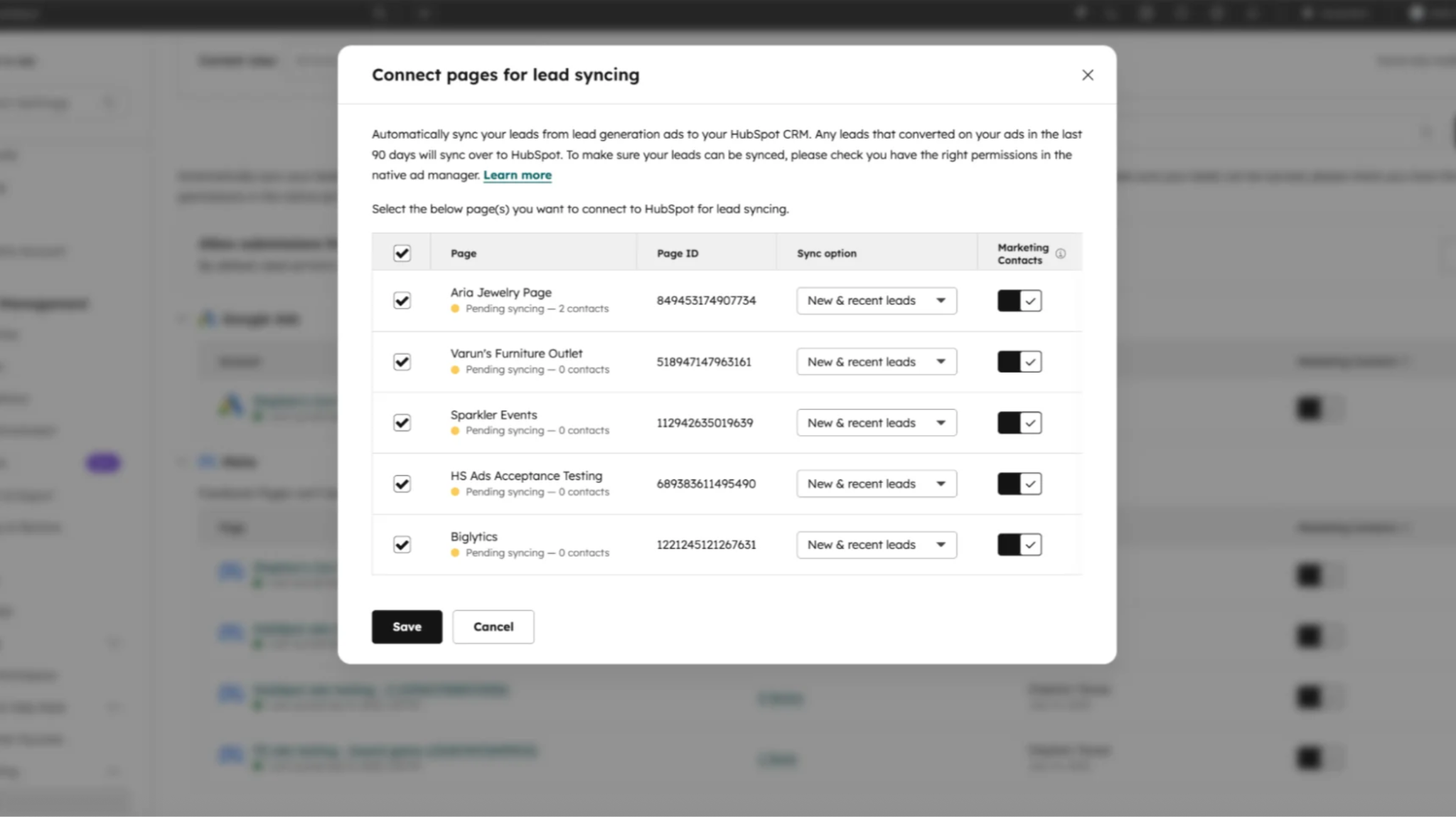
Connecting an ad account does not connect its Pages. Go to Settings, Marketing, Ads, then the Lead syncing tab. Select Connect, choose Facebook, and pick the Page. Your Lead Ads live on a Page, so this is the step that actually turns syncing on for them.

Step 5: Set the Sync Timeframe

Still on the Lead syncing tab, find the Facebook section, select the relevant Page, and choose new leads only or new and recent leads. The recent option can pull submissions from the previous 90 days, which is worth using on a fresh integration so existing lead history comes with you. Save your settings.

Step 6: Review the Field Mapping

HubSpot maps standard Lead Ad fields to matching contact properties.

Facebook Lead Ad field

HubSpot property

First name

First Name

Last name

Last Name

Email

Email

Phone number

Phone Number

Company

Company

Custom question

Lead Ad property

Consent field

Consent information

Custom questions from your form can be created as HubSpot properties inside the Lead Ad Properties property group, then used in lists, filters, and workflows.

That is what turns a form question into routing logic. Ask "What service are you interested in?" and the answer can send SEO inquiries to the SEO team, paid media inquiries to the PPC team, and CRM implementation inquiries to a specialist.

Step 7: Test the Full Path

Submit a test Lead Ad form, then confirm each link in the chain: the lead reaches HubSpot, the contact is created or updated correctly, the submitted answers are recorded, custom fields landed on the right properties, source information is present, the expected notification or workflow fired, and the assigned rep received it.

HubSpot points to Facebook's testing tool for this, and notes that test leads can appear with a Facebook organic lead traffic source. New leads can take up to two hours to sync successfully, so build that window into your test before assuming something is broken.

What Happens to a Facebook Lead Inside HubSpot?

HubSpot records Lead Ad conversions as form submissions and automatically creates matching lead ad forms once syncing is enabled.

hubspot-meta-leads-sync-integration

Each submission creates a new contact or attaches to an existing one, so a name, email, phone number, service interest, and company size become fields your team can filter and act on.

Source and campaign data ride along with the record, which separates a Facebook lead from one that arrived through organic search, Google Ads, a website form, email, a referral, or an event.

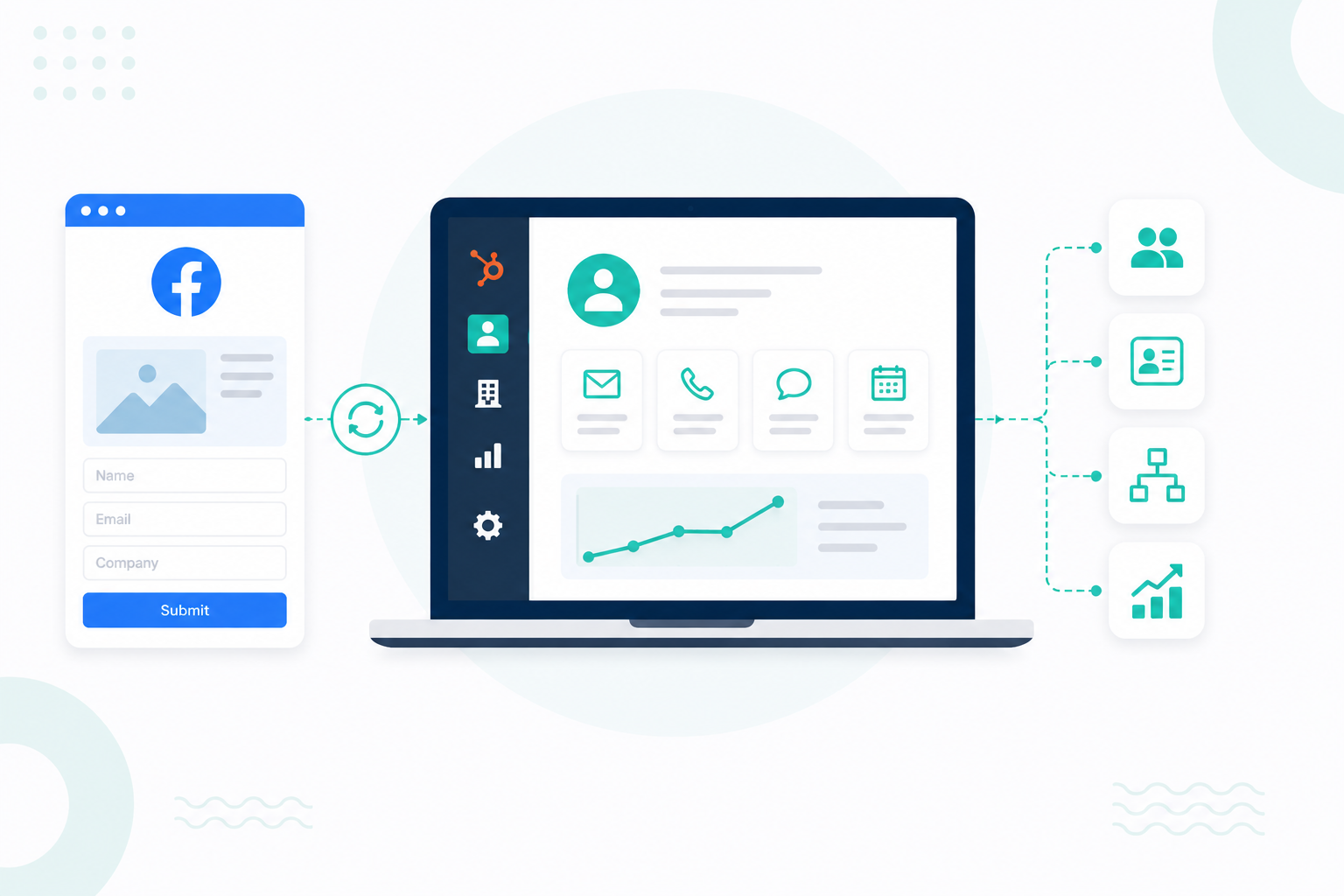
From there, the record is workable. Those form submissions and custom properties can be used in filters, lists, and workflows, so leads can be grouped by service requested, company size, location, budget, industry, buying timeframe, or lifecycle stage. Workflows assign the owner, send the internal notification, create the follow-up task, and start the email sequence, with the available actions depending on your HubSpot subscription.

Lifecycle stages then track movement through the process: new lead, contacted, qualified, meeting booked, opportunity, customer. HubSpot's lifecycle stages categorize contacts by where they sit in the marketing and sales process, and calls, emails, meetings, notes, deals, and revenue accumulate on the same record, giving both teams one shared view.

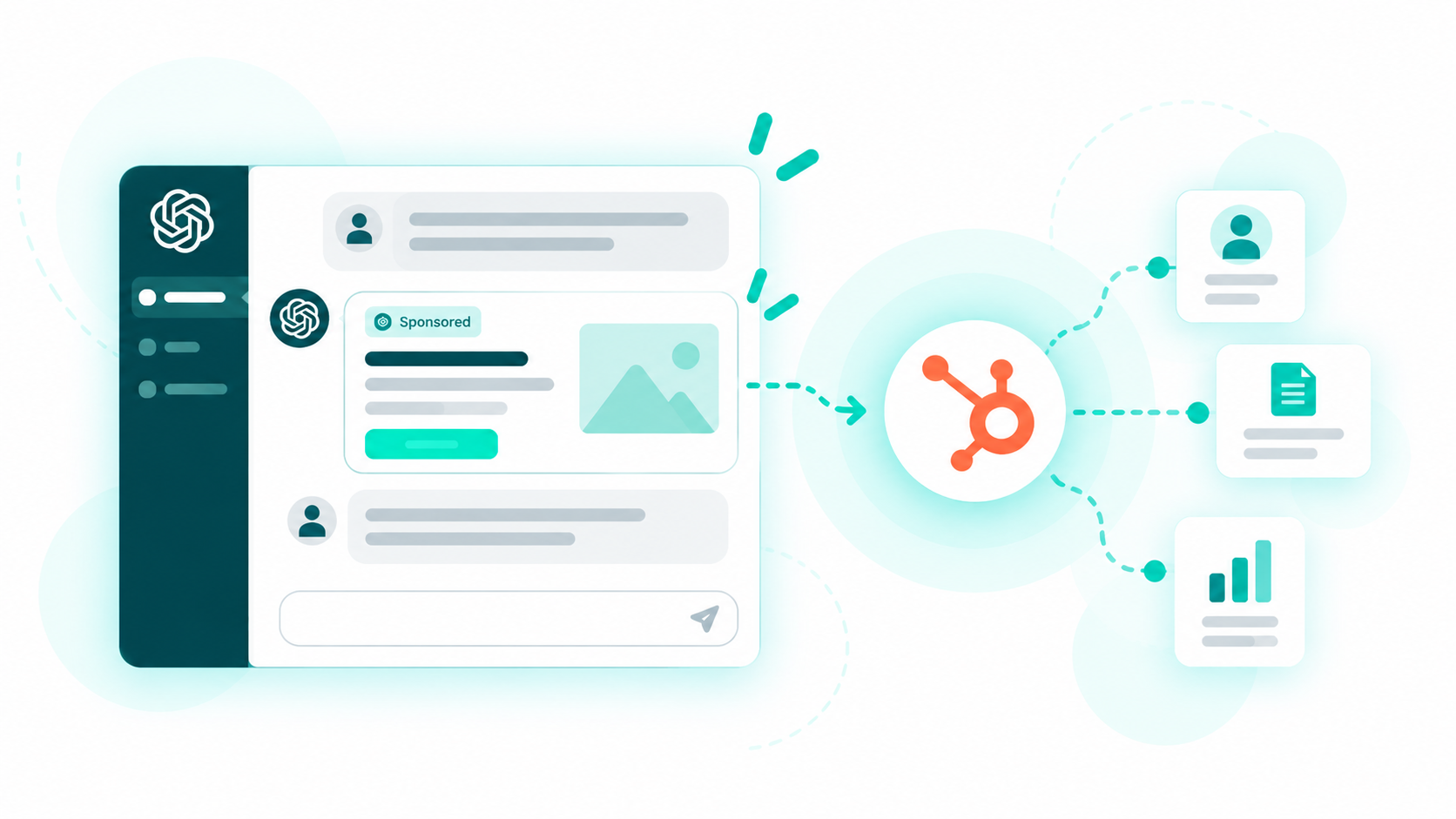
Those closed outcomes are what you send back to Meta. HubSpot's Meta Ads integration supports conversion events including lifecycle stage changes and closed-won deals, which completes the loop from ad to lead to CRM to qualification to sale, and then back into targeting for the next campaign.

Why Are Your Facebook Leads Not Syncing to HubSpot?

Start with permissions and Page configuration. Work through this list:

  • Facebook ad account admin access
  • Facebook Page admin access
  • Leads Access in Business Manager
  • HubSpot Ads permissions
  • Page connected under Lead syncing in HubSpot
  • Page and ad account under the same Business Manager
  • Lead form attached to the connected Page
  • Facebook permissions granted to the HubSpot integration

Two specifics catch most people. A Facebook Page does not connect for lead syncing just because its ad account is connected, and a new-leads-only timeframe will never backfill older submissions. If all of that checks out and the submission is recent, give it the full two-hour sync window before digging further.

Is Facebook Lead Ads CRM Integration Worth It?

If Lead Ads bring in a meaningful share of your prospects, yes. The setup is a one-time cost weighed against ongoing manual exports, slow first responses, thin attribution, and no reliable way to tell a cheap lead from a good one.

HubSpot's native integration covers the core connection, so a third-party connector is not required just to move leads into the CRM. What makes the work pay off is building around the entire path, not the transfer alone: ad, form, CRM, qualification, follow-up, opportunity, customer, conversion data, optimization. That is the line between collecting leads and running a closed-loop acquisition system.

Ready to Connect Your Facebook Leads to HubSpot?

Facebook Lead Ads make it easy to collect prospects, but the real value comes from what happens after someone submits the form. The lead needs to reach HubSpot, land on the right contact record, trigger the right follow-up, and eventually connect back to the revenue it generates.

Campaign Creators helps businesses connect Facebook Lead Ads with HubSpot, so lead data moves into the CRM, sales teams know who to follow up with, and campaign performance can be measured beyond cost per lead. Still managing Facebook leads through spreadsheets or manual exports? That is a good place to start.

See how HubSpot connects your marketing activity to measurable business growth.

Frequently Asked Questions

Can Facebook Lead Ads Create Duplicate CRM Contacts?

Yes. Duplicate handling depends on how your CRM identifies existing contacts and how the integration is configured. Most CRMs match on a unique identifier like email address, so a repeat submitter updates an existing record in place of creating a second one.

Can You Connect Multiple Facebook Pages to One CRM?

Yes. A CRM can sync leads from several Facebook Pages at once, as long as each Page and its connected ad account has the required permissions and configuration.

Can Facebook Lead Ads Capture Leads Without a Website?

Yes. Instant Forms collect submissions inside Facebook or Instagram, so no landing page is needed for the capture itself. You still need a destination for the lead data, which is the role the CRM plays.

Can You Use Facebook Lead Ads With an Existing CRM?

Yes. Lead Ads connect to supported CRMs through native integrations, automation platforms, or a custom build on Meta's lead retrieval.

Can You Connect Facebook Lead Ads to HubSpot Without Zapier?

Yes. HubSpot's native Facebook Ads integration handles Lead Ad syncing on its own, so no third-party connector is required for the basic connection.

How to Use HubSpot's Facebook Ads Integration

How to Use HubSpot's Facebook Ads Integration

Hello everyone, today we have a very special episode of Nick’s Ad Chat - where we talk all things PPC. The lovely people over at HubSpot have given...

Read More
How Do I Set Up My Facebook Business Manager Account?

How Do I Set Up My Facebook Business Manager Account?

Hi guys, this is Nick and I am heading up the PPC and Paid Social Department here at Campaign Creators. I’d like to welcome everyone to a new video...

Read More
Facebook Advertising Advice from Mari Smith

Facebook Advertising Advice from Mari Smith

In this episode of Nick's Ad Chat, he sits down for an exclusive interview with the Queen of Facebook Marketing, Mari Smith.

Read More