




How to Integrate Facebook Lead Ads With Your CRM
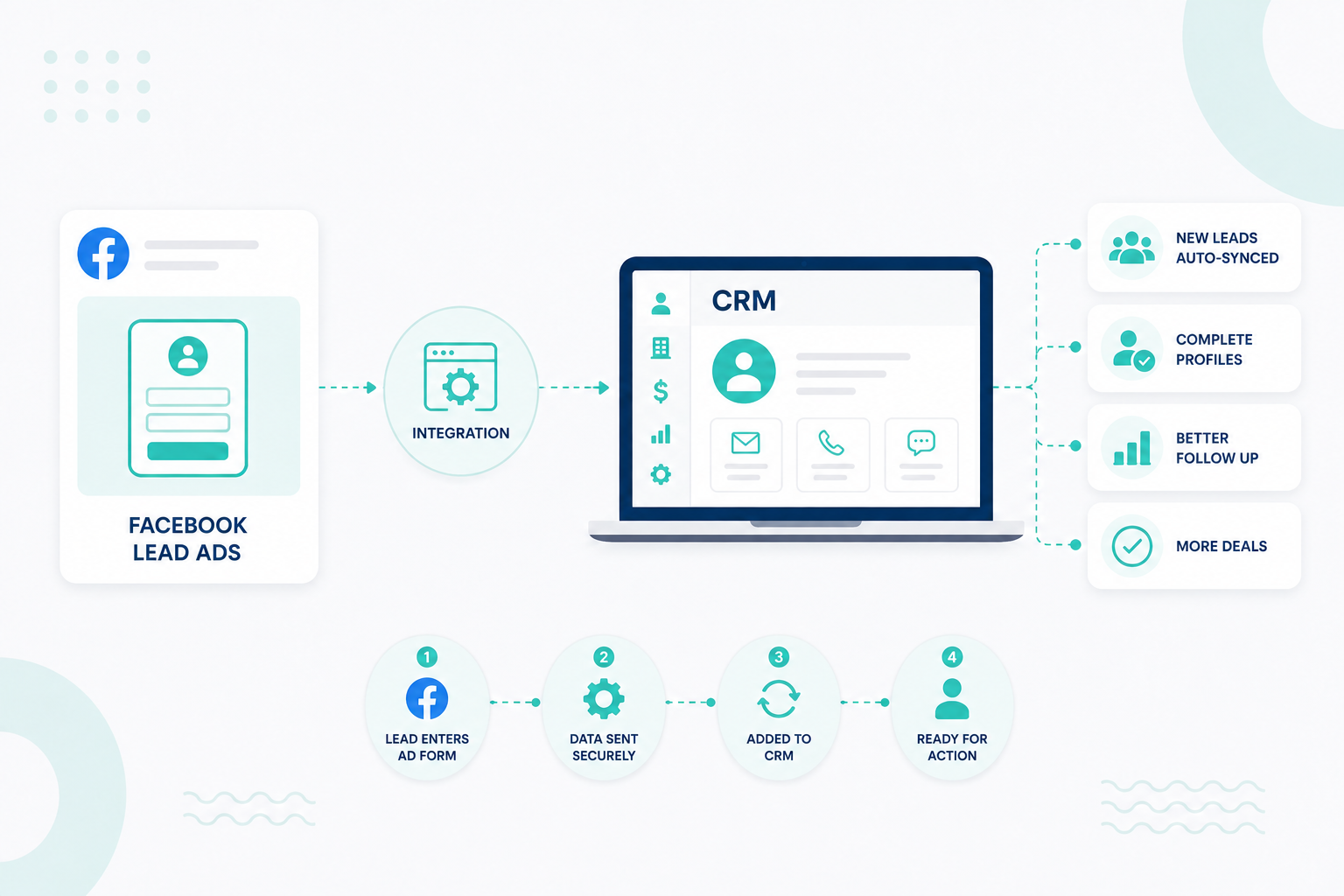
Facebook Lead Ads can produce a steady flow of prospects, but a lead sitting in Meta is not a lead your sales team can work with. Someone still has...
A HubSpot Elite Solutions Partner built to help organizations unify strategy, systems, and execution. We design HubSpot systems that scale.
See how we've solved complex HubSpot challenges across migrations, integrations, CMS, automation, and optimization.
Join a team building smarter HubSpot systems. We value strategic thinkers who move proactively, care about quality, and want to do meaningful work.
Free assessments, knowledge, and expert content for your HubSpot.
HubSpot's native Facebook Ads integration connects a Meta ad account to your CRM so you can report on campaigns, apply HubSpot tracking to supported ads, sync Facebook Lead Ad submissions into contact records, build Meta audiences from HubSpot data, and send conversion events back to Meta for ad optimization.
This article covers what the integration does, how to connect it, how tracking and lead syncing actually work, where the limits are, and how to get more out of it once it is running.

Once a Facebook ad account is connected, HubSpot becomes the CRM and reporting layer around your Meta advertising. The integration covers five jobs:
Facebook reaches people and generates leads while HubSpot holds the context about what those people do next, and it can feed part of that context back to Meta.
Access varies by subscription. Reporting and tracking are available across Marketing Hub tiers. Lookalike audiences and Conversions API events require Marketing Hub Starter or above, and Marketing Hub Enterprise adds the ability to limit which users can access specific ad accounts.
Before you start, check that:
To verify your Facebook access, go to Business Manager → Accounts → Ad Accounts, select the ad account, and confirm your user has Manage Ad Account enabled.
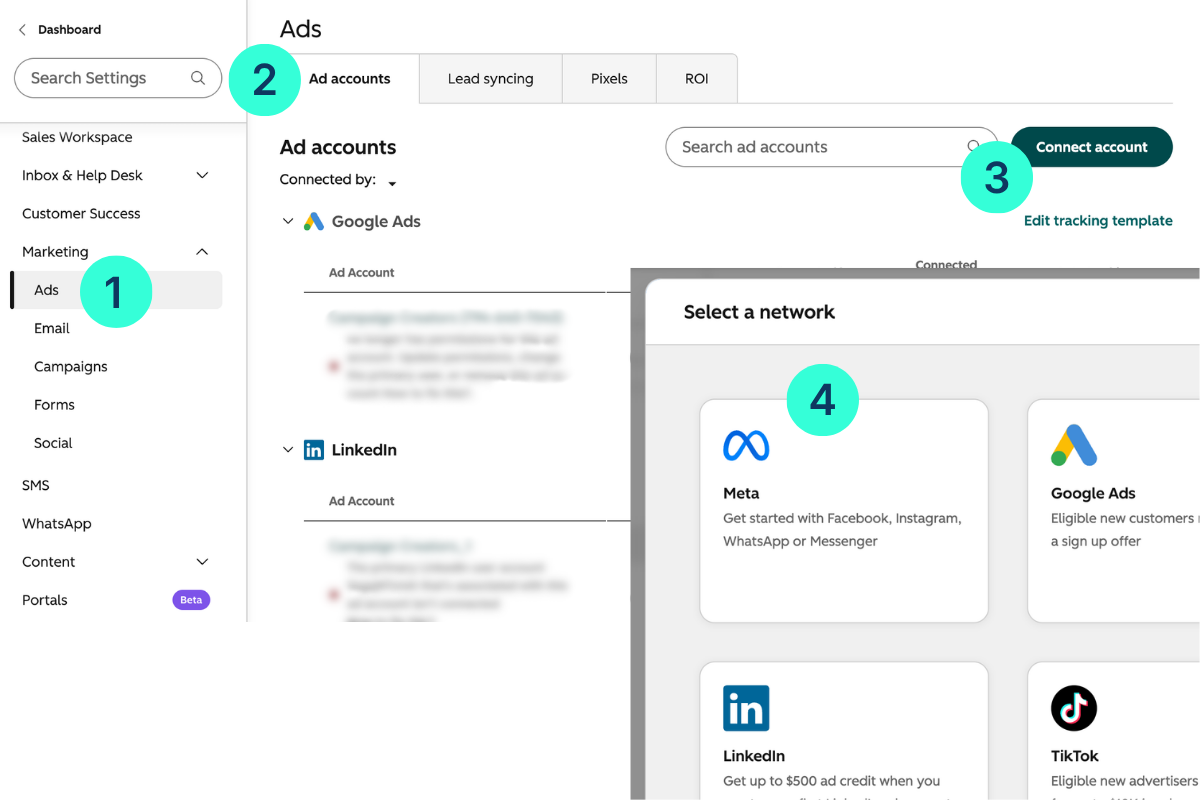
In HubSpot, go to Settings ⚙️ → Marketing → Ads → Ad Accounts, then click Connect account and choose Meta/Facebook.

You can reach the Ads tool itself through More → Marketing → Ads. On first setup, HubSpot walks you through account connection and lead syncing together.
HubSpot opens a Facebook login and permissions window. Sign in with the Facebook user that has access to the ad account, review the requested permissions, and click Continue.
Turn on every permission HubSpot requests. Lead syncing and campaign creation both depend on page-level and lead-level access, and a single toggle left off is one of the most common reasons setup appears to succeed, but leads never arrive. Facebook shares campaign settings and performance metrics for all campaigns in the accounts you connect.
HubSpot lists the ad accounts available to your Facebook user. Select the checkbox next to the account you want, then click Connect.
Existing campaigns sync to the Ads dashboard shortly after. Deleted campaigns will not appear there, so historical reporting is limited to campaigns that still exist in Meta.
During setup, HubSpot offers an auto-tracking option. Leave it enabled if you want contact attribution. Auto-tracking applies HubSpot's UTM parameters to all supported ad types in the account, which is what connects an ad click to a later session and conversion.
Turning it off limits you to Facebook's own performance metrics inside HubSpot, with no link between ads and contact records.
Connecting the ad account does not turn on lead syncing. Go to Settings ⚙️ → Marketing → Ads → Lead syncing → Connect → Facebook, select the Facebook Page, choose a sync timeframe, and save.
The Page and the ad account must be owned by the same Business Manager, and the connected Facebook user needs Page admin access plus Leads Access. In the Page's CRM setup inside Facebook, HubSpot also needs to be selected as the connected CRM.
Return to Settings ⚙️ → Marketing → Ads → Ad Accounts and check that the account shows as connected with campaigns visible in the dashboard. Then open the Lead syncing tab and confirm the Page appears with syncing enabled.
Before you spend real budget, submit a test lead through Meta's Lead Ads Testing Tool and watch it land in HubSpot. That single check catches most permission and mapping problems while they are still cheap to fix.
HubSpot tracks ads by appending UTM parameters to the ad's destination URL. When someone clicks, those parameters travel with them to your site, where the HubSpot tracking code ties the session to a contact record on conversion.
The parameters HubSpot applies identify the Facebook source, the paid medium, the campaign name, the ad set, and the ad ID. One thing to watch: if you rename a campaign in Meta, the utm_campaign value in HubSpot's tracking template does not update automatically. HubSpot keeps tracking the ad, but any downstream system reading that parameter will still see the old name.
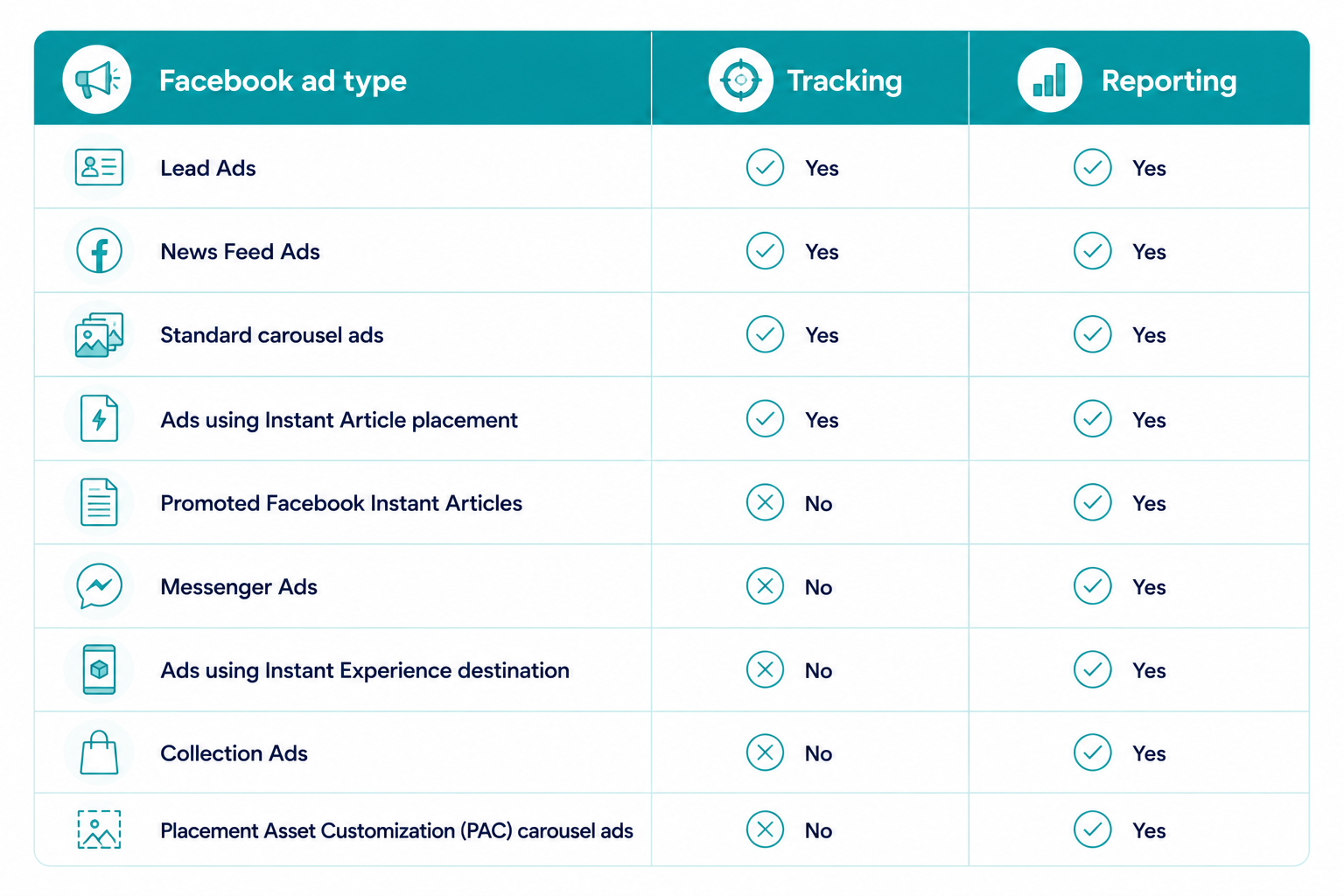
These two capabilities are easy to confuse, and the difference decides what questions you can answer.
An unsupported ad format can still show clicks and impressions in HubSpot while producing zero attributed contacts. For contact attribution to work, a new contact needs to click the ad, reach a tracked web session, and then submit a form and convert on a page carrying the HubSpot tracking code.
If an ad does not send someone to an external website, HubSpot has nowhere to put a tracking parameter.

Two additional exclusions matter. Facebook campaigns using Outcome-Driven Ad Experiences with the OUTCOME_LEADS objective are not tracked. Advantage+ campaigns are a live question: HubSpot's ad tracking documentation lists them as trackable, while the Ads FAQ lists them as unsupported. If Advantage+ is central to your media plan, confirm the current behavior in your own portal before you build reporting around it.
Lead form submissions still sync even when the ad format cannot be tracked, so an untracked lead ad campaign will keep producing contacts. It just will not produce attribution.
Tracking depends entirely on the destination URL surviving intact. The final URL in the ad must:
So https://www.example.com/demo works. A bit.ly link, or a URL that bounces through two redirects before arriving, does not. If the landing page lives outside HubSpot, install the HubSpot tracking code on it. HubSpot-hosted pages include it by default.
You get two options:
Choose carefully, because this setting is locked once the Page is connected. Changing it means disconnecting the Page and reconnecting it with the other option. One quirk to expect with historical leads: those backfilled 90 days of contacts will not appear in the New contacts metric of the Influenced first form submission attribution report, because of the gap between the original submission and the contact's creation date in HubSpot.
When lead syncing is on, HubSpot creates matching versions of the Page's active lead ad forms. These do not show up in HubSpot's regular Forms tool, which surprises most people the first time. Their submissions are still fully usable across segmentation, lists, filters, and workflows.
To review one, go to Settings → Marketing → Ads → Lead syncing → [Facebook Page] → Forms → [form]. From the panel, View submissions opens the submission data in the Forms tool.
Go to Marketing → Ads → Create audience → Contact segment, then:
A segment needs at least 20 contacts to be usable for targeting, and HubSpot recommends 1,000 or more for reliable performance.
Go to Marketing → Ads → Create audience → Website visitors, select your Meta pixel, and define the inclusion criteria. Depending on subscription, you can narrow to specific landing pages, website pages, blog pages, or URLs, which makes page-level retargeting practical: visitors to a pricing page, for example, get a different ad from visitors to a blog post.
The default window is the previous 60 days, with longer timeframes available on qualifying Marketing Hub plans.
Once a website visitor or contact segment audience has synced to Meta, go to Marketing → Ads → Create audience → Lookalike, select the source audience, choose the target location, and create it. HubSpot then sends the lookalike to Meta. This is available with Marketing Hub Starter, Professional, and Enterprise.
A HubSpot segment of 5,000 contacts rarely becomes a Meta audience of 5,000. Matching drops off for several reasons at once:
A match rate well below 100% is normal. Judge audience health by trend and by cost per result, not by how closely the Meta number tracks your CRM count.
Meta's Conversions API lets HubSpot report CRM outcomes back to the ad platform, which gives Meta better signals to optimize against than a raw form fill.
To create an event, go to Marketing → Ads → Create → Event, choose Meta as the network, select the connected ad account, and pick a trigger: Form Submission, Lifecycle stage change, or Page view.
For form submissions, you select a HubSpot form, map it to a Meta conversion event, and optionally include extra context such as predictive lead score data and event value. For lifecycle stage events, you select the stages to send and decide which contacts qualify: everyone who reaches the stage, or only contacts who reached it after interacting with a HubSpot-tracked ad.
Lifecycle events are where this gets useful. A campaign optimized toward "became a lead" and a campaign optimized toward "became a sales qualified lead" will spend money on different people. Sending the deeper stage gives Meta a definition of success that matches yours.
Three limits shape how you set this up:
The practical takeaway: build your conversion events before launch, not after you notice the reporting gap.
Because they measure different things with different rules, and the gap is expected.
HubSpot's contact attribution requires a specific chain of events: an ad click, a tracked web session, and a form conversion on a page with the tracking code. It then applies its own attribution models to assign credit. Meta measures against its own system, including view-through activity and modeled conversions that never touch your website.
Three specific sources of mismatch come up most often:
Treat Meta as the source of truth for delivery and spend efficiency, and HubSpot as the source of truth for what happened to those people afterward.
HubSpot's Ads tool connects supported Facebook activity to your CRM. It does not replicate Meta Ads Manager, and capabilities that depend on Meta's API can lag or stay unavailable.
Authentication expiry, permission changes, and Meta-side issues can all break a connected account. HubSpot notifies you when an ad account becomes inaccessible and escalates to Super Admins if the problem persists.
Reconnecting does not erase what you already collected. Previously created audiences can become available again once the ad network pixel is reinstalled, provided the audience still exists on Meta's side. Leads generated during the outage can sync retroactively after reconnection.
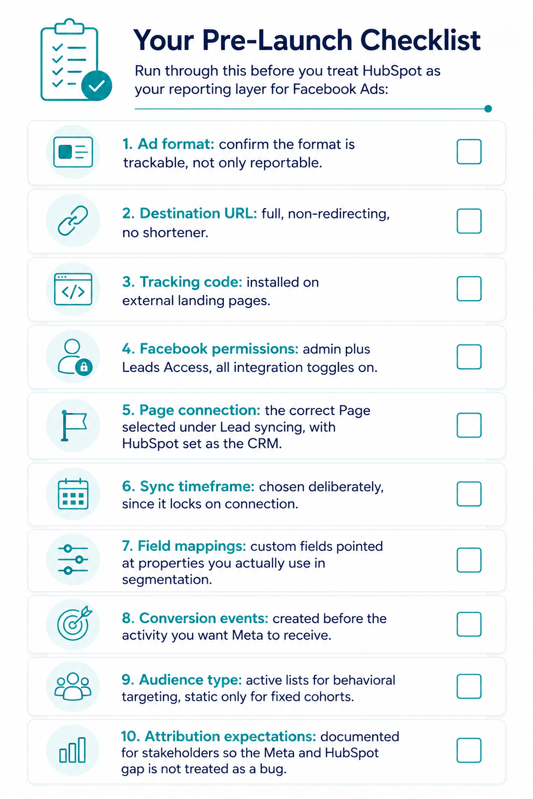
Run through this before you treat HubSpot as your reporting layer for Facebook Ads:

Every item on the list points to the same principle: Your HubSpot reporting depends on how well your campaign setup, URLs, forms, permissions, and CRM structure work together.
If Facebook Ads currently runs separately from your CRM, start by connecting the ad account and testing lead syncing from end to end. Confirm that your landing pages also have the required tracking code.
Once attribution works correctly, you can add audience syncing and Conversions API events. These features build on the tracking foundation and help connect ad activity to what happens after the click.
Campaign Creators helps HubSpot users set up the full advertising workflow. This includes account connection, lead syncing, audience management, and conversion tracking. Our goal is to connect your paid advertising activity with the customer data and actions that follow.
Yes. After connecting your ad account, HubSpot's Ads tool supports creating and managing Facebook lead ad and website traffic campaigns.
Yes. Existing campaigns sync automatically to the Ads dashboard, though ads with 20 or more engagements at the time of connection will not receive HubSpot tracking without a manual workaround.
Yes. You can pause active campaigns or individual ads from Marketing → Ads.
No. Campaign deletion has to happen in Meta Ads Manager, and deleted campaigns no longer appear on the HubSpot Ads dashboard.
Yes. Submissions sync as HubSpot form submissions with associated contact records, once lead syncing is enabled for the Page.
Yes. Meta's Lead Ads Testing Tool submits test leads so you can confirm the data reaches HubSpot and maps to the right properties.
Yes. Custom fields are created automatically as single-line text properties in the Lead Ad Properties group, and you can remap them to existing properties for new leads.
Meta can only match contacts with a usable identifier and an active Facebook account, and HubSpot excludes non-marketing contacts from the sync.
Facebook Lead Ads can produce a steady flow of prospects, but a lead sitting in Meta is not a lead your sales team can work with. Someone still has...
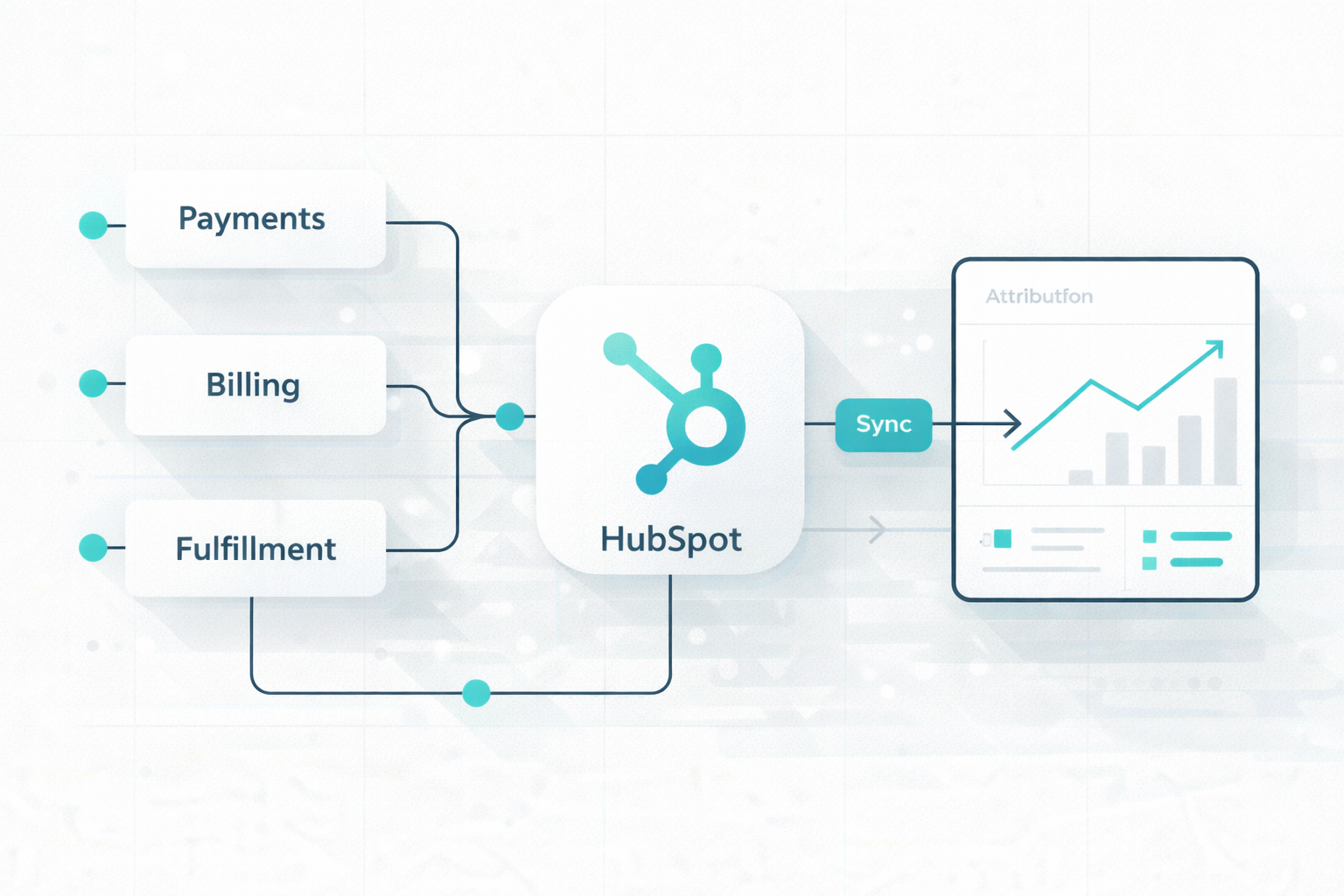
Many companies rely on multiple platforms to manage customer information, orders, shipping activity, and post-purchase communication. Problems emerge...
The modern enterprise tech stack has shifted from a single system to a mix of specialized SaaS tools. That shift creates a problem: CRM, payments,...