






10 min read
How to Build a Closed-Loop Customer Feedback System Using HubSpot and Jira
Campaign Creators
:
08/06/26
Collecting customer feedback is easy. Turning that feedback into real product improvements is where many teams get stuck. Requests end up across emails, support tickets, chat messages, spreadsheets, and engineering backlogs. As a result, support, product, and engineering teams don't always have the same information. Feedback gets overlooked or duplicated, and customers often never know if their input made a difference.
A closed-loop feedback system solves this problem by connecting every step of the process. HubSpot keeps customer conversations, support tickets, and communication in one place. Jira helps engineering teams plan and manage development work. When you connect the two, feedback moves through a shared process where it is prioritized, built, and tracked without manual updates between teams.
This article shows you how to build a closed-loop feedback system using HubSpot and Jira. You'll learn how to manage feedback, automate handoffs between teams, and keep customers updated as requests move from idea to implementation.
Key Takeaways
- A closed-loop feedback system collects, reviews, resolves, and follows up on customer feedback in one connected process.
- HubSpot can capture feedback and own customer communication while Jira tracks engineering work and product development.
- It is best to create Jira issues only for feedback that needs engineering work, like bugs, feature requests, and technical improvements.
- Shared workflows and synced updates keep support, product, and engineering aligned across the full lifecycle.
Why You Need a Closed-Loop Customer Feedback System
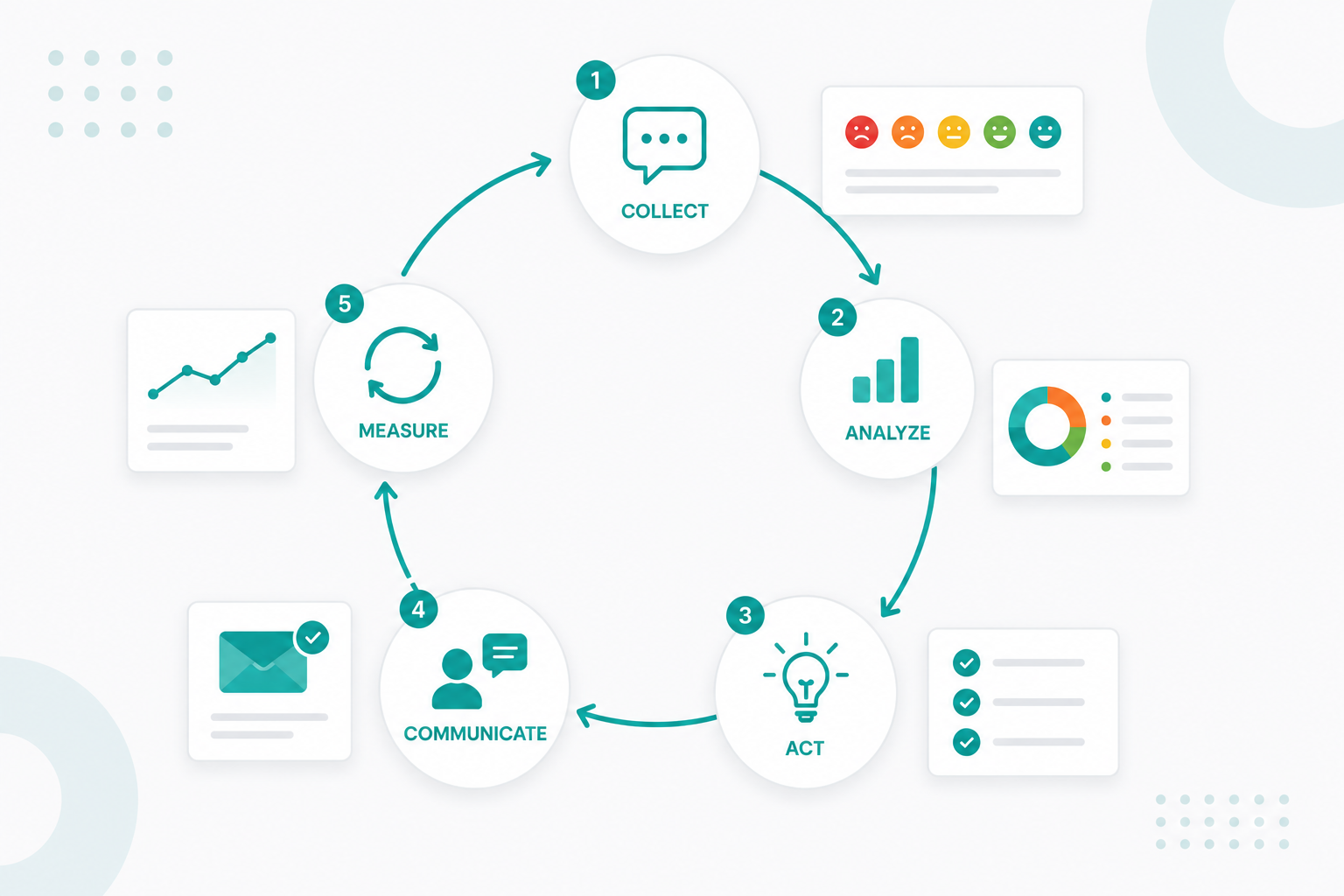
A closed-loop customer feedback system turns customer feedback into product improvements and makes sure customers know their input led to action. Every request is captured, reviewed, assigned, resolved, and communicated back to the customer. It creates a repeatable process that improves both your product and the customer experience.
This process also helps build stronger customer relationships. In fact, 93% of customers are likely to make repeat purchases from companies that offer excellent customer service.
Many companies collect feedback, but few act on it consistently. When feedback is spread across disconnected tools, customers submit the same request multiple times, support teams spend time chasing updates, and product teams lack the context they need to prioritize work. HubSpot also notes that asking for feedback without acting on it can weaken customer trust and make people less likely to share feedback in the future.
The final step is what makes a closed-loop feedback system different from simply collecting feedback. After a bug is fixed or a new feature is released, your team can let customers know their feedback helped shape the outcome. This follow-up builds trust, shows customers they're being heard, and encourages them to keep sharing ideas that improve your product.
How Does HubSpot and Jira Divide the Work
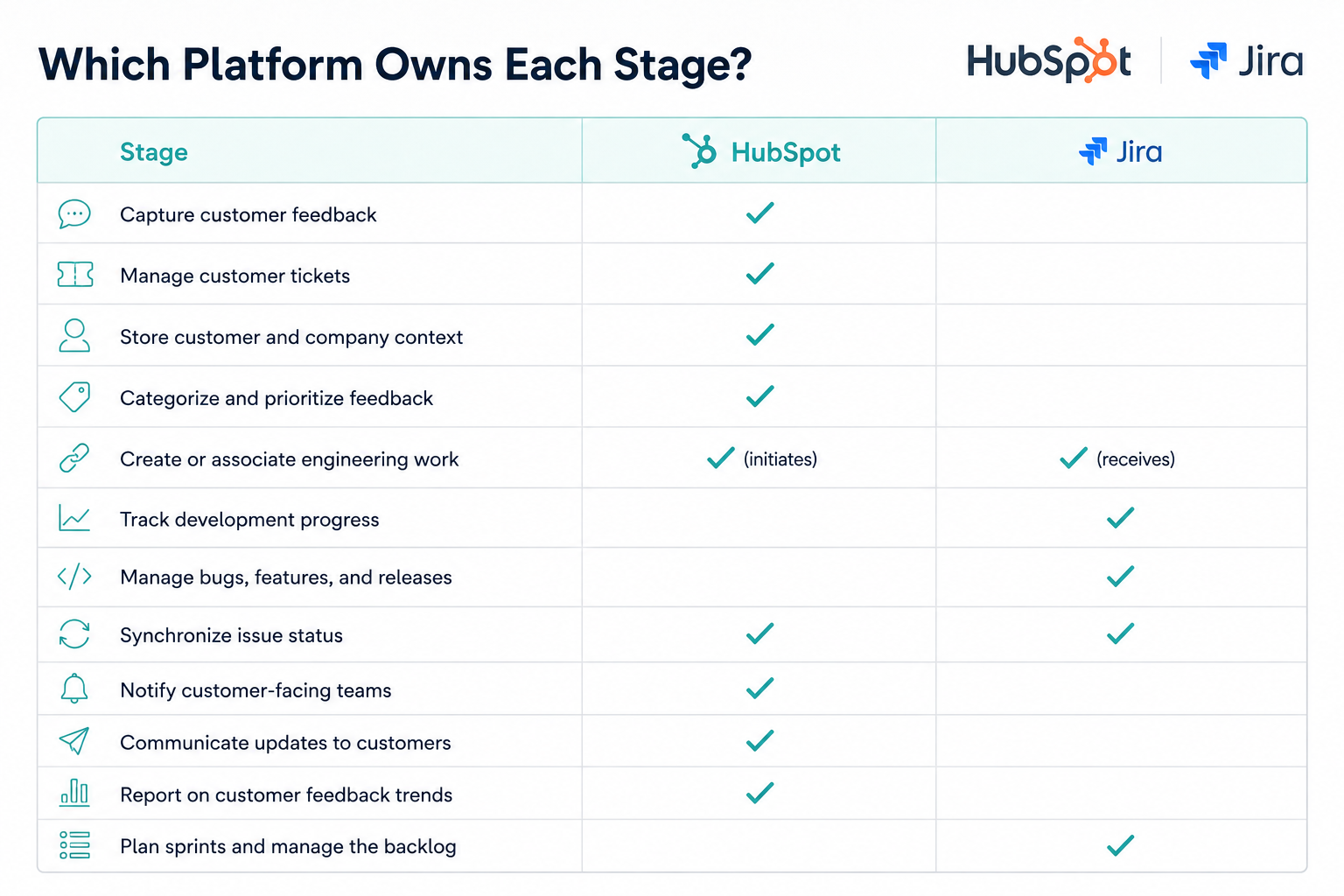
HubSpot is the system of record for customer interactions, support tickets, and customer communication. Jira is the system of record for engineering work, product development, and issue tracking. The native integration connects the two, so feedback reaches engineering with full context and engineering progress flows back to customer-facing teams automatically.
Each team keeps working in the tool built for its job. Support, customer success, and product stay in HubSpot. Engineering stays in Jira.

How Information Moves Between the Two Platforms
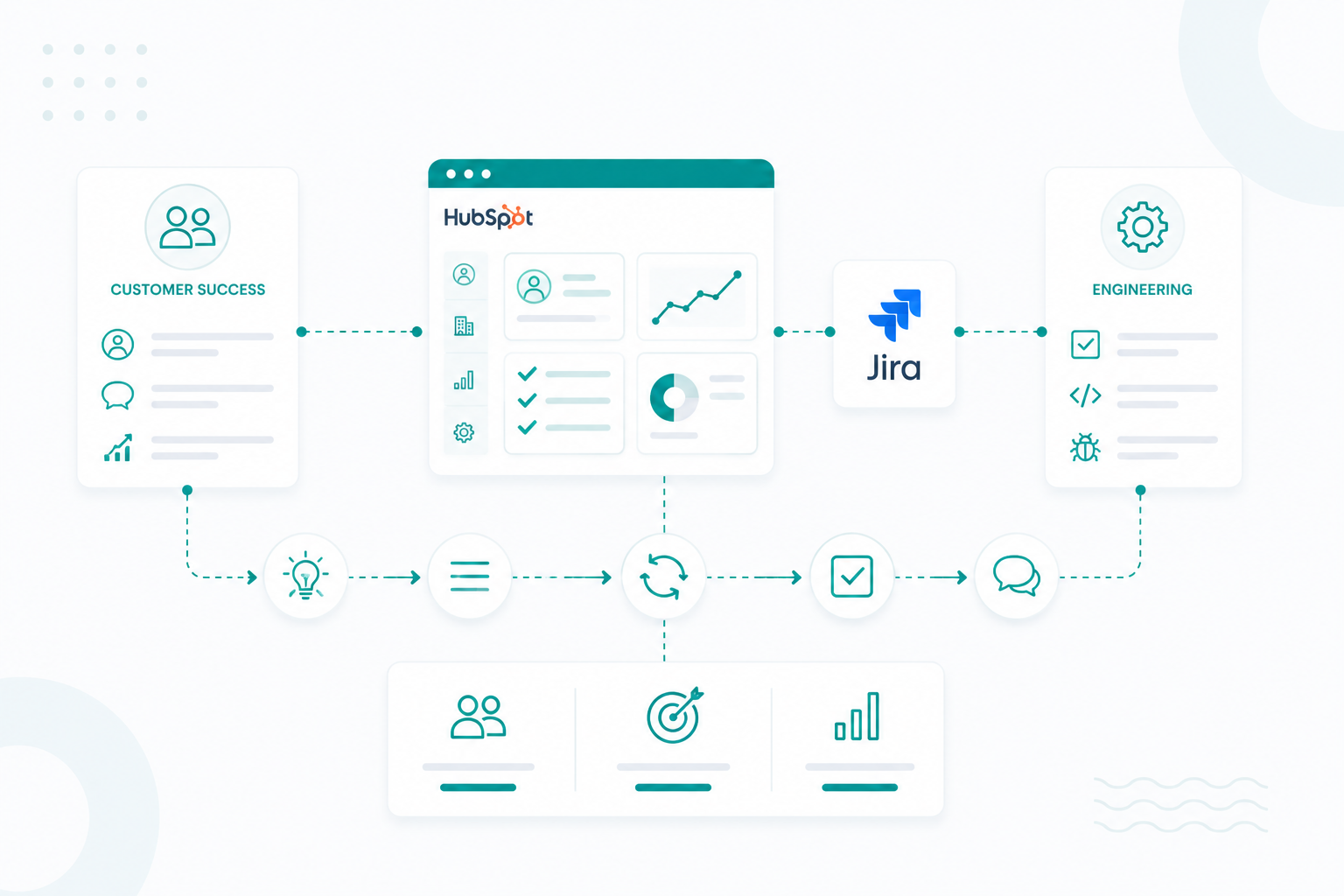
A customer submits feedback through a ticket, chat, form, or survey. Support verifies it, then creates a Jira issue from the ticket or links the ticket to an existing issue. Priority, business impact, attachments, and custom ticket properties map to Jira fields, so engineering starts with what it needs. As developers update the issue, synced statuses and comments appear on the linked HubSpot ticket. When the work is complete, HubSpot workflows update ticket status, assign follow-up tasks, and notify affected customers.
Sync runs one-way or bi-directionally depending on your configuration, and ticket pipelines can map to Jira workflows so engineering progress shows up in HubSpot. Ticket status currently syncs from Jira to HubSpot.
What Does the Closed-loop Lifecycle Look Like End-to-End?
Every piece of feedback follows the same path. HubSpot handles the customer side, Jira handles the build, and automated sync keeps both systems current.

One detail makes this scale: Multiple HubSpot tickets can link to a single Jira issue. Product teams get an accurate read on customer impact, and the engineering backlog stays clean.
What Do You Need Before Building a Closed-Loop Feedback System?
You need a supported HubSpot account, a Jira Cloud workspace, admin permissions in both, and an agreed-upon internal process for how feedback gets captured, reviewed, escalated, and communicated.
Technical Requirements
The native integration requires a supported HubSpot account and Jira Cloud. Customer-hosted Jira Server and Data Center instances are not supported. Setup requires Super Admin or App Marketplace permissions in HubSpot plus the matching admin permissions in Jira.
Several capabilities depend on your HubSpot subscription tier, including creating Jira issues from workflows, workflow automation, custom reporting, and advanced field mappings. Confirm your plan before designing workflows around them. (HubSpot Knowledge Base)
Prepare your HubSpot Environment
- A Service Hub ticket pipeline for customer feedback
- Standardized ticket stages
- Custom ticket properties for feedback type, priority, product area, severity, and business impact
- Clear ticket ownership rules
- Ticket workflows for review and approval
Standardized properties beat free-text descriptions here. They make filtering, workflow triggers, Jira field mapping, and product trend reporting possible later.
Prepare your Jira Environment
- A project for bugs, feature requests, and product improvements
- Appropriate issue types
- Workflow statuses that match your engineering process
- Priority levels
- Required custom fields
- Permission rules for developers and product managers
Defining these before sync begins prevents mapping problems and manual cleanup afterward.
Map your Fields Before Syncing
|
HubSpot ticket property |
Jira issue field |
|
Ticket name |
Summary |
|
Description |
Description |
|
Priority |
Priority |
|
Product area |
Component or custom field |
|
Severity |
Priority or custom field |
|
Business impact |
Custom field |
|
Ticket link |
URL field |
|
Customer context |
Description or custom fields |
Good mappings mean engineering can investigate without asking support for more information. Custom field mappings are supported on eligible HubSpot plans.
Decide what Syncs
Not every record and field needs to move between systems. Settle these six questions first:
- Which HubSpot tickets create Jira issues
- If sync runs one-way or bi-directionally
- Which ticket pipeline maps to each Jira project
- How ticket stages correspond to Jira workflow statuses
- Which notes and comments sync
- Which platform wins when values conflict
Settling this early prevents duplicate issues, wasted engineering cycles, and mismatched data. HubSpot supports sync filters so only qualifying tickets create issues, plus conflict resolution rules for competing values.
Assign Ownership for Every Stage
Automation moves work between teams. It does not decide who owns each stage, so agree on that before you turn anything on.
|
Team |
Owns |
|
Customer Support |
Capture and verify feedback, gather reproduction steps, create and update the HubSpot ticket |
|
Product Management |
Review requests, prioritize, decide which ones need engineering |
|
Engineering |
Investigate, build, test, and resolve the Jira issue |
|
Customer Success or Support |
Notify customers when the fix ships, then gather follow-up feedback |
With your tools, workflows, and ownership in place, you can start building your closed-loop feedback system. Follow the steps to connect HubSpot and Jira and automate the feedback process.
How to Capture and Organize Customer Feedback in HubSpot
Capture every submission as a structured Service Hub ticket, not a line in an inbox, chat thread, or spreadsheet. Tickets give feature requests, bug reports, and product suggestions an owner, a status, and full customer context, which gives your team one place to review and prioritize before anything reaches Jira.
1. Standardize How Feedback is Categorized
Create custom ticket properties that classify each submission:
- Feedback type (bug, feature request, improvement, question)
- Product or feature area
- Impact or severity
- Customer segment
- Priority
- Source (support ticket, survey, chat, sales call, customer success)
Structured properties make it far easier to filter, report, automate, and identify which requests belong in the product backlog.
2. Capture Feedback from Every Touchpoint
HubSpot can create tickets automatically from support forms, emails, live chat conversations, feedback surveys, and Help Desk interactions. Because every ticket associates with the customer's CRM record, support and product can see history, company, past conversations, and open issues before deciding how to handle the request.
3. Consolidate Duplicates Before Escalating
Review each request for completeness and check for existing reports. When several customers report the same bug or ask for the same feature, consolidate them under a single ticket or linked request. Product teams get a clearer read on demand, and engineering avoids duplicate work.
4. Define the Ticket Lifecycle
Set consistent stages before you connect Jira. For example: New → Under Review → Approved for Product Review → Ready for Jira. Everyone then knows which requests are ready for engineering, and nothing valuable sits unnoticed.
When Should Customer Feedback Become a Jira Issue?
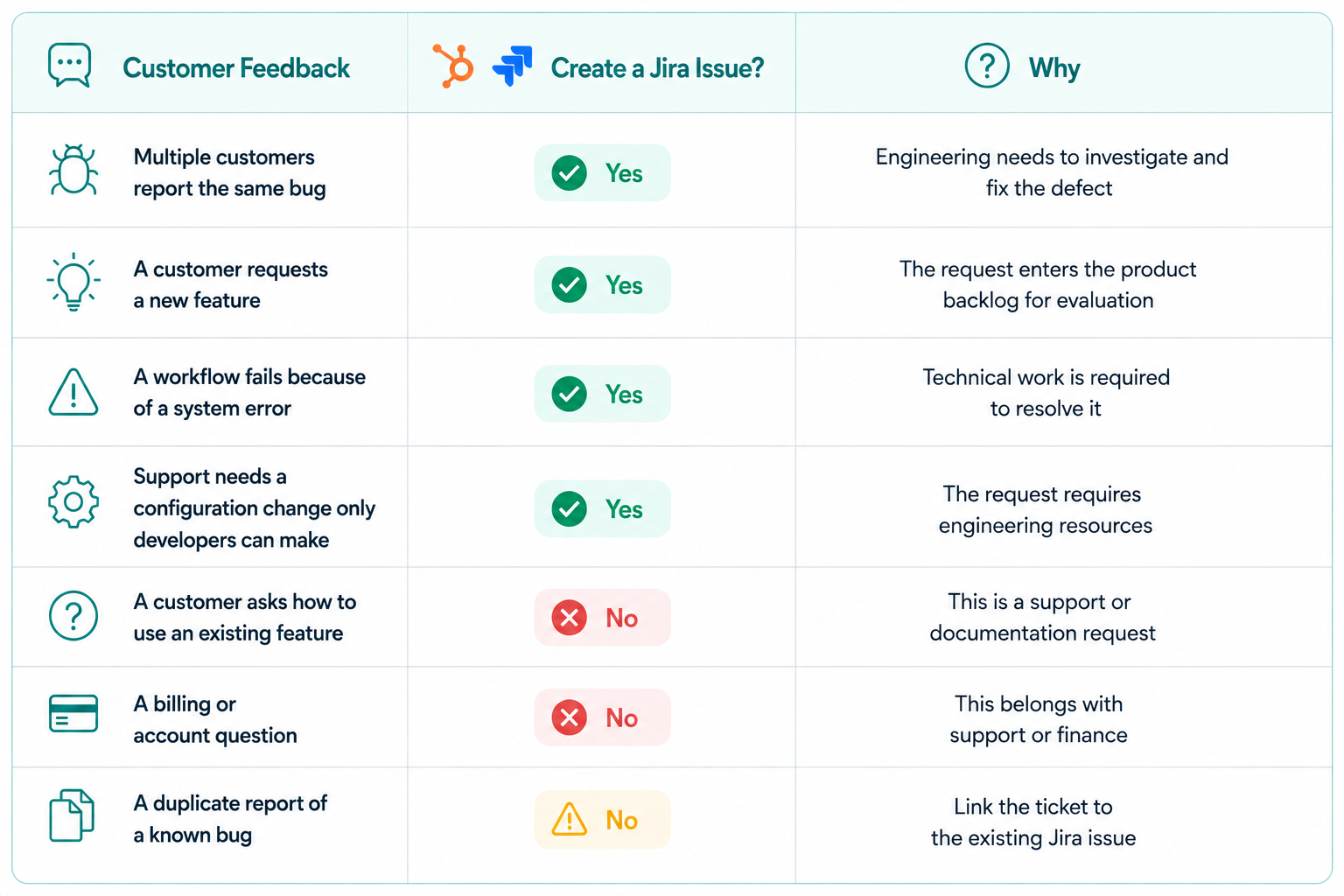
Customer feedback becomes a Jira issue when it needs product or engineering work to resolve. Comments, questions, and routine support requests stay in HubSpot. Validate first that the feedback is a bug, feature request, product enhancement, or technical issue support cannot resolve on its own. That keeps your backlog focused on real engineering work.
Criteria for Escalating to Jira
A request moves to Jira when it:
- Requires engineering to fix a bug
- Requests a new feature or enhancement
- Needs technical investigation
- Affects multiple customers or strategic accounts
- Supports your product roadmap or business goals
Common Scenarios

Always search for an existing issue before creating a new one. The native integration lets support attach an existing Jira issue to a HubSpot ticket, and several tickets can reference the same issue.
What to Include When You Create the Issue
Give engineering everything it needs to start work without a round of questions: a clear summary, a description, customer impact, reproduction steps for bugs, supporting files, and a link to the related HubSpot ticket. The integration associates the Jira issue with the HubSpot ticket, contact, and company records, so every team shares the same context through resolution.
What Does a Closed-loop Feedback Process Look Like in Practice
Here is one issue moving from customer report to customer follow-up. Say several customers contact support because they cannot log in after a recent release.
Step 1: Capture and validate in HubSpot
A support rep creates a Service Hub ticket with the issue summary, reproduction steps, browser and device details, screenshots, customer impact, priority, and product area. As more customers report the same problem, support links their tickets to the same issue.
Support then confirms the bug is reproducible and cannot be resolved through configuration or documentation. Product approves it for development. Before creating anything new, the team searches Jira for an existing issue and links to it if one is already open. If not, they create the issue directly from the HubSpot ticket.
Step 2: Engineering works in Jira
Developers investigate, assign ownership, prioritize, build the fix, test it, and move the issue through To Do, In Progress, In Review, and Done. No manual status updates to support are needed along the way.
Step 3: Progress syncs back to HubSpot
As the Jira issue changes status, the linked ticket updates automatically, and Jira comments can be posted to the HubSpot ticket timeline. Support and customer success answer customer questions using current engineering information, with no Slack pings or status meetings required.
Step 4: Close the loop with every affected customer
When engineering marks the issue Done, HubSpot workflows update the ticket status, notify the owner, create a follow-up task for customer success, and prepare customer communication.
Support or customer success then contacts every customer linked to the resolved issue with a thank-you, a short explanation of what changed, release details, any action needed on their end, and an invitation to confirm the fix worked. That final message is the closed loop. The customer sees their report turn into a product change.
Learn more about how SaaS companies can align customer success and engineering using HubSpot and Jira in this guide.
Which HubSpot and Jira Automations Keep Feedback Moving?
Four automations carry feedback from submission to resolution without manual handoffs: qualified issue creation, status sync back to HubSpot, two-way note and comment sync, and follow-up triggers when work is complete.
1. Create Jira issues only for qualified feedback
Use a HubSpot workflow to create the Jira issue after feedback has been reviewed and approved, triggered when a ticket is marked Approved for Engineering, Feature Request, or Bug, and meets conditions such as high severity or confirmed customer impact. Map ticket properties to Jira fields in the same step so summary, priority, product area, customer tier, severity, and business impact travel with the issue. Engineering receives validated work with context attached.
2. Sync engineering progress back to HubSpot
Configure the integration so Jira updates appear on the associated ticket. As an issue moves from To Do to In Progress, In Review, or Done, support sees current status in HubSpot without asking developers. Map your ticket stages to Jira statuses during setup to reflect your team's process. Ticket status currently syncs from Jira to HubSpot.
3. Sync internal notes and comments
Turn on note and comment sync so both platforms share one discussion history. Internal notes on a HubSpot ticket sync to Jira issue comments, and developer comments in Jira sync back. No copy-and-paste updates.
4. Trigger follow-up when work is complete
When a Jira issue reaches Done, HubSpot workflows can update the ticket stage to Resolved, notify the ticket owner, create a customer success follow-up task, and alert internal teams that the fix is ready to communicate. Workflows respond to synced Jira updates, so teams act immediately with no manual monitoring. Professional and Enterprise plans support this level of automation.
How to Close the Loop with Customers After a Product Change
Close the loop by proactively telling customers what changed, confirming their feedback drove it, and verifying the update resolved their issue. Do not wait for customers to notice on their own.
1. Update the Related Tickets
When the linked Jira issue moves to Done, update every associated ticket automatically. Set the status to Resolved or Ready for Customer Follow-up, and record the release date, version number, and resolution summary. Customer-facing teams get immediate visibility with no trip into Jira.
2. Notify Every Affected Customer
Use HubSpot workflows to reach all customers whose tickets link to the completed issue. A strong message covers:
- Thanks for reporting the issue or requesting the feature
- What changed
- When the update became available
- Release notes or help documentation, if relevant
- Any action they need to take, such as refreshing the application or enabling a setting
3. Verify the Issue is Fully Resolved
Do not assume the release solved the problem. Ask customers to confirm the update worked. A short follow-up email or a reply on the existing ticket is enough. If the problem persists, reopen the ticket and link it to the existing Jira issue, or open a new issue if a different defect surfaces.
4. Document the Outcome
Before closing the ticket, record resolution type, release version, resolution date, customer confirmation status, the linked Jira issue, and internal resolution notes. Complete records improve reporting, prevent repeat investigations, and give future teams context when similar feedback arrives.
5. Keep the Cycle Running
Closing a ticket is not the end of the conversation. Once customers have had time with the update, send a short survey or ask directly how the fix or new feature is working. You need to confirm the change solved the original problem and surface the next opportunity.
Build a Connected Customer Feedback Process Today!
Connecting HubSpot and Jira gives you a structured process that captures feedback, routes qualified requests to engineering, syncs progress, and keeps customers informed after a release. The result is better collaboration, real visibility, and a more consistent customer experience.
Campaign Creators designs and implements closed-loop customer feedback systems with HubSpot and Jira. Our team can map your feedback process, configure the integration, build the automations, and create reporting that gives support, product, and engineering a shared view of every customer request. The outcome is a system that scales with your volume, so you respond faster, improve the product with confidence, and strengthen customer relationships.
Explore how we simplify customer feedback with HubSpot and Jira!
Frequently Asked Questions
Can HubSpot automatically create Jira issues?
Yes. The native HubSpot–Jira integration lets you create Jira issues from HubSpot tickets. You can also automate issue creation with HubSpot workflows, depending on your subscription and integration setup.
Can multiple HubSpot tickets link to the same Jira issue?
Yes. Multiple HubSpot tickets can be linked to a single Jira issue.
Do HubSpot and Jira support two-way synchronization?
Yes. HubSpot and Jira support two-way synchronization for tickets, issues, notes, and comments based on your configuration. Some fields, such as ticket status, have specific sync limitations.
Can customer feedback come from more than support tickets?
Yes. Customer feedback can come from surveys, live chat, email, sales conversations, customer success calls, social media, and other customer touchpoints.
How do you organize feature requests in HubSpot?
Organize feature requests with standardized ticket properties such as category, product area, priority, customer impact, and status.
Can HubSpot reports include Jira data?
Yes. After the integration is configured, eligible HubSpot accounts can use Jira properties in reports to analyze issue status, priorities, and the number of customer tickets linked to each Jira issue. Professional or Enterprise subscriptions are required for advanced reporting features.
.png?width=1920&height=553&name=cc-logo-color-horizontal%20(1).png)