









 Campaign Creators
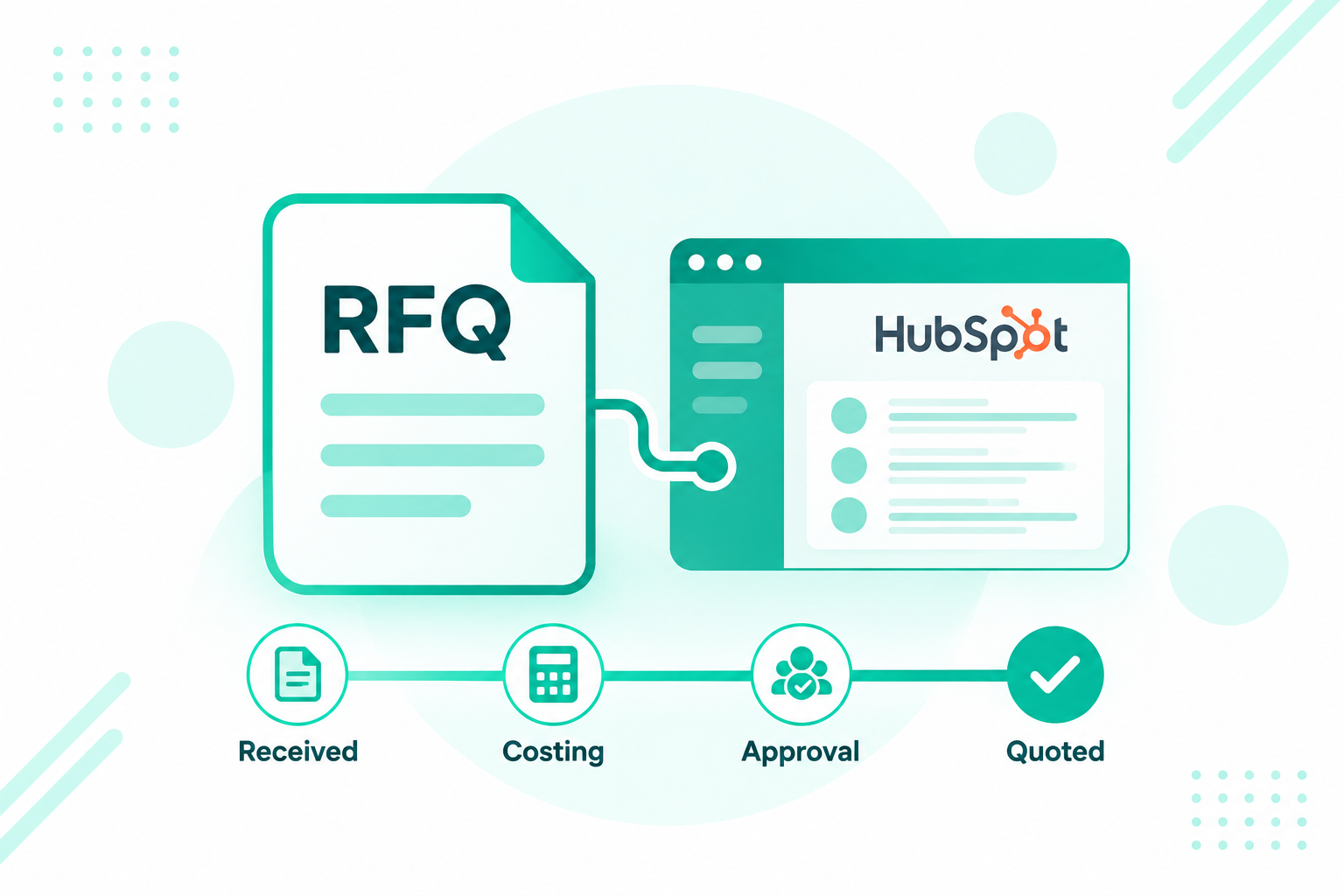
Contract manufacturers track every RFQ in HubSpot by creating a deal for each request at intake, then running it through a pipeline with qualification, costing, approval, and follow-up stages. The deal holds the drawings, the job details, every quote version, and the approval trail, while the ERP and estimating tools supply costs and prices. Reports on quote velocity and win rate then show how fast the team quotes and how often it wins.

An RFQ, or request for quote, is a buyer's request for pricing against drawings, specs, and quantities. Engineered component makers, machine shops, and contract manufacturers win much of their new work this way, which makes intake and turnaround time a central part of the sales process. Speed often starts with complete information. In a 2025 survey reported by I-Connect007, wire harness manufacturers named waiting on information from customers as a leading cause of slow quotes, ahead of the estimating work itself.
RFQ management software on the seller's side gives the team one view of every open request, its due date, and who is working it. HubSpot can serve as that layer, with HubSpot + the ERP + your estimating tools each doing the job they do best.
Key Takeaways
- Create a HubSpot deal for every RFQ at intake, with required fields for part number, drawing revision, quantities, and due date.
- Run RFQs through six steps: intake, qualification with a no-quote path, costing and quote build, approval and send, follow-up, and handoff to the ERP.
- Keep costs, prices, BOMs, and orders in the ERP and estimating tools, and bring the quote total onto the deal.
- Use quote versions, approvals, and e-signature in Revenue Hub to keep a clean record of what was sent and accepted.
- Report on quote velocity, win rate, no-quote rate, and annual volume won to see where the RFQ process gains or loses ground.
Table of Contents
- How Do Contract Manufacturers Track RFQs in HubSpot
- What RFQ Management Software Does and Where HubSpot Fits
- Step 1: Capture Every RFQ at Intake
- Step 2: Qualify the Job and Decide If You Will Quote
- Step 3: Bring In Costs and Build the Quote
- Step 4: Get Approval and Send the Quote
- Step 5: Follow Up Before the Due Date
- Step 6: Hand Won RFQs to the ERP and Track Repeat Programs
- RFQ Pipeline Stage Table
- RFQ Properties at a Glance
- Frequently Asked Questions
How Do Contract Manufacturers Track RFQs in HubSpot
Contract manufacturers track RFQs in HubSpot with a dedicated RFQ deal pipeline: one deal per request, a fixed set of job properties, a stage for each step from intake to decision, and an owner at every stage.
The RFQ pipeline sits beside any other deal pipelines you run, such as reorders or service. Each RFQ deal is associated with the OEM's company record and the buyer and engineering contacts who sent it, so the account carries a full history of what was requested, quoted, won, and lost. The six steps below follow the order an RFQ actually moves, and each one maps to pipeline stages in the stage table further down.
What RFQ Management Software Does and Where HubSpot Fits
RFQ management software for manufacturers receiving RFQs handles intake, tracks each request through review and quoting, and reports on response time and win rate. HubSpot covers that workflow, while costing and order management stay in the ERP and estimating tools.
Search results for RFQ management software often describe procurement tools that buyers use to send RFQs to suppliers. A manufacturer on the receiving end needs a different view: a queue of incoming requests, due dates, engineering and estimating handoffs, quote versions, and follow-up. In HubSpot, that view comes from deal pipelines, forms, the conversations inbox, tasks, workflows, quotes, and reports. Our post on when HubSpot should be your system of record covers how to divide data ownership between HubSpot and the ERP.
Step 1: Capture Every RFQ at Intake
Capture every RFQ as a HubSpot deal, from a web form, email, or a buyer's portal, with required fields that give estimating what it needs to start.
Intake channels. Common routes into HubSpot include:
- RFQ web form: a HubSpot form with a file upload field for drawings and specs, plus required fields for part number, quantities, and due date. Check HubSpot's current upload limits for your form setup before launch, since large CAD files may need a link to a file share.
- RFQ email address: a shared address connected to HubSpot's conversations inbox, where a rep creates the deal from the email thread and associates the attachments. HubSpot lists a 20 MB combined attachment limit for emails sent from the conversations inbox, so plan how large drawing packages move back and forth.
- Buyer portals and OEM supplier platforms: RFQs downloaded from a customer's sourcing portal and logged as a deal by the sales rep or estimator.
Duplicate handling. The same RFQ often arrives twice, once by email and once through a portal. A required customer RFQ number property gives the team a quick check, and a saved view or workflow can flag two open deals with the same RFQ number and company.
The RFQ deal. Deal properties summarize the job: customer RFQ number, part numbers, drawing revision, material, process, finish, quantities and quantity breaks, annual volume, due date, requested lead time, and ship-to. For RFQs with several parts, line items can hold each part number and quantity. Costs, BOMs, and routings stay in the ERP and estimating tools. Our post on structured vs. unstructured CRM data explains why these job details belong in defined properties so reports and workflows can use them.
Documents. Attach drawings, CAD files, and specs to the deal so everyone works from the same package, and record the drawing revision as a property so a new revision is easy to spot. Where a PLM or document system holds the controlled copy, keep that system as the source and store a reference on the deal. HubSpot's own file documentation notes that HubSpot does not support the management of sensitive information. Some technical data is export-controlled under rules such as the Export Administration Regulations administered by the Bureau of Industry and Security, and firms confirm handling, storage, and access requirements with their compliance advisors.
Step 2: Qualify the Job and Decide If You Will Quote
Qualify each RFQ against capability, capacity, and fit, and route it either to engineering review and costing or to a no-quote stage with a recorded reason.
A short qualification check keeps estimators focused on work the shop can win and deliver. Add a property for plant or work center, a property for qualification outcome, and a workflow that creates an engineering review task when the deal enters qualification. The engineer confirms the process, material, tolerances, and any special requirements before costing starts.
The no-quote path. Declining to quote is a normal and healthy outcome. A Modern Machine Shop feature on no-quoting quotes Paperless Parts CEO Jason Ray on the importance of telling the buyer when a shop decides not to quote. Record a no-quote reason on every declined RFQ, using a dropdown with options such as:
- Capability
- Capacity
- Margin
- Lead time
- Export controls
- Buyer relationship
A workflow can send the buyer a polite no-quote email template and create a task for the rep to call key accounts. No-quote reasons then feed reports that show which kinds of work the shop keeps turning away.
Step 3: Bring In Costs and Build the Quote
Costs and prices come from the ERP, an estimating tool, or an estimating spreadsheet, and the quote total reaches the HubSpot deal through a sync, an import, or the estimator's entry. HubSpot carries the quote and the selling workflow, and costing stays with the tools built for it.
Common routes for getting the numbers onto the deal include:
- Native integration or marketplace app: where your ERP or estimating tool has a HubSpot listing, confirm what it syncs on the listing or vendor documentation.
- Middleware: an integration platform that maps estimate fields to deal and line item properties.
- Custom API connection: a purpose-built sync for estimate totals, quantity break pricing, or quote numbers.
- Manual entry: the estimator enters the final price per quantity break as line items on the deal.
For NetSuite users, Campaign Creators maintains its own NetSuite and HubSpot integration. For other systems, our HubSpot integration development team scopes the connection.
The quote itself is built in HubSpot from the product library and line items, with quantity breaks shown as separate lines. Repeat parts can live in the product library, and one-off custom parts can sit as line items on the quote. For the full quoting build, see our CPQ and quotes content as it publishes.
Create a quote in HubSpot

- In your HubSpot account, navigate to Sales > Quotes.
- In the upper right, click Create quote. You’ll then be redirected to a quote creation wizard.
- On the first screen, click the Associate with a deal dropdown menu, then either select an existing deal or select Create a new deal if you want to use a test deal instead.
- In the bottom right, click Next.
- On the next screen, click the Quote dropdown menu, then select your custom quote template.
- Proceed through the rest of the quote wizard to create your quote.
- After publishing the quote, a dialog box will appear with a link to view the quote. Click Copy to copy the URL, then paste it into your browser to view the completed quote.
Step 4: Get Approval and Send the Quote
Send quotes through an approval step for margin or size thresholds, keep each revision as a new quote version on the deal, and use e-signature for buyer acceptance.
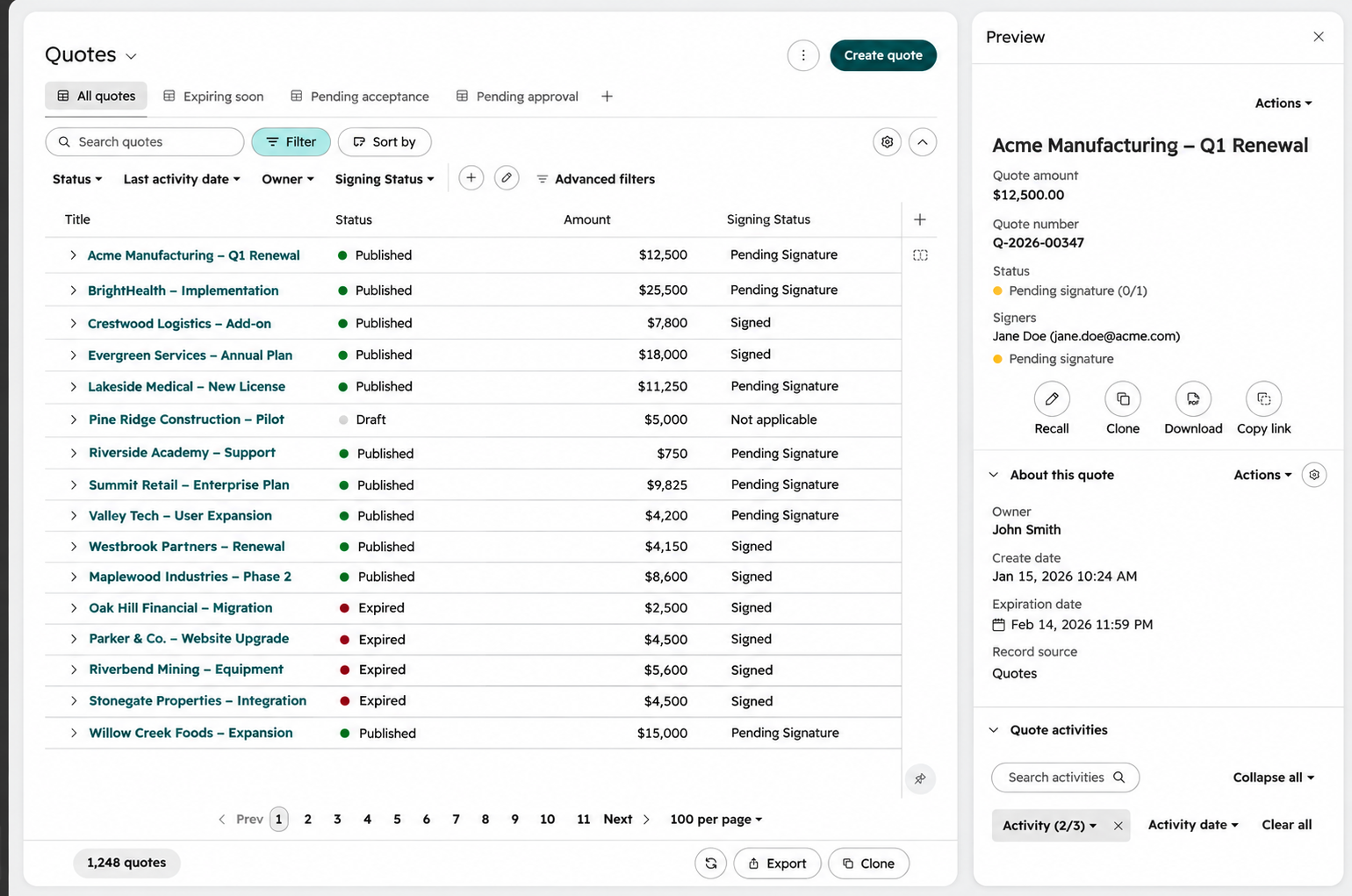
HubSpot's current quotes tool is part of its CPQ and requires a Revenue Hub Professional or Enterprise account (Revenue Hub was renamed from Commerce Hub in June 2026). Per HubSpot's knowledge base, users with a Revenue Hub seat can turn on e-signatures for a quote, with a pooled monthly limit of 25 e-signatures per seat on Professional and 50 on Enterprise. HubSpot also supports standard and advanced quote approvals, and approvers can't approve their own quotes.
Quote versions carry extra weight in contract manufacturing because drawings and quantities change mid-RFQ. When a buyer sends a new drawing revision, update the revision property, create a new quote on the same deal, and leave the earlier quote in place as history. Set an approval rule for quotes over a value threshold or under a margin floor, so a manager reviews them before they go out.
Step 5: Follow Up Before the Due Date
Use the RFQ due date to drive tasks and alerts before a quote is late, and use follow-up tasks or sequences after the quote is sent.
Two date properties carry this step: the buyer's due date and the quote sent date. Useful workflows include:
- Due date alert: if an RFQ is still in qualification, engineering review, or costing as the due date nears, notify the owner and the estimating lead. As an example, a team might alert at two business days out.
- Quote follow-up: when the deal moves to quote sent, create a follow-up task for the rep a few days later, or enroll the buyer in a short sales sequence.
- Stalled quote: if a sent quote sits without activity past a set number of days, flag it for a call.
The Fabricator's guidance on job shop quoting recommends tracking the result of every RFQ received and every quote submitted to make estimating both faster and more accurate. These workflows supply exactly that record.
Step 6: Hand Won RFQs to the ERP and Track Repeat Programs
When an RFQ is won, send the accepted quote to the ERP as an order, then record repeat programs, blanket orders, and annual volume on the account so the next RFQ starts with full history.
The order handoff. The ERP creates and owns the sales order. A workflow on the closed-won stage can send the deal, line items, and accepted quote to the ERP through the integration route you chose in Step 3, or create a task for order entry where no sync exists. Write the ERP order number back to the deal once the order exists.
Win and loss reasons. Make a win or loss reason required at close. Useful loss reasons include price, lead time, capacity, relationship, and spec change. Review them monthly with sales and estimating.
Repeat programs and blanket orders. Many won RFQs turn into repeat programs. The ERP holds the blanket order and its releases, and HubSpot can track the program on the company record with properties for annual volume, program start and end dates, and remaining blanket balance synced from the ERP. That gives reps a reason to call before a program ends and a re-quote starts.
The OEM account view. Each OEM company record shows contacts by role (buyer, engineer, quality), every RFQ deal with its outcome, open quotes, and win rate for that customer. Our post on data contracts in HubSpot covers how to define and govern these properties as the team grows.
RFQ Pipeline Stage Table
Stages, rules, and owners below are illustrative examples.
| Stage | Entry rule | Required properties | Owner | Exit rule |
|---|---|---|---|---|
| Received | RFQ arrives by form, email, or portal | Customer RFQ number, part number, quantities, due date | Sales rep or inside sales | Duplicate check done, documents attached |
| Qualified | Basic fit confirmed | Plant or work center, qualification outcome | Sales rep | Fit confirmed, or moved to No-quote with reason |
| Engineering review | Job needs technical review | Drawing revision, material, process, finish | Sales or applications engineer | Engineering sign-off recorded |
| Costing | Engineering approved | Annual volume, requested lead time | Estimator | Price per quantity break entered |
| Quote sent | Quote approved and published | Quote amount, quote sent date | Sales rep | Buyer responds or due date passes |
| Follow-up | Quote sent, awaiting decision | Next follow-up date | Sales rep | Won or Lost |
| Won | Buyer accepts | Win reason, ERP order number | Sales rep, then order entry | Order created in ERP |
| Lost | Buyer declines or awards elsewhere | Loss reason | Sales rep | Closed |
| No-quote | Shop declines to quote | No-quote reason | Sales rep | Buyer notified |
Curious how ready your HubSpot data is for an RFQ build like this one? The HubSpot AI Readiness Scorecard gives a quick read on your properties, pipelines, and data quality.
RFQ Properties at a Glance
Examples below are illustrative.
| Property | Example | Source | Use |
|---|---|---|---|
| Customer RFQ number | RFQ-48211 | Buyer's RFQ | Duplicate check, buyer reference |
| Part number | BRK-1042 | Drawing or RFQ | Matching repeat parts |
| Drawing revision | Rev C | Drawing | Version control on quotes |
| Material | 6061-T6 aluminum | Drawing or spec | Qualification, costing |
| Process | CNC machining | Engineering review | Capability check, reporting |
| Finish | Type II anodize | Drawing or spec | Costing |
| Quantity breaks | 100 / 500 / 1,000 | RFQ | Line items on the quote |
| Annual volume | 6,000 units | Buyer | Program value, prioritization |
| Due date | Dec 12 | RFQ | Alerts, quote velocity |
| Requested lead time | 4 weeks | RFQ | Capacity check |
| No-quote reason | Capacity | Sales rep | No-quote reporting |
| Win or loss reason | Lead time | Sales rep | Win rate analysis |
Reports for Quote Velocity and Win Rate
Six reports show how the RFQ process performs: open RFQs and value by stage, quote velocity, win rate, RFQs by source, no-quote rate by reason, and annual volume won.
- Open RFQs and value by stage: where work is piling up today.
- Quote velocity: average time from RFQ received to quote sent, by estimator and process.
- Win rate: won RFQs as a share of quoted RFQs, by customer, process, and part family.
- RFQs by source: form, email, portal, and rep, to show where good work comes from.
- No-quote rate by reason: which kinds of requests the shop declines and why.
- Annual volume won: program value won in the period.
Quote velocity and win rate are often the two numbers a manufacturer can't see until RFQs live in the CRM, so set the date properties up at launch.
When Does RFQ Management Need Custom Engineering
HubSpot pipelines, forms, quotes, workflows, and standard integrations cover the core RFQ build. A few needs go further: automated parsing of drawings or RFQ emails, a costing engine, or a customer RFQ portal with its own interface, permissions, and testing.
Those builds fit Brainstem Ventures by Campaign Creators, a specialized software engineering capability within Campaign Creators that delivers custom capabilities that connect to your existing systems. Keep the systems that work, and engineer what is missing. Start with the simplest path, and add engineering only where the standard build falls short.
Recap
Contract manufacturers track every RFQ in HubSpot by creating a deal at intake and moving it through six steps: intake, qualification, costing and quote build, approval, follow-up, and handoff to the ERP. Job properties, attached drawings, and quote versions keep the whole team working from the same package, and a no-quote path records what the shop declines and why. The ERP and estimating tools stay the source for costs, prices, and orders. Reports on quote velocity, win rate, and annual volume won show how the process is performing.
Build Your RFQ Pipeline With Campaign Creators
Campaign Creators is a HubSpot Elite Solutions Partner that designs HubSpot around how manufacturers quote, sell through reps and distributors, and grow repeat programs with OEM buyers. Our HubSpot implementation team builds the RFQ pipeline, forms, quotes, workflows, and reports, and our technology consulting team maps how HubSpot, your ERP, and your estimating tools share data. See more of our approach on the HubSpot for manufacturing page.
Want a clear map of how quoting, CRM, and ERP data should flow before you build? Lay it out with The Architecture Blueprint.
Book a consultation to design RFQ management in HubSpot.
