






What Is HubSpot Work and How AI Is Changing Where Business Work Happens
HubSpot Work is HubSpot’s new AI-powered workspace for managing business work alongside your CRM. It connects everyday business workflows to the data...
9 min read
Campaign Creators
:
10/14/26
Your contacts, deals, and tickets already live in HubSpot. The work around them often doesn't. Onboarding checklists sit in spreadsheets, webinar plans live in a separate project tool, and deal desk requests get buried in email threads. That spread costs real time. A survey of 12,000 knowledge workers found teams spend about a quarter of their workweek just looking for information, and half said their teams had unknowingly worked on the same things.
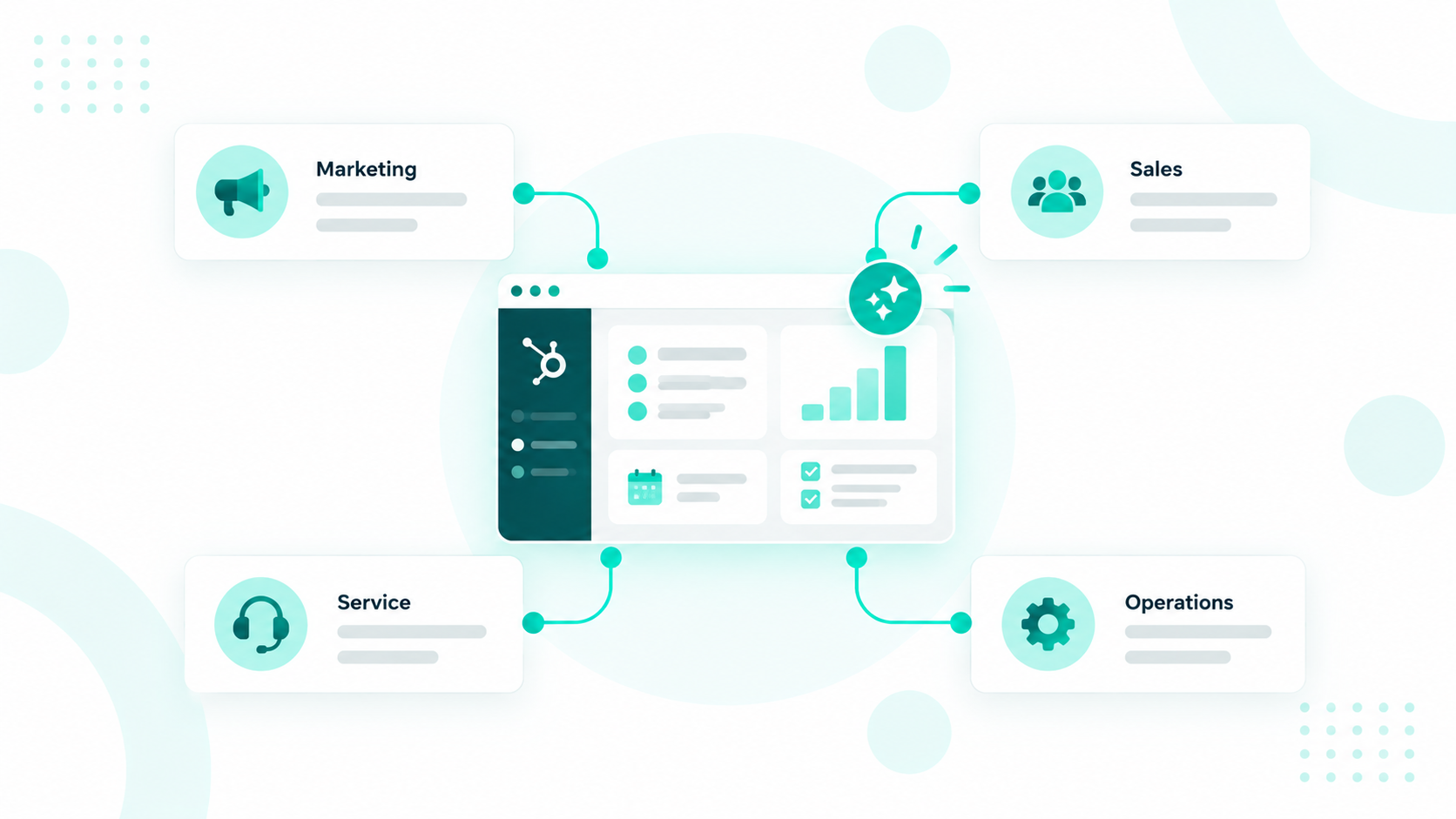
HubSpot Work projects fix that by putting the work right next to your customer data. A project covers one piece of work, like onboarding a new client, and keeps its tables, documents, forms, and AI agents in one place. Because it runs inside HubSpot, it can pull in contact, company, and deal details from the CRM. You describe what you need in plain words, an AI assistant builds the first version, and your team takes it from there.
Campaign Creators is a HubSpot Elite Solutions Partner that helps teams with HubSpot onboarding and setup, CRM architecture, RevOps, and AI agent implementation. A project in HubSpot Work is only as good as the records it reads, so we usually start by cleaning up your data and mapping the process you want to run.
HubSpot Work projects are spaces inside HubSpot where a team plans and runs one specific piece of work, such as onboarding a client or launching a product. Each project holds everything that work needs, from trackers and playbooks to intake forms and AI agents.
They're part of HubSpot Work, an AI-first work management tool HubSpot introduced at UNBOUND 2026 and now offers as a public beta.
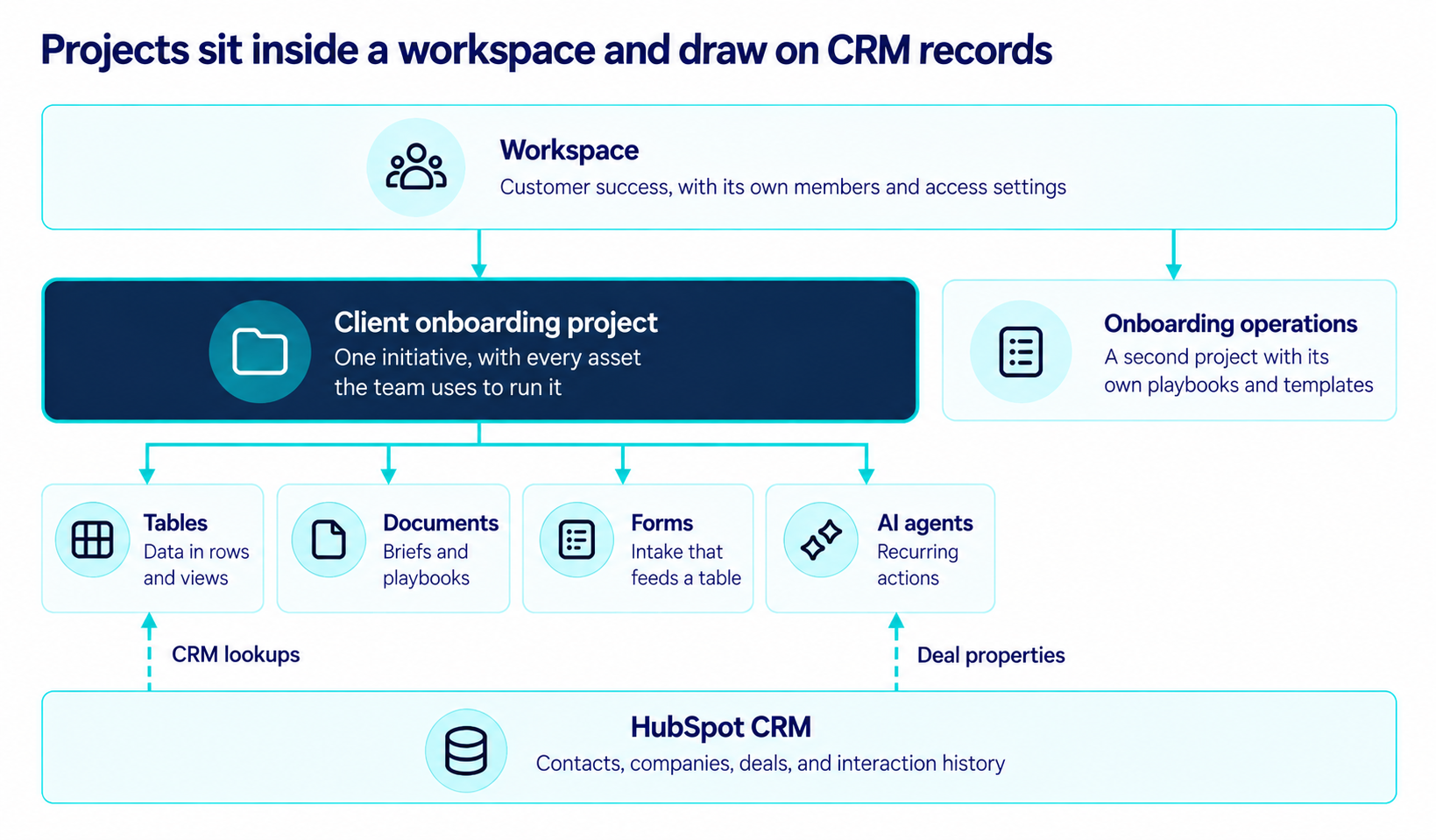
Every project sits inside a workspace. A workspace groups the projects for a team or process, a project covers one initiative, and assets are the tables, documents, forms, and agents that do the work.

HubSpot suggests one workspace for processes that span several teams, like client onboarding, and separate workspaces for unrelated work, like IT management or marketing campaign operations. A single workspace can hold several projects. A customer success workspace could run a client onboarding project next to an onboarding operations project that stores playbooks and templates.
To find HubSpot Work, open your HubSpot account, click More, and choose Work Management.
You need to tell an AI assistant what the project should do, review the plan it drafts, and approve it. The assistant then builds the tables, documents, forms, and agents for you.
The assistant stays in the workspace after the build as an always-on chat. You can ask it which items are on track or at risk, update many rows at once, or turn project data into a new document.
Every project holds four kinds of assets: tables, documents, forms, and AI agents. Tables are the foundation, because they hold the data the other three are built from, collect, or act on.
|
Asset |
What It Does |
Example |
|
Tables |
Store the project's data in columns like dropdowns, dates, CRM lookups, and document links |
A client onboarding tracker with one row per new client |
|
Documents |
Hold written material like briefs, playbooks, and meeting recaps, including summaries built from a table |
An onboarding playbook organized by stage |
|
Forms |
Collect information and send every response to one table |
An intake questionnaire that adds a new row to the tracker |
|
AI agents |
Take recurring actions when something happens or on a set schedule |
An agent that flags overdue onboarding steps |
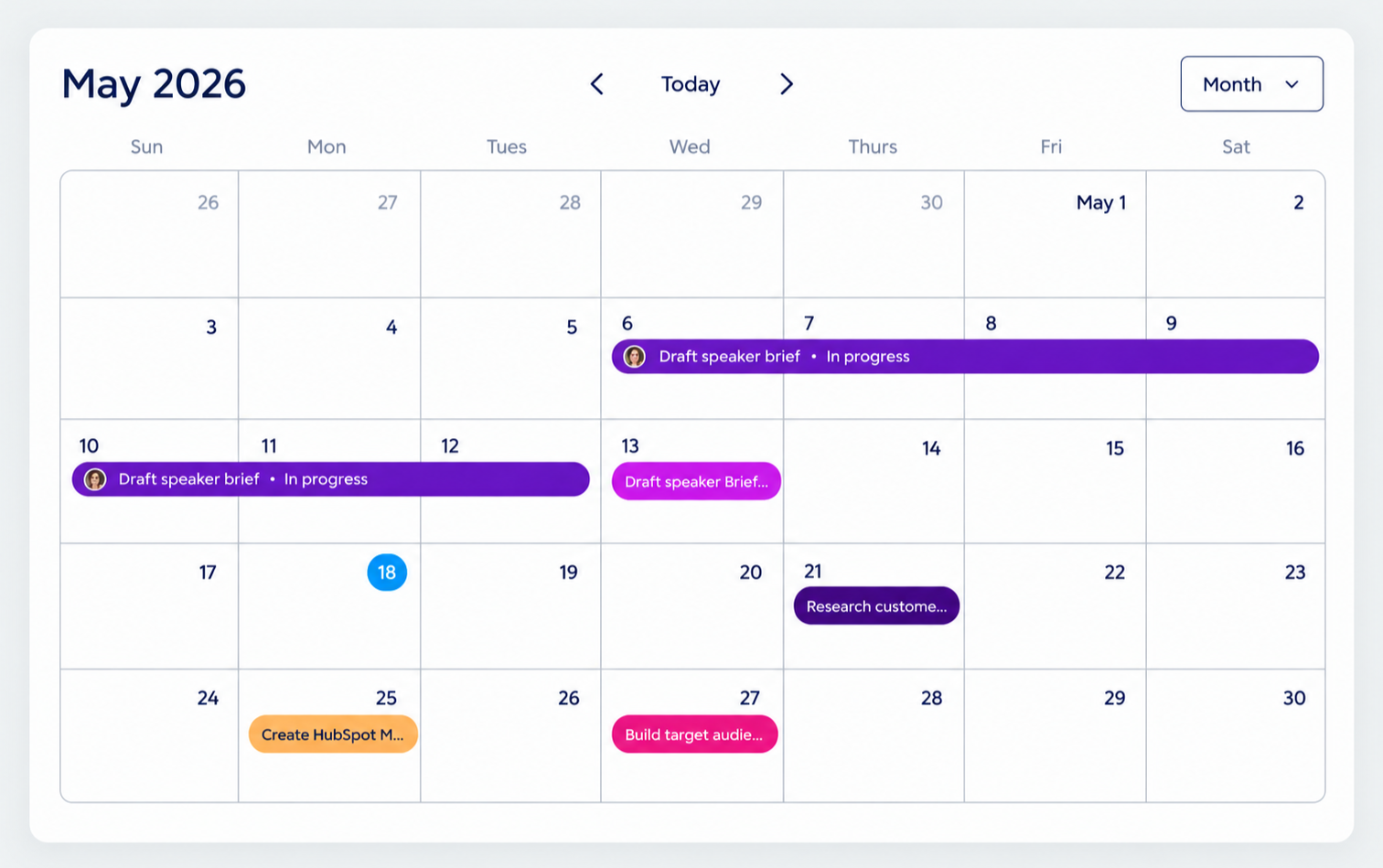
Tables also come with saved views. A board view groups items by stage so you can spot what's stuck, and a calendar view lays out every due date.
Teams collaborate by working directly in the project's tables and documents. Each person can see what needs their attention, finish action items, and leave feedback right where the work lives.
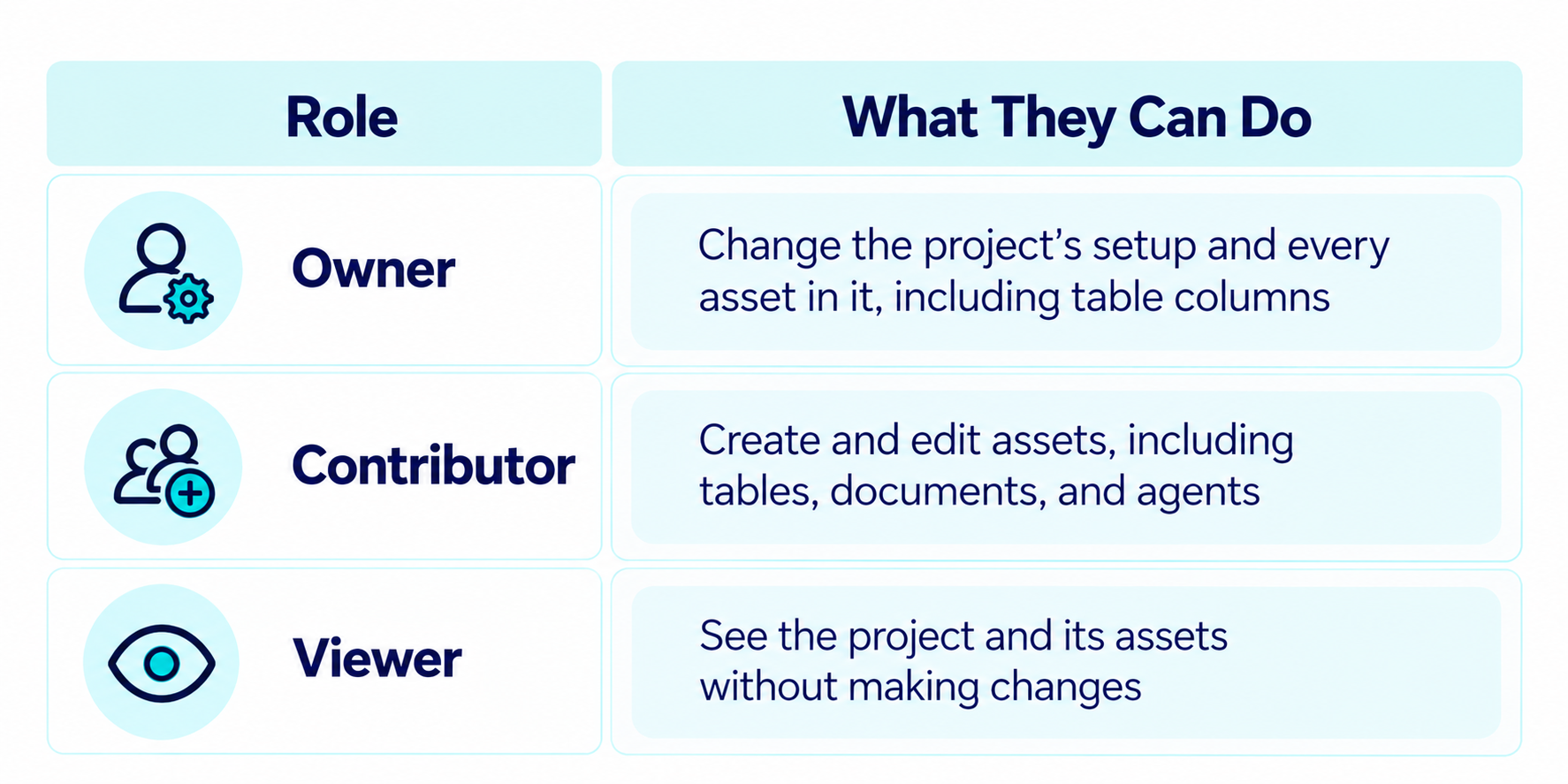
In a table, you add new items, edit fields, attach files, and link CRM records to a row. When something is finished, you select it and mark it as done. You can also switch between saved views, add groups, and adjust colors or row height so the table is easier to scan. Contributors handle this everyday work, and only project owners can change a table's columns.
Documents work like a shared editor. You and your teammates co-edit the text, add images and other content, and highlight a passage to leave a comment that mentions someone. Once the feedback is handled, you resolve the comment, so reviews stay inside the project, and nobody has to dig through email for the latest version.
Worth a read: HubSpot Workspace - How Teams Organize AI-Powered Work

CRM context means a project starts with the contacts, companies, deals, and interaction history HubSpot already stores. Nobody has to retype customer details, and the AI working in the project acts on real records.
HubSpot links this kind of context to better results. In its Fall 2026 Spotlight, HubSpot reported that Professional and Enterprise customers using AI with high-quality context created 3.6x more MQLs and won 3.2x more deals compared with customers on the same tiers who weren't using AI. These are HubSpot's own numbers, so treat them as a benchmark.
Context only helps when the records are current. Duplicate companies, missing owners, and outdated deal stages flow straight into project tables and agent decisions, so cleaning up the CRM comes first.
AI agents keep a project moving by handling recurring work on their own, like creating standard tasks, checking for delays, and sending status updates. You decide what triggers each agent, how often it runs, and what it must leave alone.
HubSpot recommends giving each agent one clear job. An onboarding status agent, for example, watches milestones, spots delays, and writes regular status summaries. A solid agent prompt covers five things.
Want a head start? Type / in the prompt bar and pick a template from the Agents section. Keep in mind that some agent steps are AI workflow actions, which HubSpot marks with an icon, and those use HubSpot Credits. Check your credit usage before turning agents on across several teams.
Access is set at three levels: the workspace, the project, and each asset, and each level passes its permissions down to the next by default.
Inside a workspace, admins can change anything, and members can view and contribute without touching the setup or sharing the workspace. Each workspace is set to Private, Organization can view, or Organization can edit. The two organization options only reach users who have the Work Management permission turned on.
Each project then has three roles.

Workspace admins automatically become owners of any project open to the workspace, and members become contributors. Need tighter control? Make a project or a single asset invite-only, and only the people you add directly can get in. That works well for a pricing table or an HR request log inside a widely shared workspace.
The best fits are processes that start with something happening in the CRM or depend on customer data. HubSpot points to client onboarding, campaign and event coordination, deal desk routing, content pipelines, internal requests, and personal task tracking.
A closed deal kicks things off. The project can hold a tracker that looks up each client and contact from the CRM, a playbook organized by stage, an intake questionnaire for the client, and an agent that creates the standard onboarding steps.
A webinar project can lay out a three-week timeline with owners and due dates on a calendar view.

Each row can link to the speaker's contact record, and a linked brief keeps the messaging and run-of-show notes in one place.
Reps send discount or contract requests through a form that feeds a routing table. An agent assigns each request based on deal properties and tracks response times against a service level agreement (SLA).
Briefs live as documents, and a table tracks each piece by stage, owner, and due date. A board view grouped by stage shows what's waiting for review.
A strong prompt says what the project should achieve, who's involved, and how the work should be organized. The clearer you are, the fewer follow-up questions and rebuilds you'll deal with. HubSpot's guidance gets more specific for each asset.
When you edit an existing project, HubSpot suggests being specific about the change or adding a line like "Ask me clarifying questions" so the assistant checks with you first. The prompt below sets up a simple webinar project.
Create a project called Q1 Webinar Series for the marketing team. Build a table with one row per webinar and columns for title, date, speaker, owner, and promotion status. Use a dropdown for promotion status and a CRM lookup for each speaker's contact record. Give the events team edit access and the sales team view access. Ask me clarifying questions before you build anything.
HubSpot Work projects are a separate tool from the CRM projects object and Breeze Assistant projects, even though all three share the same name. HubSpot confirms the three aren't related.
|
Tool |
What It Is |
Best Fit |
|
HubSpot Work projects |
AI-built spaces inside a workspace with tables, documents, forms, and agents |
Processes like onboarding, deal desk queues, and event planning |
|
A CRM object with pipelines, tags, Gantt and board views, and support in reports and workflows |
Delivery work you want to track and report on as CRM records |
|
|
Folders that group Breeze chats with shared instructions, reference files, and CRM context |
Repeat AI conversations, like RevOps analysis or prospecting research |
Workspaces in HubSpot Work are also different from the Sales, Customer Success, and Help Desk workspaces, which are role-based home screens for customer-facing reps. Our guide to HubSpot workspaces covers those in detail.
Your account needs beta access and generative AI turned on, and each user needs the right seat and permission.
Once that's in place, start small. Pick one process your team already runs in spreadsheets, like onboarding or event planning, build a project for it, and expand once the tables and agents match how your team really works.
HubSpot Work projects give the processes around your CRM a home right next to the data that drives them. The assistant can draft the tables, documents, forms, and agents, but the results depend on the records those assets read and how clearly the process is mapped.
Campaign Creators helps teams get that groundwork right, from CRM architecture and RevOps to HubSpot training that gets everyone comfortable with the new setup. Talk with our team about the first process you'd like to move into HubSpot Work.
The beta covers Starter, Professional, and Enterprise editions of Marketing Hub, Sales Hub, Service Hub, Data Hub, and Content Hub, plus Professional and Enterprise editions of Smart CRM and Revenue Hub.
Yes, minimizing the conversation leaves the assistant running in the background, and it lists every action it took with links to each asset when it finishes.
Yes, HubSpot Work forms appear alongside other forms in the marketing form tool, and their submissions still go to the HubSpot Work table each form syncs with.
Yes, you can export any HubSpot Work document as a Markdown file and send it to people outside the workspace or outside HubSpot.
Yes, each document keeps a line-by-line version history in the right sidebar where you can compare or restore earlier versions.
Yes, you can delete each one by hand, and changes like renaming or updating access run through the assistant's prompt bar.
HubSpot built it to replace the spreadsheets and project tools where work around the CRM usually lives, so compare the beta's features with what your team relies on today before you switch.
HubSpot Work is HubSpot’s new AI-powered workspace for managing business work alongside your CRM. It connects everyday business workflows to the data...
Sales reps, customer success managers, and support agents spend much of their day jumping between inboxes, calendars, CRM records, and reports. Every...
Marketing teams are expected to generate a pipeline faster and prove revenue impact. At the same time, many teams still rely on manual processes that...