






10 min read
HubSpot NetSuite Integration: Complete Guide and Best Practices
Campaign Creators
:
03/27/26
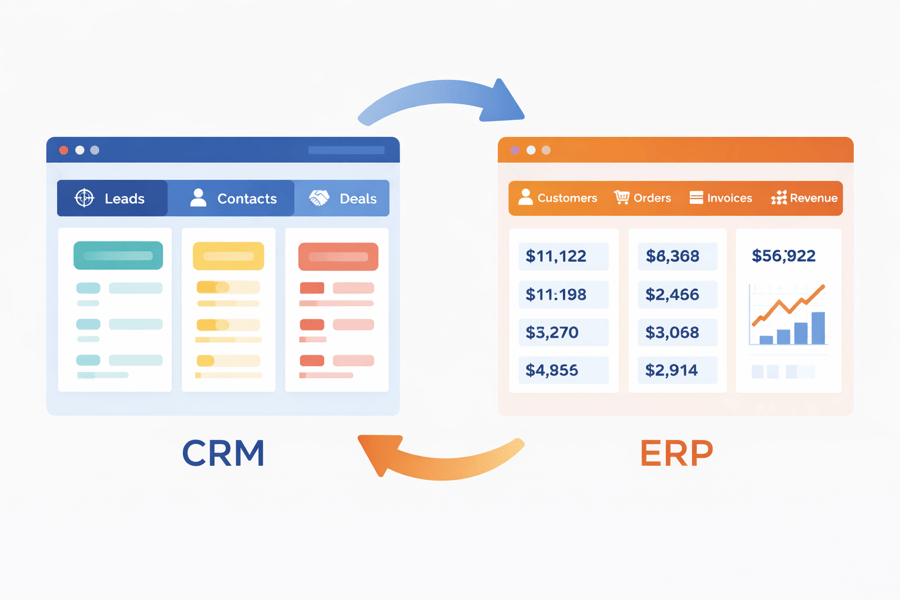
Integrating HubSpot and NetSuite brings your CRM and ERP into one connected workflow. Data flows across teams, processes become more structured, and reporting reflects real business activity.
This guide explains how the integration works, how to set it up, and how to avoid common issues so your systems stay aligned as your business grows.
How HubSpot NetSuite Integration Works

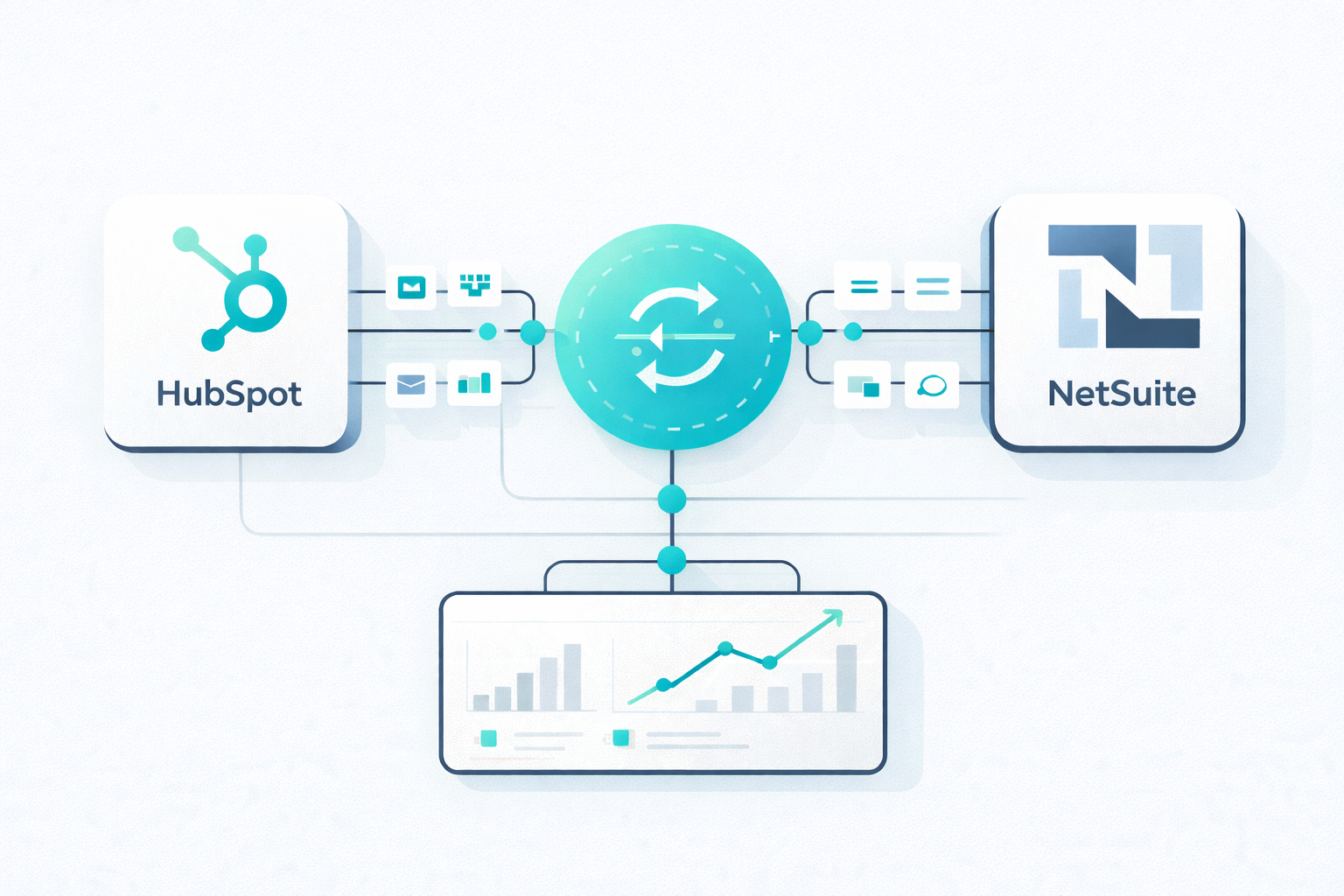
HubSpot NetSuite integration connects your sales, marketing, and finance systems through bi-directional synchronisation, keeping both platforms aligned without manual updates.
The integration syncs core business data, including:
- Contacts and companies
- Deals and opportunities
- Products and pricing
- Orders and invoices
Each object follows defined mapping rules. A contact in HubSpot becomes a customer in NetSuite, and a deal can trigger a sales order with accurate pricing, tax, and product data. This keeps records connected across teams without repeated input.
A typical flow looks like this:
- A deal is marked as closed in HubSpot
- The system checks for an existing customer in NetSuite
- A customer record is created if needed
- A sales order is generated with complete details
- Order status updates sync back to HubSpot
Each step runs automatically, reducing delays and duplicate work.
Across the full lead-to-revenue journey:
- A lead enters HubSpot through a form or campaign
- Marketing qualifies the lead
- Sales converts it into a deal
- NetSuite generates a sales order
- The order becomes an invoice and is recorded as revenue
- Financial data syncs back to HubSpot
This creates a continuous flow from first interaction to recognized revenue, with every stage connected across systems.
Why You Should Integrate HubSpot with NetSuite
1. Remove Data Silos Across Teams
HubSpot reports that users see a 129% increase in leads and a 36% increase in deals closed after one year. Without proper integration, that growth can remain disconnected across teams, limiting its full impact.
Integration removes these disconnections through automatic data flow across teams. Customer records, deals, and transactions stay aligned, giving everyone access to the same information.
This shift changes how teams operate. You no longer rely on chasing updates or exporting spreadsheets. Each team works from shared, real-time data, which keeps reporting consistent and decisions more reliable.
2. Improve Reporting and Visibility
Once both systems are connected, your reporting goes deeper than surface-level metrics. You can track:
- Which campaigns generate revenue, not just leads
- How long does it take for a deal to convert into cash
- Which customers deliver the highest lifetime value
- Where deals slow down between closing and invoicing
This gives you a clearer understanding of performance across the entire revenue cycle.
From Activity Metrics to Financial Outcomes
In HubSpot alone, you may track:
- Clicks
- Form submissions
- Deals created
With NetSuite data connected, those same activities link directly to:
- Revenue generated
- Invoice amounts
- Payment status
You can now focus on what contributes to revenue, not just pipeline movement. This level of visibility also strengthens forecasting, since you are working with consistent, real-time data across teams.
With integration in place:
- Sales forecasts reflect actual conversion into revenue
- Finance projections include pipeline visibility
- Leadership works from a consistent view across teams
It leads to more reliable planning across budgeting, hiring, and growth strategies.
3. Automate Workflows and Reduce Manual Tasks
Integration removes repetitive work through automation. Examples include:
- Automatically creating sales orders from closed deals
- Syncing invoices back to HubSpot for sales visibility
- Updating customer records across both systems
This reduces errors and improves productivity across teams. The impact is not just efficiency. It also improves accuracy, which becomes more valuable as your data volume grows.
4. Improve Customer Experience
Integration gives every team access to a complete view of the customer, covering both engagement and financial activity.
For example:
- A sales rep opens a contact record in HubSpot and sees past purchases, invoice status, and outstanding balances
- A support team member checks order history and billing details without switching systems
- Marketing builds campaigns using real purchase data, not just lead activity
Each interaction becomes more relevant and consistent. Integration also improves how and when you communicate. Because HubSpot has access to NetSuite data:
- Marketing can segment customers based on actual purchases
- Campaigns can target repeat buyers, high-value customers, or inactive accounts
- Messaging reflects real customer behaviour, not assumptions
This leads to communication that feels more relevant and better timed. If you’re starting to see gaps between your systems or want a clearer view of how your data connects, it may be time to look at integration as the next step.
HubSpot NetSuite Integration Options
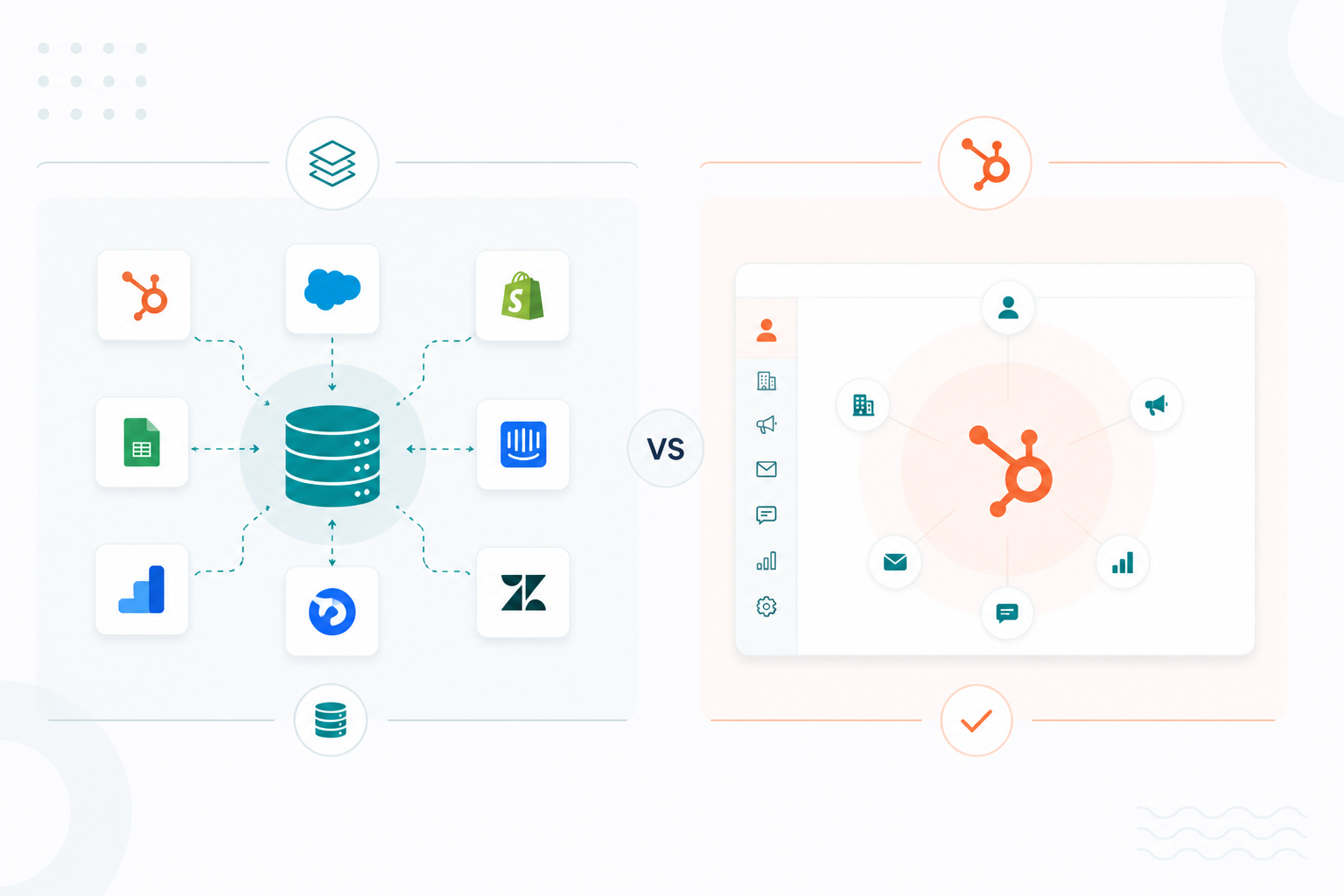
There are three main ways to connect HubSpot and NetSuite. Each option differs in flexibility, complexity, and how much control you have over data and workflows.
1. Native Integration (HubSpot Data Sync)
HubSpot offers a native integration through its marketplace. You can connect both systems, select standard objects, and start syncing with minimal configuration. Common objects such as contacts, companies, and basic deal data can be mapped without development work.
This works well if your processes follow standard structures.
What it handles well:
- Basic contact and company syncing
- Simple field mapping
- Two-way sync for standard data
Where limitations appear:
- Complex workflows are difficult to support
- Custom objects or fields may not sync properly
- Limited control over advanced logic, such as pricing rules or order creation
2. Third-Party Integration Tools
Middleware platforms such as Commercient SYNC act as a bridge between HubSpot and NetSuite. This gives you more flexibility without building everything from scratch.
What these tools add:
- Real-time and scheduled (batch) sync options
- Workflow automation using triggers and actions
- Advanced field mapping and data transformation
- Error handling and monitoring
A typical workflow might look like this:
- A deal is marked as closed in HubSpot
- The middleware checks if the customer exists in NetSuite
- If not, it creates the customer record
- It then generates a sales order with mapped products and pricing
- The order ID syncs back to HubSpot
This type of setup supports more complex business logic compared to native integration. It is a good fit for businesses with growing operational complexity, teams that need automation across multiple steps, and companies that want flexibility without moving into full custom development.
3. Custom Integration
Custom integration uses APIs from both platforms, such as NetSuite SuiteTalk and HubSpot APIs. This gives full control over how data moves and how workflows behave. Developers build the integration based on your exact requirements.
What you can customize:
- How and when data syncs
- Complex workflows with multiple conditions
- Custom objects and data structures
- Conflict handling and data validation rules
This level of control is useful for businesses with highly specific processes or complex system requirements.
How to Choose the Right Option
The right choice depends on how your operations run and the level of control you need across systems.
You can think of the options this way:
- Native integration supports simple setups with standard workflows and minimal customisation
- Third-party tools fit businesses that need more flexibility, automation, and control over how data moves
- Custom integration suits advanced environments with unique processes, deeper system dependencies, or specific business rules
Choose a setup that matches how your sales, marketing, and finance teams work. This reduces friction, keeps data consistent, and gives you flexibility to adapt as your processes evolve.
How to Set Up HubSpot NetSuite Integration
Step 1: Prepare NetSuite
Before connecting anything in HubSpot, NetSuite must be configured to support the integration.
This includes:
- Enabling required features such as REST web services, OAuth 2.0, and SuiteScript
- Installing the HubSpot Sync Bundle
- Assigning the HubSpot Sync role to the correct users
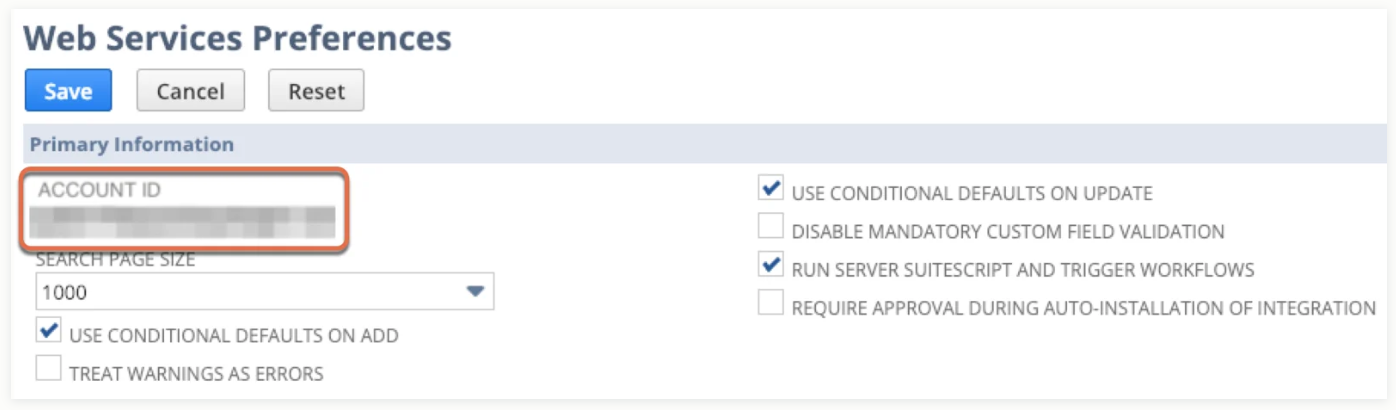
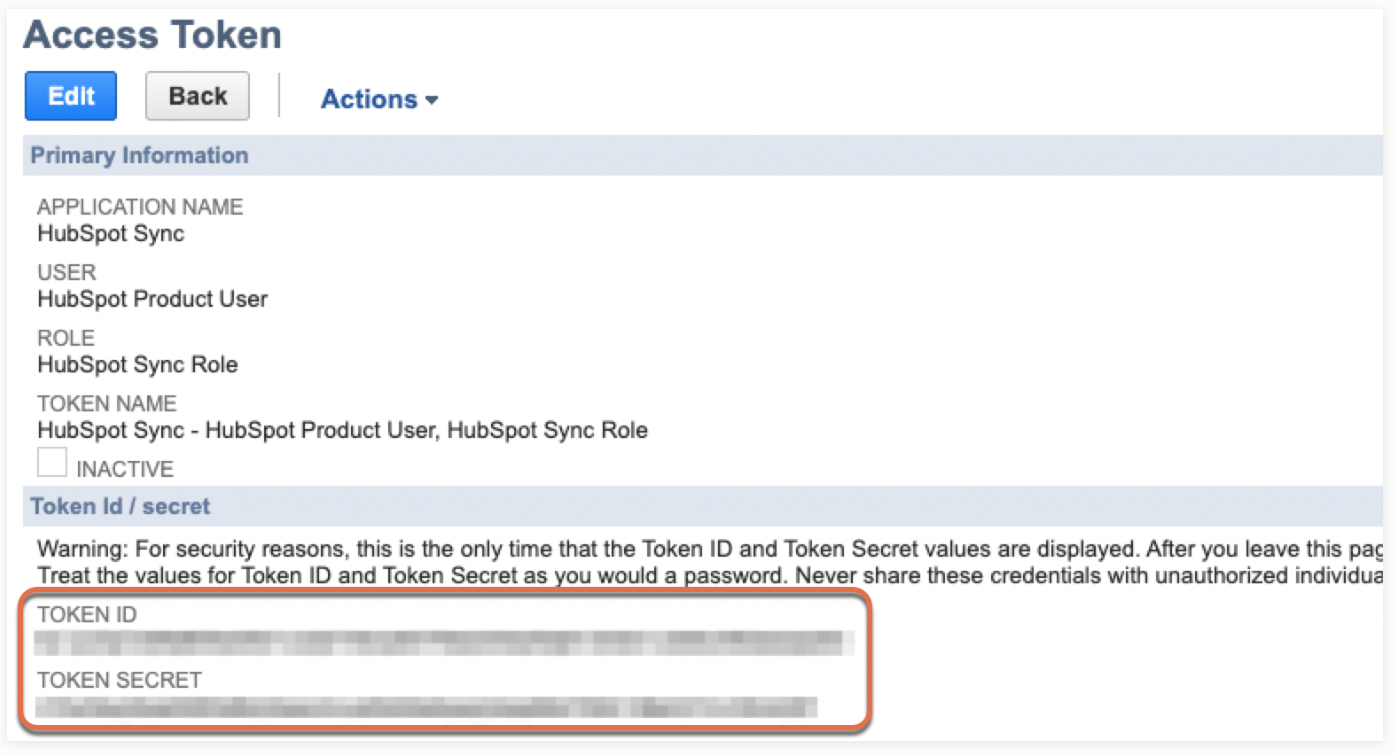
- Generating your Account ID, Token ID, and Token Secret
These steps enable HubSpot to securely access and interact with your NetSuite data.
Step 2: Install the NetSuite App in HubSpot
Once NetSuite is ready, move into HubSpot.
- Open the HubSpot Marketplace
- Search for NetSuite
- Select the app and click Install
You need the correct permissions in HubSpot, such as Super Admin or App Marketplace access. Without these, installation cannot proceed.
Step 3: Connect Both Systems
After installation, HubSpot prompts you to enter your NetSuite credentials:
Account ID

Token ID and Token Secret

Once entered, HubSpot establishes a secure connection with NetSuite. HubSpot can now send and receive data, but syncing is not active yet.
Step 4: Enable Additional Integration Features
After connecting, HubSpot provides optional features that extend the integration.
These include:
- Embedded NetSuite data inside HubSpot records
- Workflow actions tied to NetSuite events
- Sync cards and additional interface tools
You can enable these features in the Connected Apps settings.
Step 5: Set Up CRM Sync
Next, define how data syncs between systems.
- Navigate to Connected Apps in HubSpot
- Open the NetSuite integration
- Go to the CRM Syncs tab
- Click “Set up your sync”
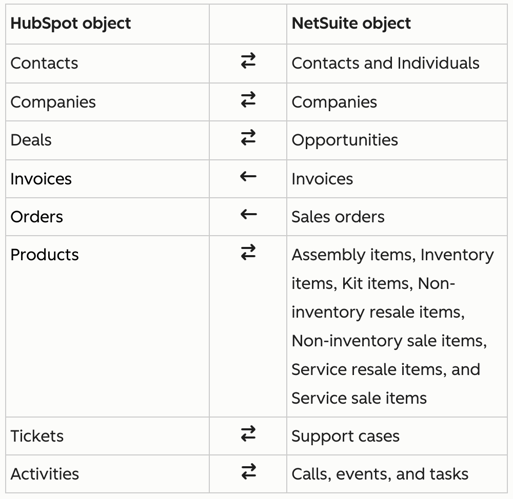
You may then choose which objects to sync, such as:

What to consider: Start with core objects that support your main workflow. Adding too many objects early increases complexity and makes troubleshooting harder.
Step 6: Set Sync Rules and Test
Once you’ve selected the objects to sync, the next step is to define how your data moves between systems. You can set a one-way sync, where data flows from HubSpot to NetSuite or the other way around, or a two-way sync where both systems update each other.
After setting the direction, it’s worth testing the setup with a small dataset before rolling it out fully. This gives you a clear view of how records sync, whether field values match properly, and if any duplicates or errors show up.
Skipping this step often leads to issues appearing only after a full rollout. At that point, errors are harder to trace and can disrupt your data across both systems.
This is where the integration begins to support real operational efficiency.
Best Practices for HubSpot NetSuite Integration
1. Define a System of Record
Each system should have clear ownership over specific data. This prevents conflicts and ensures consistency across platforms.
A common structure looks like this:
- HubSpot manages marketing and sales data such as lifecycle stage, deal progress, and engagement
- NetSuite manages financial and operational data such as invoices, billing status, and revenue
What happens without this: If both systems update the same fields, data can overwrite itself. For example, a deal status updated in HubSpot might conflict with a transaction status in NetSuite, creating confusion across teams. Clear ownership keeps data stable and predictable.
2. Focus on Data Mapping and Governance
Data mapping defines how information flows between systems, but governance ensures it stays consistent over time.
You need to standardize:
- Field formats (e.g. phone numbers, addresses)
- Required fields for records
- Naming conventions across both systems
For example, if one system uses “Closed Won” and the other uses a different status format, reports will not align properly.
Poor mapping often leads to incomplete records, incorrect reporting, and broken workflows that affect how your systems function day to day. Regular reviews help keep your data aligned as your business changes, so your processes continue to run as expected.
3. Plan for API Limits and System Performance
Both HubSpot and NetSuite limit how often systems can send and receive data through APIs. If these limits are exceeded:
- Syncs can fail
- Data updates may be delayed
- Some records may not transfer at all
Example scenario: A large batch of leads is imported into HubSpot. Real-time sync tries to push all records to NetSuite immediately. API limits are reached, causing partial sync failures.
To manage this, use batch sync for large datasets and reserve real-time sync for updates that need immediate accuracy. It also helps to monitor API usage regularly so you can avoid limits or slowdowns. This keeps your integration stable, even as data volume increases.
4. Use a Hybrid Sync Strategy
Not all data needs to move at the same speed. A combined approach using real-time and batch syncing creates a more balanced and reliable system.
You can break it down this way:
- Real-time sync supports high-impact events such as deal closures and customer updates, where immediate visibility across systems matters
- Batch sync handles large datasets such as bulk imports or historical data, where processing in intervals keeps systems stable
This balance affects both performance and data accuracy. Relying only on real-time sync can increase system load and strain APIs. Using only batch sync can delay updates that teams depend on for daily operations.
A combined setup helps critical data to stay current while larger data volumes are processed efficiently, keeping both systems aligned without unnecessary strain.
5. Implement Error Handling and Monitoring
Even well-configured integrations encounter issues. The difference is how quickly you detect and resolve them.
You should have:
- Retry logic for failed sync attempts
- Logs that track data movement and errors
- Alerts that notify your team of issues
A sync fails due to a missing required field. Without monitoring, the issue goes unnoticed, and multiple records fail to sync. With alerts in place, the issue is identified early and corrected before it spreads. Monitoring prevents small issues from becoming larger operational problems.
Common Integration Issues and How to Solve Them

Data begins to move across systems, and small inconsistencies can quickly escalate into larger issues. Most challenges come from how data is structured and managed across both platforms.
1. Duplicate Records
Duplicate records often appear early, especially if both systems already contain existing data. A contact may exist in HubSpot and NetSuite with slight differences in naming or formatting. Without a clear matching rule, the integration treats them as separate records.
A more stable setup includes:
- A consistent, unique identifier, such as an email or a customer ID
- Pre-integration data cleanup to remove existing duplicates
- Clear matching rules to prevent new duplicates from forming
2. Data Mismatch Issues
HubSpot and NetSuite structure data differently, which can lead to mismatches during syncing. A deal stage in HubSpot may not align directly with NetSuite's definitions of opportunities or sales orders.
To keep alignment:
- Standardize key fields such as status values and formats
- Ensure required fields match across both systems
- Review mappings regularly as processes evolve
3. Sync Failures and Missing Data
Sync failures tend to appear as data volume increases. A record may fail due to a missing required field or incorrect mapping. At first, only a few records are affected, but gaps can grow over time. Teams may rely on incomplete data without realising some records never transferred.
A reliable approach includes:
- Identifying errors at the field level
- Correcting missing or invalid values
- Reprocessing failed records
- Setting up monitoring to catch issues early
4. API Limits and Performance Delays
As data volume grows, performance issues can surface. Both systems limit how frequently data can be exchanged. Large volumes of updates can delay or interrupt syncing. This leads to uneven updates, where some records appear immediately, and others take longer.
A balanced approach helps:
- Use real-time sync for high-impact updates such as deal closures
- Use batch sync for large datasets such as bulk imports
- Distribute data loads to avoid spikes in activity
5. Data Overwrites and Conflicts
In a two-way sync setup, both systems can update the same record. Without clear rules, one update can overwrite another. This often leads to inconsistent data over time. A financial update in NetSuite may be replaced by outdated information from HubSpot during a sync cycle.
To prevent this:
- Define clear data ownership across systems
- Assign HubSpot to manage engagement and deal activity
- Assign NetSuite to manage financial and transactional data
When You Should Consider Integration
You should consider integration if:
- You use both HubSpot and NetSuite
- Your teams deal with duplicate or inconsistent data
- Reporting lacks visibility across systems
- Manual processes slow down operations
These are clear signs that your systems need to work together.
Bringing Your Systems Together!
HubSpot NetSuite integration connects your front-end and back-end systems into one unified workflow. A well-built integration supports more efficient operations, reduces errors across teams, and improves visibility across your entire business, from pipeline activity through to recognized revenue.
If you are planning to migrate or improve your current setup, the right structure from the start makes a measurable difference. We can support you through this process.
Our HubSpot onboarding services focus on turning your system into a reliable, scalable engine that supports your growth.
Explore how we turn HubSpot into a performance engine!
Frequently Asked Questions
1. How long does it take to fully set up a HubSpot NetSuite integration?
A basic setup can take a few hours to a couple of days, depending on how simple your data and workflows are. More complex setups with custom mapping, automation, or testing can take several weeks.
2. How often does HubSpot sync data with NetSuite?
Sync frequency depends on your setup, with real-time sync handling immediate updates and batch sync running at scheduled intervals. The timing varies based on API limits, data volume, and how your integration is configured.
3. Can you control which fields sync between HubSpot and NetSuite?
Yes, you can choose specific fields to map and define how data moves between both systems. This helps you keep only relevant data aligned and avoid unnecessary syncing.
4. Does the integration support historical data syncing?
Yes, historical data can be synced, usually through initial data imports or batch processes. This ensures records are aligned before the ongoing sync begins.
5. Can you integrate multiple NetSuite accounts with one HubSpot portal?
Yes, but this typically requires middleware or a custom setup to manage multiple connections. Native integration usually supports only a single NetSuite account.
6. Is HubSpot NetSuite integration secure, and how is data protected during sync?
Yes, the integration uses secure authentication methods such as OAuth and token-based access to protect data. Data transfers happen through encrypted connections, reducing the risk of unauthorized access.
.png?width=420&height=121&name=cc-logo-color%20(2024).png)