






 Campaign Creators
How Does HubSpot Work Use Your CRM Data?
 Campaign Creators : 10/27/26
HubSpot Work uses CRM data in three ways. Its tables link rows to real CRM records, such as a client company and its key contacts. Its AI assistant...
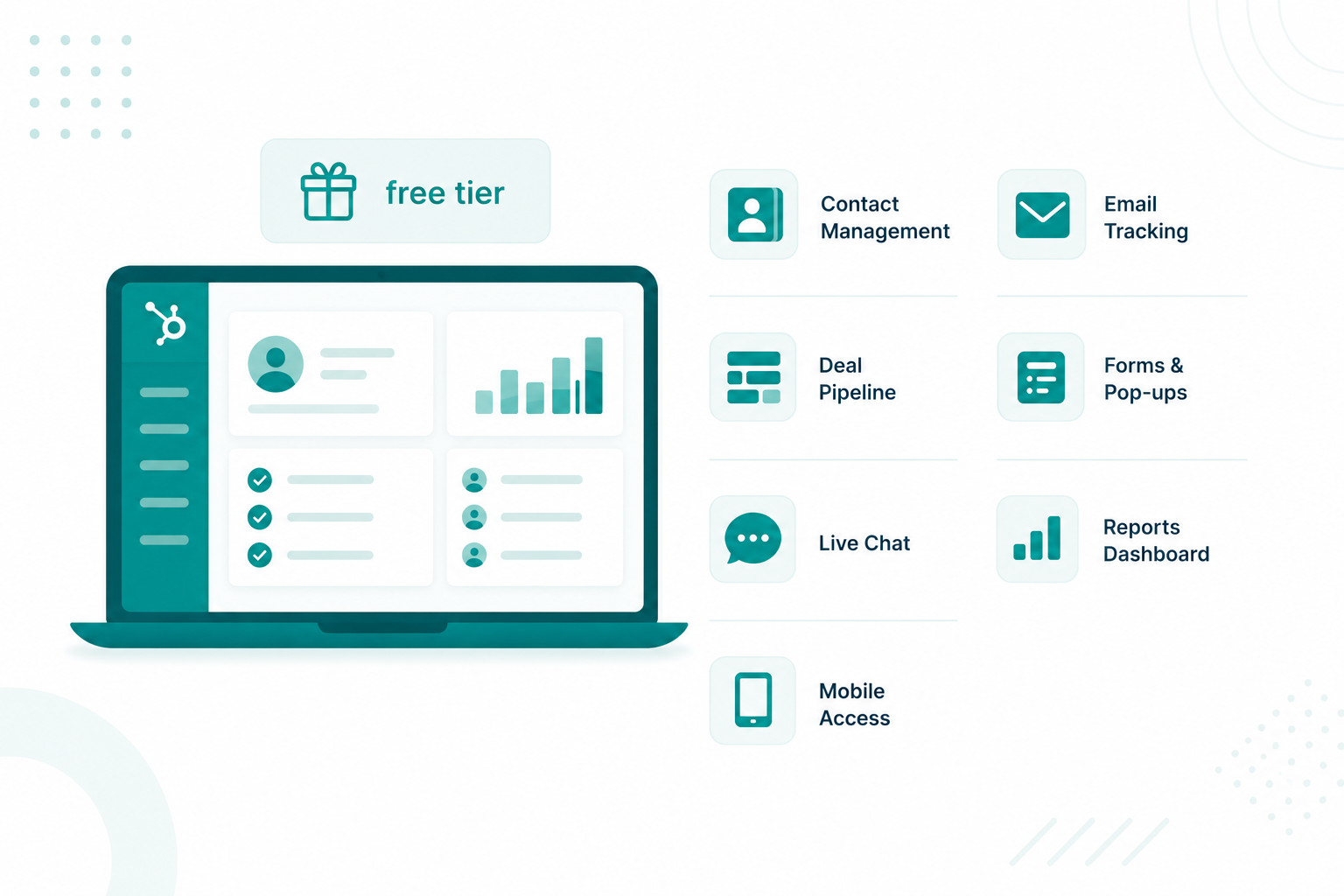
HubSpot Free CRM is a permanently free version of HubSpot's CRM, packaged with stripped-down editions of tools from Marketing Hub, Sales Hub, Service Hub, and Content Hub. You get contact and company records, a deal pipeline, forms, live chat, email tracking, meeting links, and reporting dashboards without paying anything and without entering a credit card.
The free tier has tightened over the past two years, though, and most guides online have not caught up. Plenty of them still describe a plan with a million contacts and unlimited users. New free accounts are capped at 1,000 contacts and two users, and several tools now sit behind lower ceilings.
This guide walks through what the free tools include, how to put them to work across sales and marketing, how to set up an account step by step, what you can automate, where the plan runs out, and which paid product to move to when it does.
HubSpot Free CRM combines Smart CRM with limited features from HubSpot’s paid products. This provides enough functionality to run a small-scale sales and marketing system.
Here is what a free account covers.
HubSpot calls these free tools, not free Hubs, and that wording is deliberate. Most of them are simplified versions of paid functionality, with usage caps written into HubSpot's Product and Services Catalog. The set is broad enough to run a real process, and every tool in it has a ceiling worth checking before you commit to it.
The free tools work best as one shared system for capturing leads, holding customer information, tracking opportunities, and running light marketing activity. Because all of it sits on the same CRM records, sales and marketing stop working from separate lead lists.
A form is the fastest way to start feeding the CRM. Say a consulting firm offers a downloadable guide. A visitor enters a name and email, and the submission creates or updates a contact record on the spot. Marketing manages that person in HubSpot from then on, with no copying between a form tool and a spreadsheet.
In HubSpot, go to Marketing > Forms > Create form. Add the fields you want, preview the form, then publish it by embedding it on a HubSpot page, dropping an embed code onto an external site, or sharing a standalone link.
Once someone is in the CRM, the contact record becomes the home for that relationship. A salesperson can open it after a new inquiry, add company details, review site activity, create a follow-up task, and associate the contact with a deal.
Go to CRM > Contacts > Create contact. HubSpot recommends adding an email address when you create a contact, because it uses the address to deduplicate records and associate people with the right company automatically.
When a lead turns into a real opportunity, a deal record tracks it through your sales process. A four-stage pipeline covers most small teams. New Opportunity → Discovery Call → Proposal Sent → Closed Won.
Go to CRM > Deals > Create new. Enter the deal name, amount, pipeline, stage, and associated records. Each deal stays linked to its contact and company, so the sales activity and the customer history live together.
The real payoff is a single handoff point. Someone downloads an ebook, marketing captures the lead through a form, and later a salesperson opens that same record, reviews what the person has looked at, and creates a deal once they qualify. Nothing gets forwarded, exported, or re-keyed.
For a small business, that produces a clean path from first touch to customer. Visitor → Form Submission → Contact → Follow-Up → Deal → Customer.
Free HubSpot will not give you every advanced capability in the platform. What it does give you is a foundation solid enough that your first hundred deals live somewhere sensible.
Worth a read: Essential Data To Migrate For A Successful HubSpot CRM Implementation
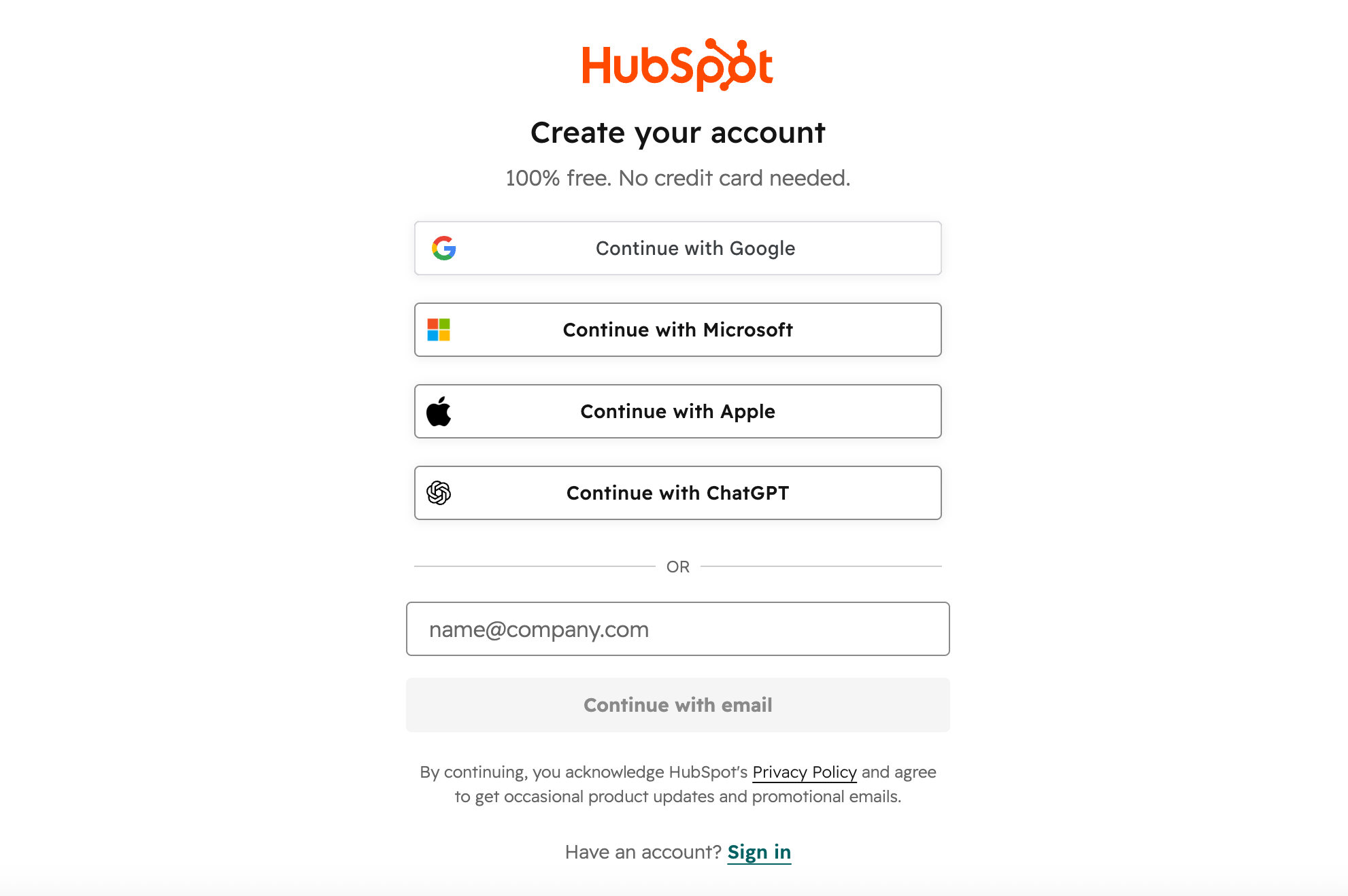
Sign up with your name and email, or use a Google login or Apple ID. You are logged in as soon as the account exists, and no credit card is needed at any point.
Before you add data, set the details that shape how everything behaves. Account defaults cover your time zone, currency, date format, company information, branding, and notification settings. In HubSpot, go to Settings (gear icon) > Account Defaults.
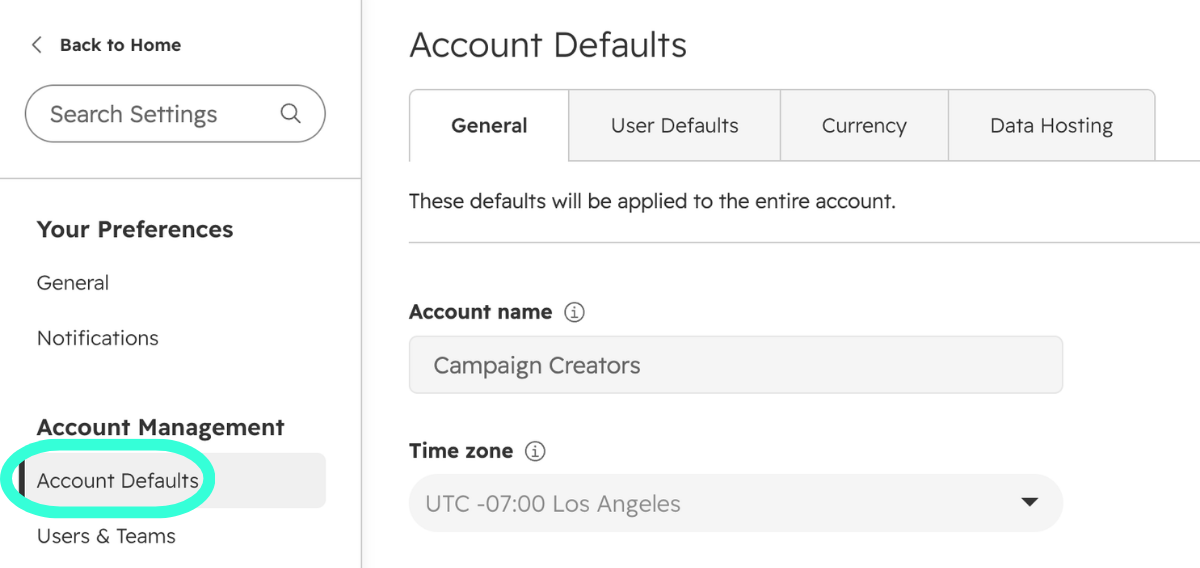
The exact options vary by account and permissions, and getting currency and time zone right at this stage prevents a lot of confusing reporting later.
A free account supports two users total. You can invite one other person and control what they see through user permissions. Go to Settings > Users & Teams > Add users > Create new.
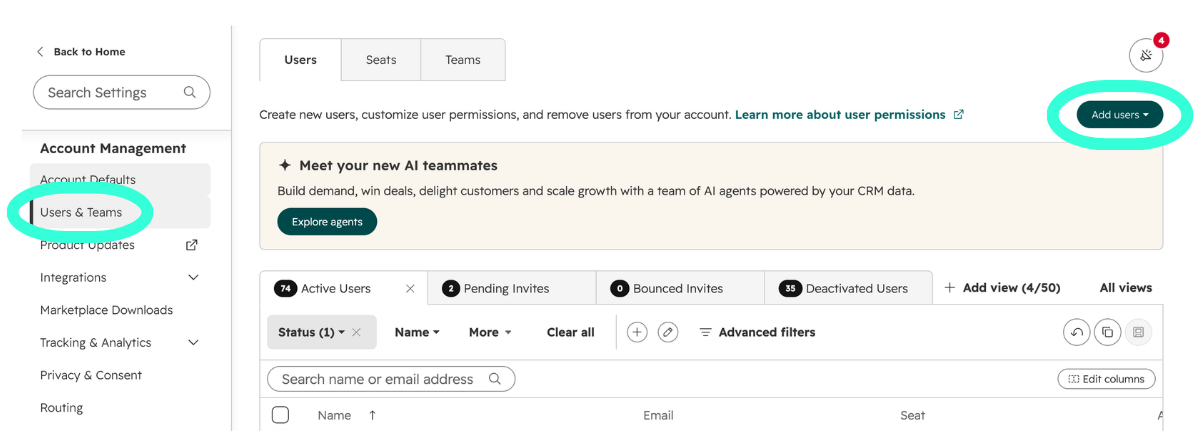
Enter the email address, assign access, and send the invitation. If the second seat appears unavailable, check for deactivated users still occupying it.
You do not have to start from zero. Bring in customer and prospect data from a spreadsheet through the import tool. Go to CRM > Contacts > Import. It will redirect you to Data Integration; then click Import a File. You will see these options below:
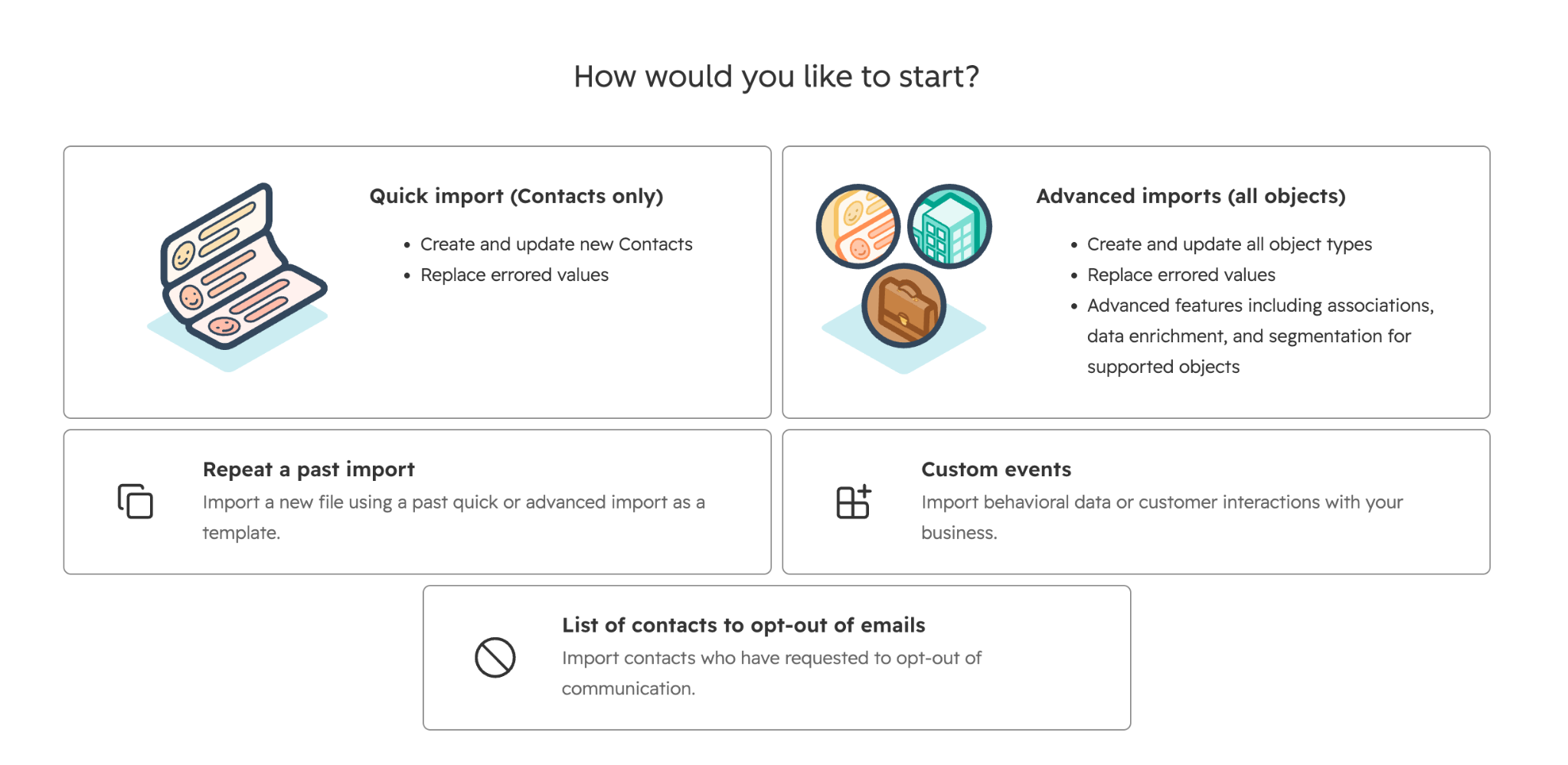
During the import, you need to map spreadsheet columns to CRM properties so names, email addresses, companies, and phone numbers land in the right fields. Clean the file first. A CRM full of dead email addresses is an expensive address book, and deduplicating after the fact is slower than fixing the spreadsheet.
Connecting your inbox makes the sales tools work alongside the email you already send. HubSpot's free tools connect with Gmail, Google Workspace, and most versions of Outlook.
Go to Settings > General > Email. Once connected, email tracking and engagement notifications start logging activity against contact records without anyone copying and pasting.
Your last setup step is deciding how you want to see opportunities. Free accounts include one deal pipeline, which is enough for a single sales process.
Go to CRM > Deals, then create a deal and assign it to the appropriate stage. Keep the stages tied to buyer actions you can verify, such as a booked call or a sent proposal, and not to internal feelings about how likely a deal is. Get a clearer understanding of deal stages with this guide.
HubSpot’s free tools can automate basic tasks such as sending follow-up emails after form submissions, notifying your team, and managing simple contact or list actions. These automations are limited to single actions tied to specific assets and do not include the full multi-step workflows builder available in paid plans.
The most common use is an immediate response to a form fill. Someone downloads a guide, and HubSpot sends the email with the download link without anyone on your team touching it.
You configure this from the form editor. On free tools, you can create one "send an email after form submission" simple workflow per form, with a limit of one action in it, according to HubSpot's form automation documentation. One form, one email, and that is the extent of it.
You can also trigger an internal notification when something happens. A "Request a Demo" submission can ping the right person immediately, which beats having someone refresh the submissions list every few hours.
For a two-person team, this single automation often does more for response time than anything else in the account.
The free ad tools support limited campaign management and audience syncing across two ad networks, with a spend ceiling in place. Basic segmentation lets you group contacts by form submissions, contact properties, and marketing email activity, which is enough to separate one campaign's leads from another's for follow-up.
HubSpot's full workflows tool automates multi-step processes across contacts, companies, deals, and tickets using triggers, branches, delays, property updates, task creation, and integrations. That builder is available in the Professional and Enterprise editions.
So a free account handles this. Form submitted → send follow-up email.
It cannot handle this. Form submitted → wait two days → check engagement → send a second email → create a sales task → assign an owner → update lifecycle stage.
Starter editions sit in the middle, lifting the per-form action limit into the three-to-ten range depending on which Hub you buy. If your process requires delays and branching logic, free automation will not stretch to cover it, and building manual workarounds to fill that gap takes more time than the upgrade.
HubSpot Free CRM has limits on contacts, users, pipelines, custom properties, marketing emails, branding, reporting, and customer support.
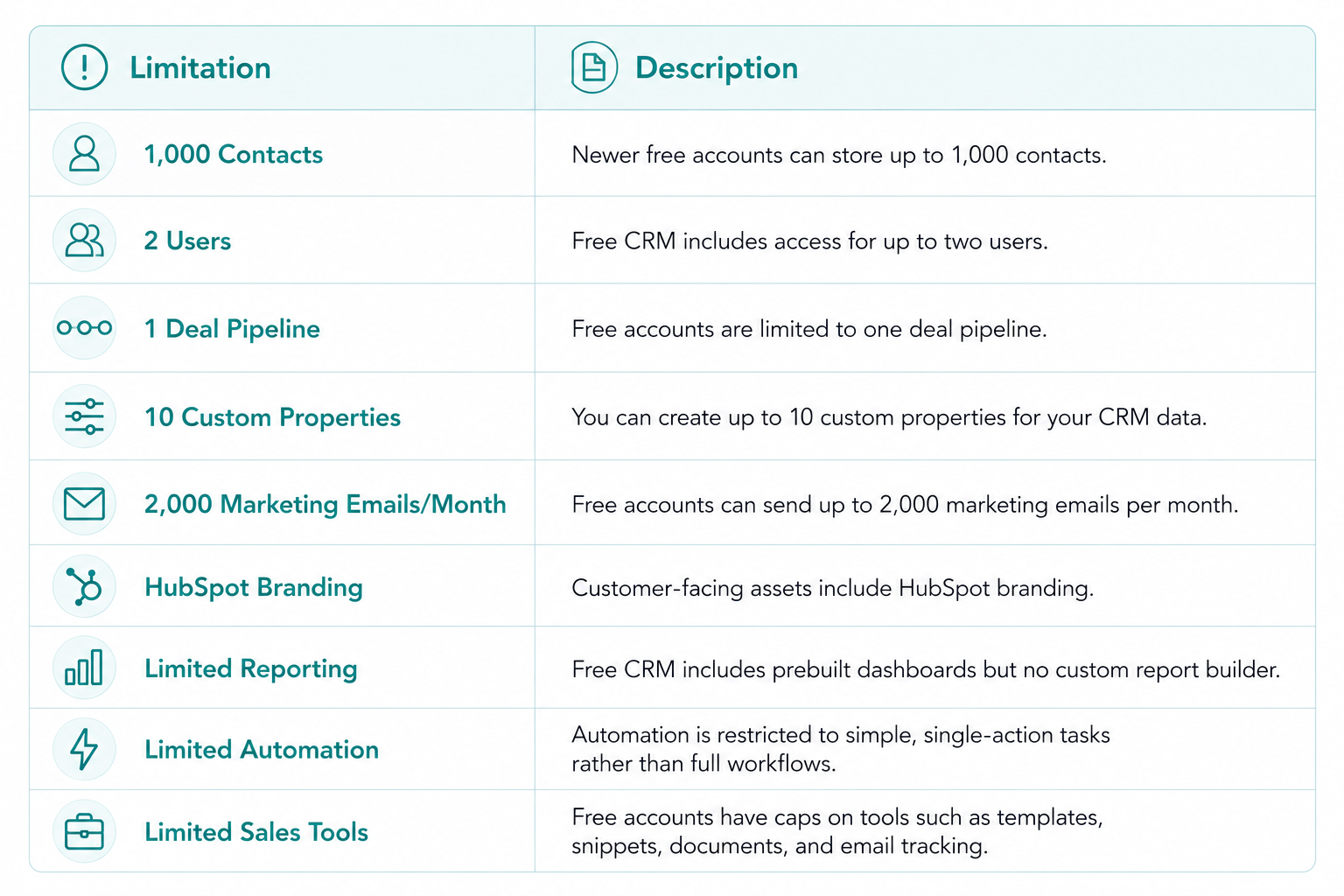
HubSpot Free CRM allows up to 1,000 contacts under the applicable Free CRM limit. You can check your account’s current contact limit and usage in Data Management > Data Model > Limits.
Free accounts include two users. That covers a founder and a salesperson. It does not cover a third person, so the moment marketing, sales, and operations all need access, you are buying seats.
Free and Starter accounts get one deal pipeline, and Professional lifts that considerably. Free accounts also cap custom properties at ten, which pushes you toward mapping your data into HubSpot's built-in fields before inventing new ones. Other sales tools carry their own small numbers, including three email templates, three snippets, five documents, one personal meeting link, and 200 email tracking notifications per month.
Free accounts send up to 2,000 marketing emails per calendar month, counted per recipient. One send to a list of 1,000 people uses half your monthly quota. One-to-one sales emails from the CRM are counted separately and are far more generous.
For a monthly newsletter to a few hundred subscribers, this holds. For a promotional sequence or a re-engagement campaign, it does not.
Free HubSpot tools include HubSpot branding on emails, landing pages, forms, meeting links, and chat widgets. Removing it requires a paid plan. This is usually minor for startups but can affect how an enterprise-facing company presents itself.
Free accounts include prebuilt dashboards for marketing, sales, and service activity. What they lack is the custom report builder, so you cannot construct a report from scratch that combines contact, company, deal, and activity data. Multi-touch attribution and customer journey analytics sit behind Professional as well.
Taken together, these limits make HubSpot Free a good starting point for organizing customer data and building consistent processes. As your operation grows, the limits can become restrictive when you need more automation, higher volume, and room to scale.
You may have outgrown HubSpot Free CRM when its limits start creating extra work or preventing your team from following the process you need. Here are five common signs:
If none of these describe your team, staying free is a reasonable decision.
HubSpot lets you upgrade the specific product that addresses the limit you have reached. Marketing Hub Starter increases email capacity, removes HubSpot branding, and expands form automation. Sales Hub Starter adds another deal pipeline and increases limits for templates, snippets, and documents. Professional editions add advanced features such as full workflows, sequences, and custom reporting. Sequences require Sales Hub or Service Hub Professional or Enterprise.
Choose the paid product based on the problem you need to solve. Upgrading to Professional just to increase email volume, for example, adds features you may not need.
HubSpot Free CRM gives a small team a real place to manage contacts, track opportunities, capture leads, and connect marketing with sales. Start with what you need now, and expand as the process gets more demanding.
Structure is the part worth getting right early. Properties, pipeline stages, and lifecycle definitions set on day one are what your reporting depends on two years later, and they are painful to redo once thousands of records depend on them.
Campaign Creators is a HubSpot Elite Solutions Partner, and we help teams set up HubSpot accounts properly, migrate existing data, and work out which upgrades are worth paying for.
Campaign Creators : 10/27/26
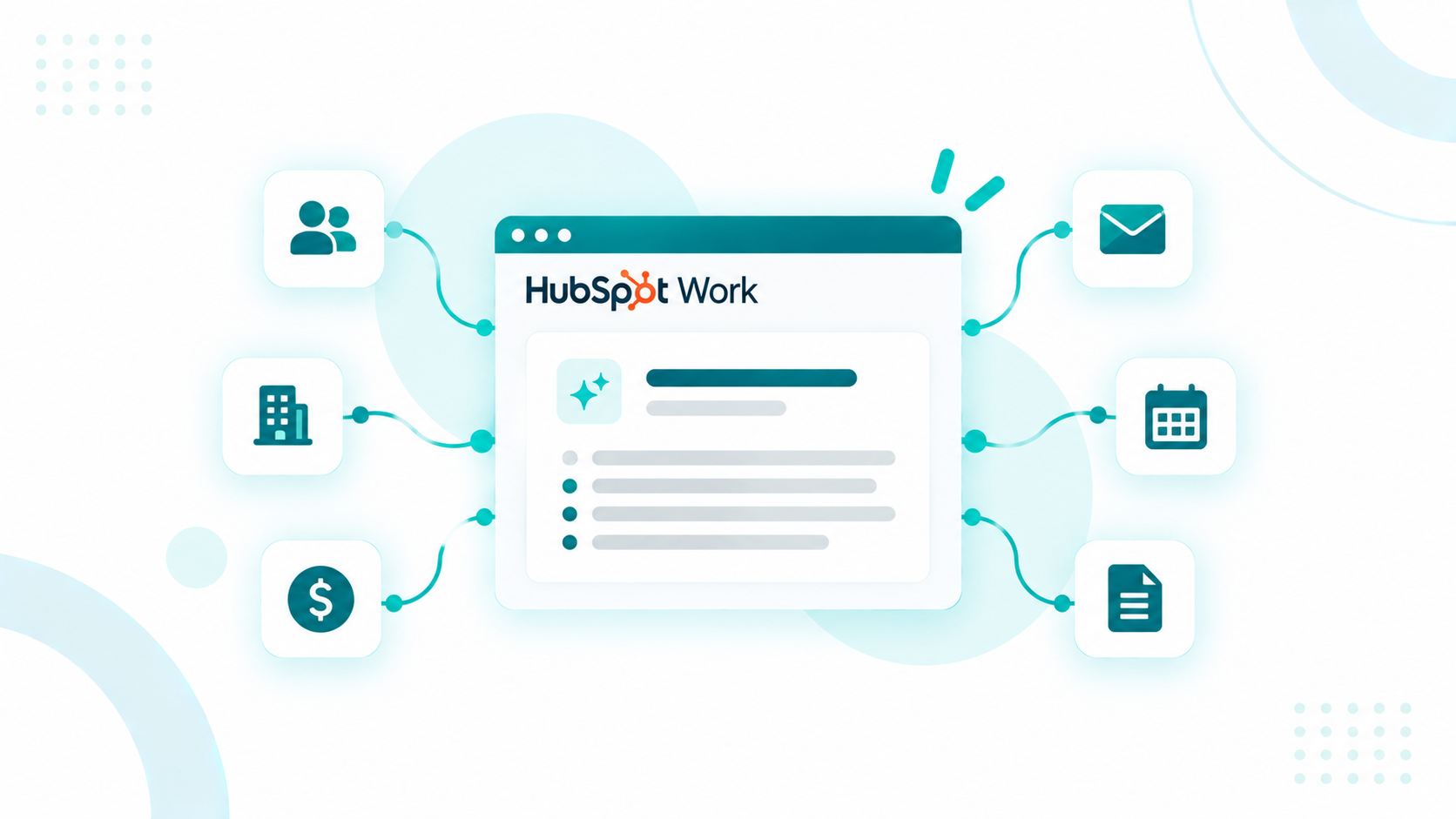
HubSpot Work uses CRM data in three ways. Its tables link rows to real CRM records, such as a client company and its key contacts. Its AI assistant...
Campaign Creators : 10/26/26
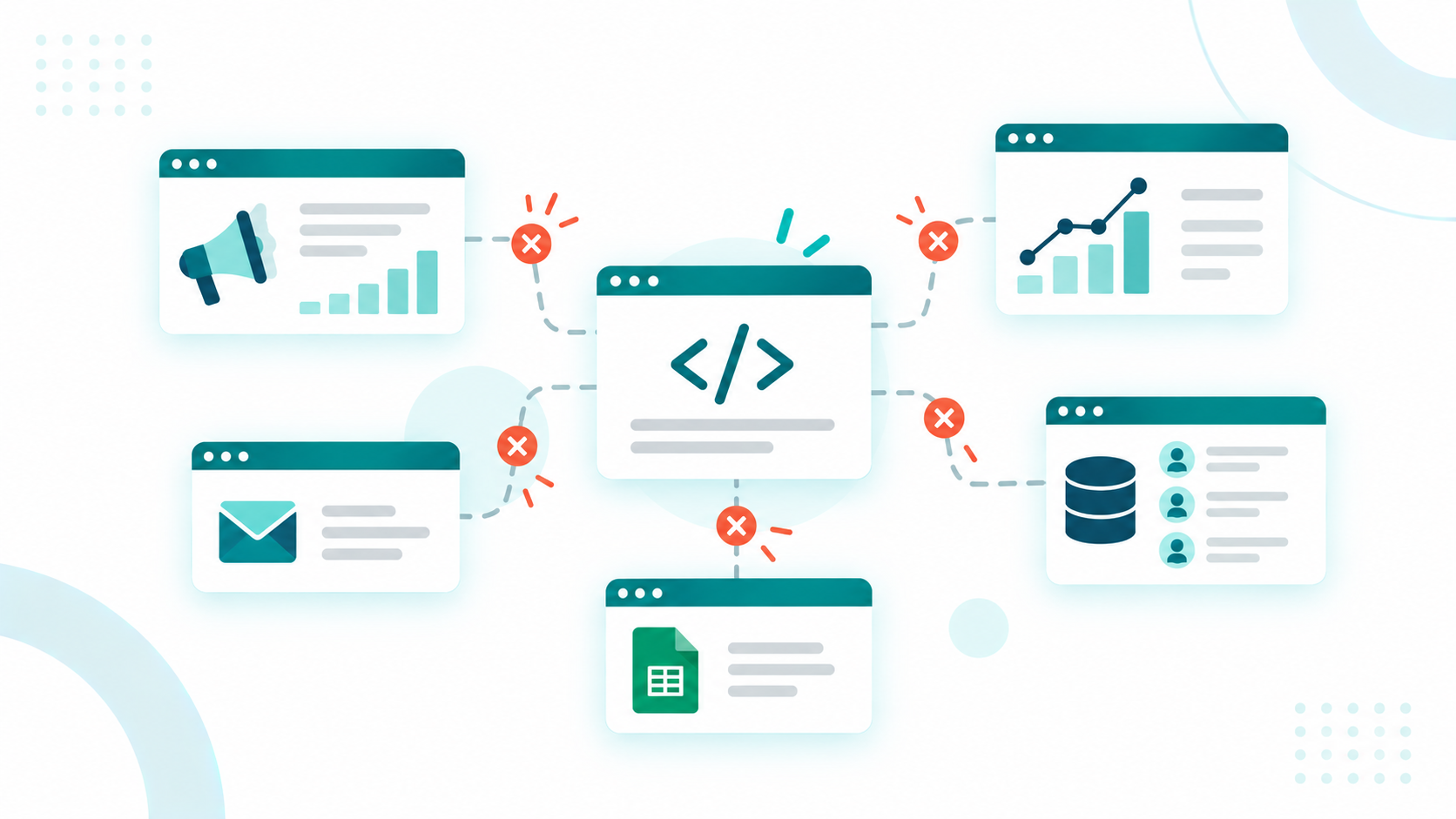
A vibe-coded marketing tool breaks when it runs outside the CRM because it can't see the customer record. It can email people who unsubscribed,...
Campaign Creators : 03/09/26
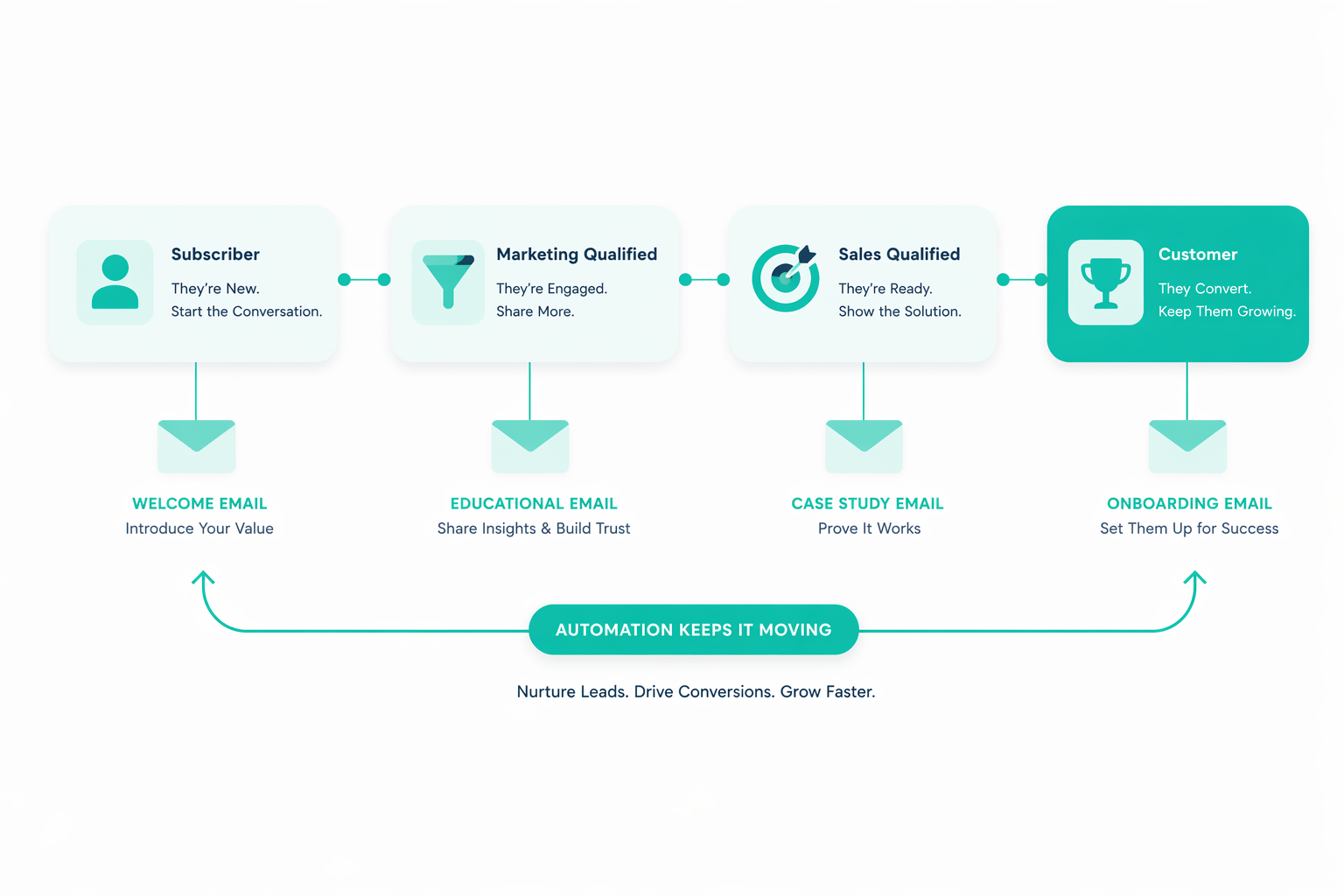
Many organizations invest heavily in lead nurturing, they create content libraries, building email workflows, and launching automation campaigns...