






A HubSpot Elite Solutions Partner built to help organizations unify strategy, systems, and execution. We design HubSpot systems that scale.

See how we've solved complex HubSpot challenges across migrations, integrations, CMS, automation, and optimization.

Join a team building smarter HubSpot systems. We value strategic thinkers who move proactively, care about quality, and want to do meaningful work.

13 min read

How to Improve Email Deliverability: 8 Proven Tips

How to Improve Email Deliverability: 8 Proven Tips

An email can be accepted by a receiving server and still never reach the person you sent it to. Across 15 email platforms tested in 2026, the average deliverability rate came in at 83.1%, with 10.5% of messages routed to spam and 6.4% disappearing without a trace. Close to one in six marketing emails never lands where it was supposed to.

The rules also got stricter. Gmail and Yahoo turned inbox access into a compliance question, with published requirements for authentication, spam complaint rates, and one-click unsubscribe. Google confirms that senders who miss those requirements can see messages rejected or filtered into spam, and enforcement against non-compliant traffic has been ramping up since November 2025.

This guide covers the eight fixes that can make the biggest difference, from DNS records to sending cadence, along with how to run each one inside HubSpot. Each tip covers what to change, where to change it, and what to watch afterward.

Key Takeaways

  • Deliverability is about inbox placement, and a high delivery rate can hide a large share of messages sitting in spam.
  • Gmail requires SPF or DKIM from every sender, and SPF, DKIM, DMARC, domain alignment, and one-click unsubscribe from anyone sending 5,000 or more messages a day to Gmail addresses.
  • HubSpot handles authentication setup, graymail suppression, frequency caps, and subscription preferences, but your DNS records also need to be configured correctly.
  • Open rate is a directional metric inside your platform and not a proof that anything reached an inbox.

What Is Email Deliverability?

Email deliverability is the ability of an email to successfully reach the recipient’s inbox and avoid spam, bounces, and rejections. It depends on factors such as sender reputation, email authentication, list quality, subscriber engagement, and sending behavior.

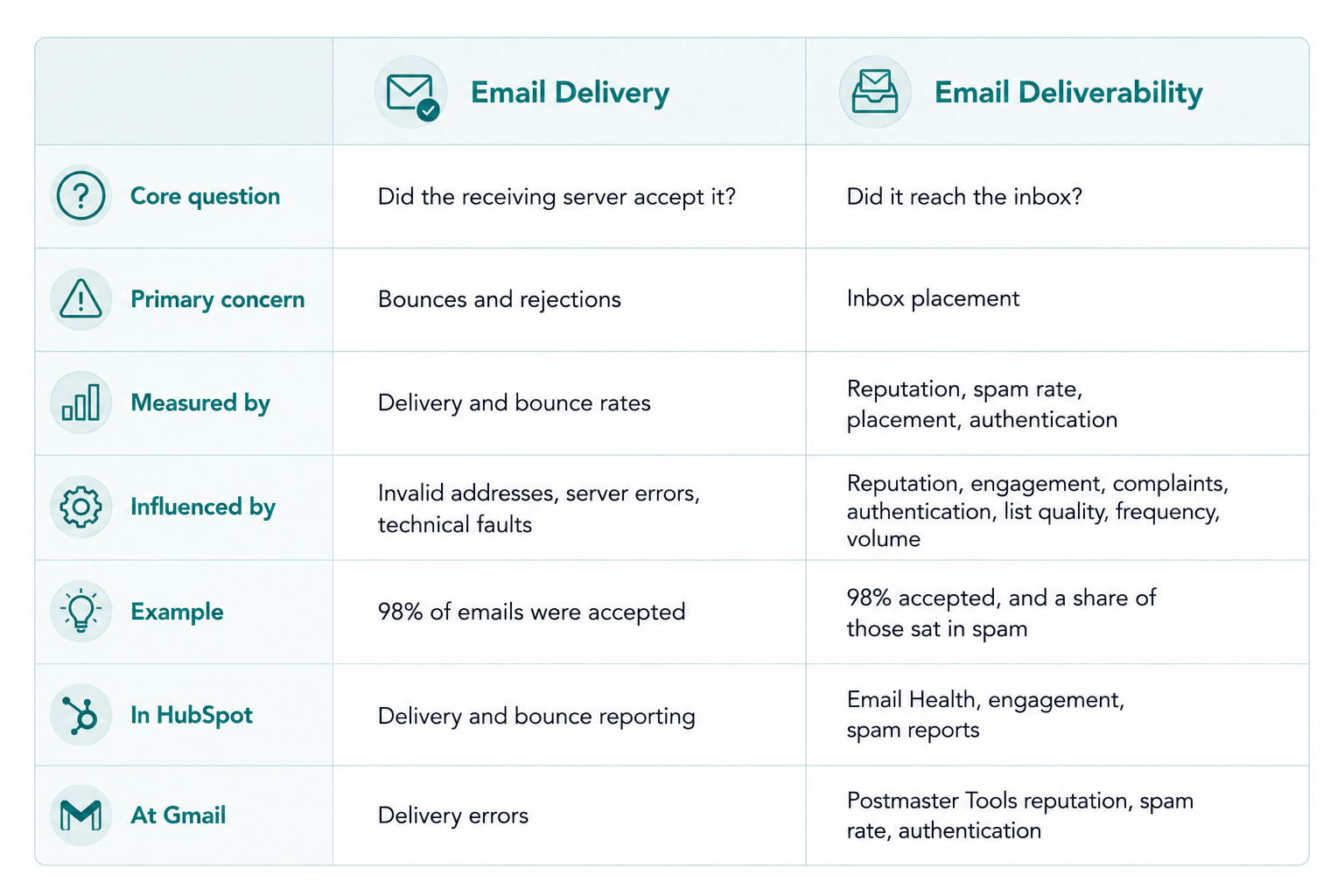
Email delivery focuses on whether the recipient’s mail server accepts your message. Deliverability looks at what happens after acceptance, including where the message lands. The eight tips below address the technical setup, list practices, and sending habits that influence both.

Tip 1: Authenticate Your Email Domain

Domain authentication proves your business is authorized to send from your domain. When mail arrives from hello@company.com, authentication gives Gmail a way to confirm that company.com signed off on it. Fix this first, because it gates everything else.

Three standards work together, and you need all three.

  • SPF publishes a DNS record listing the servers authorized to send mail for your domain. This becomes critical once you send from several platforms, since one record has to account for all of them.
  • DKIM adds a cryptographic signature that the receiving server verifies against a public key in your DNS. Google recommends a key of at least 1024 bits and 2048 bits where your provider supports it.
  • DMARC tells providers what to do when a message fails SPF and DKIM alignment. Gmail requires bulk senders to publish a record, and a policy of p=none meets the minimum. Treat p=none as a starting point, since it satisfies the requirement without protecting your domain from spoofing.

Gmail requires SPF or DKIM from all senders and the full set from bulk senders, and Google states that authenticated messages are less likely to be rejected or marked as spam. Authentication is a floor and not a ceiling. Placement still depends on complaints, engagement, list quality, and volume patterns.

How to Authenticate Your Sending Domain

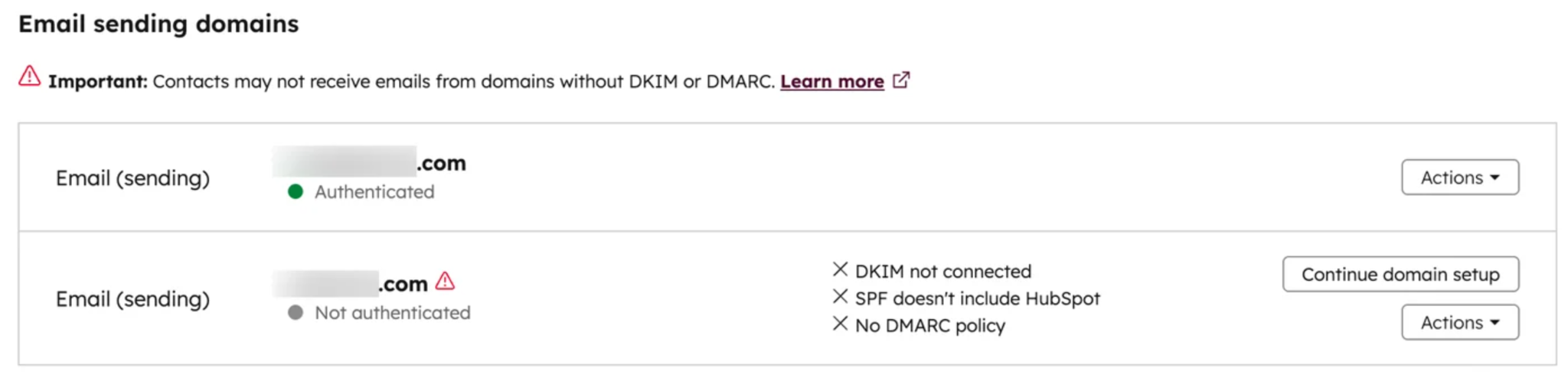
If you use HubSpot for email, authenticate your sending domain with DKIM, SPF, and DMARC.

  1. Go to Settings > Content > Domains & URLs > Email Sending, then click Connect sending domain.
  2. Enter an email address you send marketing emails from. HubSpot identifies the sending domain from it.
  3. Sign in through your DNS provider if HubSpot supports it, or choose manual setup.
  4. Add the generated records. DKIM needs two CNAME records. SPF and DMARC each need one TXT record.
  5. Check your existing SPF record before you add anything.
  6. Return to HubSpot to verify. Status moves from not authenticated to partially authenticated to authenticated.

How to Authenticate Your Sending Domain

Step five is where most setups break. Never publish a second SPF record for the same domain. HubSpot recommends adding its include statement to the record you already have, keep one SPF version and one -all mechanism, and avoid hard-coding provider IP addresses. A combined record looks something like this.

v=spf1 include:anotherprovider.com include:123456.spf03.hubspotemail.net -all

Your actual value comes from your HubSpot account. Copy it from there.

Tip 2: Keep Your Email List Clean

List hygiene is the ongoing work of sending only to contacts who are valid, opted in, and still paying some attention. It cuts bounces, complaints, and unwanted mail, which is exactly what receiving providers are measuring.

Different contact issues require different actions, from removal to suppression.

  1. Hard bounces. The address is invalid or permanently undeliverable. Remove them. HubSpot automatically excludes previously hard-bounced contacts from future marketing sends.
  2. Unsubscribes. Someone opted out of a subscription type and should stop receiving it. HubSpot enforces this at the subscription level, and continuing to email opt-outs is both a compliance and a reputation problem.
  3. Spam complainers. A complaint is a stronger negative signal than silence, and Google says spam reports affect delivery of other mail from your domain. Exclude these contacts permanently.
  4. Unengaged contacts. This group needs judgment. Someone who opted in two years ago and stopped opening is still a legitimate contact. Segment them, run a re-engagement campaign, and suppress the ones who do not respond.
  5. Purchased and appended lists. These people never asked to hear from you, and HubSpot warns they can contain spam traps. Remove them outright.

Deleting a subscriber after a single unopened email can shrink your database without improving engagement. Group contacts by problem type, then take the appropriate action.

How Often Should You Clean Your List?

Continuously. New invalid, inactive, and unwanted contacts enter your CRM every month, so an annual cleanup means you spend most of the year sending to a list you have not looked at.

A workable routine covers six things.

  • Remove hard bounces after every send.
  • Honor unsubscribes immediately.
  • Watch spam complaints for sudden movement.
  • Segment inactive contacts on a defined inactivity window, then run re-engagement before suppressing anyone.
  • Review new contact sources and confirm how consent was captured.
  • Send by subscription type so people get the email they chose.

Learn more about how to clean and optimize your marketing lead list in this guide.

Tip 3: Improve Sender Reputation

Sender reputation is how receiving providers score your sending behavior and the quality of what you send. It builds slowly from complaints, bounces, engagement, volume patterns, and authentication, and it can drop fast.

Complaints carry the most weight. Google recommends keeping your reported spam rate below 0.10% and never reaching 0.30% or higher, and describes the impact as graduated, with higher rates doing progressively more damage. Bounces signal list quality. Engagement works in the other direction, with consistent clicks supporting placement and consistent silence undermining it. Volume consistency counts too, since Google advises starting with engaged recipients and increasing traffic gradually.

How to Repair a Damaged Reputation

Start by reducing your sending volume before making other changes. Continuing to send the same volume to the same database can make the problem worse and make it harder to tell if your reputation is improving.

HubSpot's repair plan applies when your cumulative open rate stays below 10%. The plan starts by sending only to contacts who clicked one of your emails within the past two weeks. You can create this segment using the Last marketing email click date property.

The plan then expands your audience gradually based on your engagement results. Give each audience expansion about two weeks to show whether engagement is improving. Stay with the current audience until you reach the recommended open rate before expanding further.

The recovery process follows this simple progression:

path-to-reputation-recovery

Recovery takes longer than damage. Protecting your sender reputation is easier and less costly than repairing it.


How to Track Reputation in HubSpot

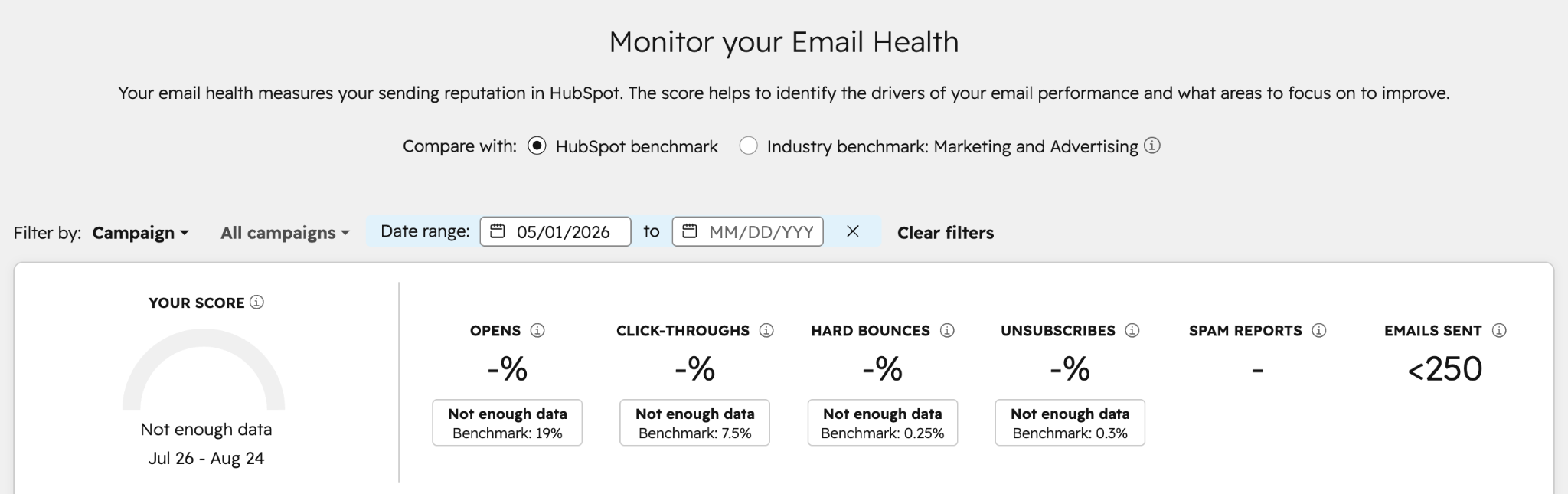
 hubspot-marketing-email-health-dashboard

The Email Health dashboard covers overall open rate, click-through rate, unsubscribe rate, spam reports, and hard bounce rate, plus recommended actions and lists of your highest and lowest performing emails and contact segments. To access it, go to Marketing > Email > Health.

Read the metrics against each other.

  • High hard bounces point at contact quality and acquisition sources.
  • High spam reports point to targeting, consent, frequency, or content.
  • Low engagement calls for a narrower audience.
  • High unsubscribes suggest people are getting more, or different, email than they expected.

Two limits are worth noting. You need 400 emails sent in the last 30 days for data to appear, and the reports exclude the most recent 48 hours. Sales outreach also shares your domain, so pull the Sequences sender score alongside this. High-bounce prospect lists are not contained inside the sales team's reporting.

Tip 4: Avoid Spam Triggers in Your Emails

There is no master list of forbidden words that automatically routes a message to spam. Words like free, urgent, and limited time get blamed often, and none of them reliably triggers filtering on its own. Google's guidance concentrates on misleading content, deceptive formatting, hidden text, suspicious links, and unwanted sending.

Intent is what gets read. "Get 20% off your annual plan this week" is a promotion, clearly labeled. "URGENT: Your account has been compromised, ACT NOW" manufactures alarm about something that did not happen, which Google's sender guidance treats as deceptive.

Misleading subject lines

The subject should describe the email. Using Re: or Fwd: on a message that is neither is specifically prohibited under Gmail’s guidelines.

Unclear sender identity

Your From name and address should make it obvious who is writing. Google warns against impersonation and misleading sender information.

Hidden content

Using HTML or CSS to conceal text can get a message marked as spam.

Vague links

Google recommends that links in the body be visible and easy to read, so recipients know where a click leads.

Mixed content types

Gmail advises against combining categories, like slipping promotional content into a transactional message.

Irrelevant or excessive content

Relevance belongs on this list too. Someone who subscribed to a weekly newsletter and starts receiving daily offers, unrelated product news, and constant webinar invitations may reach for the spam button on an email that is technically legitimate.


How to Handle Links and Images

A link should land where the anchor text says it will. A button reading "Download the guide" should open the guide. Keep the destination recognizable, keep the link count reasonable, and skip anything that hides text or disguises the message.

Your email should also hold up with images blocked. A recipient should still be able to tell who sent it, what it covers, and what to do next.

Tip 5: Monitor Email Engagement

Engagement tracking tells you how recipients respond, and those responses feed straight back into placement. The engagement metrics you should track:

  • Click-through rate shows real interaction and is more reliable than opens for judging interest.
  • Reply rate is the strongest signal available and the most useful one for sales email.
  • Conversion rate connects engagement to the outcome you care about.
  • Unsubscribe rate flags misalignment in content, frequency, or expectations.
  • Spam complaints are the deliverability metric. Keep the Postmaster Tools figure under 0.10%.
  • Bounce rate exposes contact data problems. Many deliverability practitioners work to a threshold under 2%, and a rate above 5% is a reason to stop and verify the list before sending again.
  • Open rate is directional inside your platform and nothing more. Google states plainly that it does not track open rates and cannot verify third-party open data, and Apple's Mail Privacy Protection inflates the number further.

Reading Engagement Trends

Trend

What it may indicate

Clicks declining steadily

Content or audience relevance slipping

Unsubscribes climbing

Frequency or expectations misaligned

Spam complaints climbing

Recipients do not want the mail

Bounces climbing

Contact data deteriorating

Strong engagement in one small segment

Your real audience is smaller than your database

Engagement drops after a volume increase

Cadence or audience expansion needs review

Engagement data also tells you what to write more of. If educational content clicks at 4.5%, product updates at 2.1%, and promotions at 0.8%, that is a reason to rebalance the mix and not to stop promoting.

How to Segment by Engagement in HubSpot

Split your database into tiers and send accordingly. Highly engaged contacts with recent clicks can handle more. Moderately engaged contacts with declining activity need a lighter touch. Unengaged contacts need a re-engagement sequence or nothing at all.

HubSpot builds this into the send flow. Marketing Hub Enterprise accounts can pick an engagement target when configuring recipients, choosing between maximizing reach, excluding the least engaged contacts, or sending only to highly engaged contacts. Send-time optimization on eligible Professional and Enterprise accounts uses recent open and click activity to pick a send time per contact, which beats defaulting every campaign to Tuesday at 10 a.m.

Tip 6: Send Emails at the Right Frequency

There is no universal cadence. A daily news publication has a reason to email daily. A B2B company with a monthly newsletter does not. The workable question is how often you can send useful, expected content without wearing people out, and your signup process should set that expectation up front.

Both directions carry a cost. Over-sending produces fatigue, falling engagement, rising unsubscribes, and complaints from people who skip the unsubscribe link. Under-sending means someone who subscribed in January does not recognize your sender name when a promotion arrives in December.

Google's guidance emphasizes consistency, warning against sudden bursts and recommending gradual volume increases as a program grows.

How to Cap Frequency in HubSpot

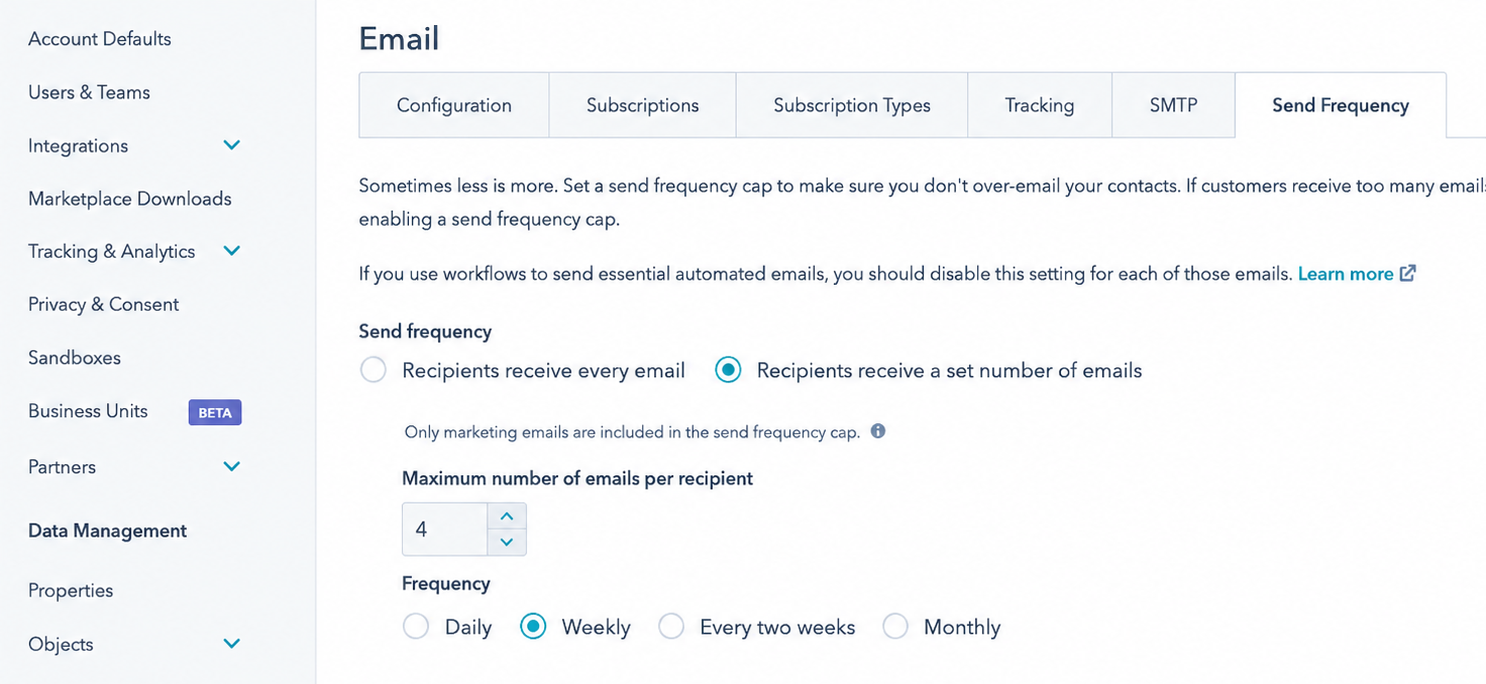
An email frequency safeguard sets the maximum number of marketing emails a contact receives in a period. Go to Settings > Marketing > Email > Send Frequency, choose the maximum per recipient, and select daily, weekly, every two weeks, or monthly.

hubspot-email-send-frequency

Three details make this usable in practice. The cap covers regular marketing emails, workflow emails, and blog notifications, and it excludes transactional email, one-to-one email, feedback surveys, and conversations inbox messages. It is calculated per contact on a rolling basis. You can exempt a single email from the cap for genuine company-wide announcements.

Graymail suppression handles the other half of the problem. HubSpot's Don't send to unengaged contacts setting is on by default for marketing emails and treats a contact as unengaged if they have never engaged and missed your last 11 emails, or previously engaged and missed the last 16.

Both controls together stop a single contact from receiving a newsletter, a product announcement, a webinar invitation, and two workflow emails in the same week.

Tip 7: Make It Easy to Unsubscribe

An easy opt-out protects your sender reputation. When unsubscribing is difficult, recipients may mark your email as spam instead.

Bulk senders need two opt-out mechanisms:

  • Visible unsubscribe link: An in-email link such as “Unsubscribe” or “Manage preferences.”
  • One-click unsubscribe: A header-level mechanism using List-Unsubscribe and List-Unsubscribe-Post under RFC 8058.

These requirements apply to marketing and promotional emails and not transactional messages such as password resets or order confirmations.

How to Set Up Unsubscribe Options in HubSpot

Every HubSpot marketing email includes at least one subscription management link in the footer by default. In response to Google and Yahoo requirements, HubSpot also adds a link to unsubscribe from that email's subscription type above the email for eligible messages.

You can add subscription links inside the body as well. Highlight text in the email editor, click the link icon, choose Email subscription link, and pick from three options. Subscription preferences opens a page for managing individual types. Subscription confirmation supports double opt-in. Unsubscribe all opts the contact out of everything.

Set up your categories in Settings > Marketing > Email > Subscriptions. Named subscription types are what turn an all-or-nothing exit into a real choice, so someone can drop the newsletter and keep product updates. Review any individual contact's status under CRM > Contacts. HubSpot ties email subscription preferences to the email address, not the contact record, so a status survives deletion and re-creation of the same address.

Marketing Hub Professional and Enterprise accounts can customize the subscription pages so the experience matches your brand. One distinction to keep in mind. Unsubscribing from all marketing email does not opt someone out of one-to-one sales email or transactional email.

Before you send, confirm the unsubscribe link is visible and working, the right subscription type is attached, opt-outs are recording correctly, and bulk sender header requirements are met.

Tip 8: Monitor and Fix Deliverability Issues

Five changes deserve immediate attention.

  • Bounce rates jump, pointing at list quality or a sending configuration change.
  • Spam complaints climb, pointing at targeting, consent, or frequency.
  • Domain reputation drops in Postmaster Tools.
  • Messages start getting deferred or rejected, which can mean rate limits, authentication failures, or reputation damage.
  • A campaign underperforms sharply against its own history.

What to Do When Emails Bounce or Get Rejected

Start by identifying the failure type:

  • Hard bounce: Usually a permanent issue, such as an invalid address. Suppress these contacts.
  • Soft bounce or deferral: Usually temporary and can result from server limits, message size, or sending volume.

When bounces or deferrals increase, reduce sending volume, identify the cause, fix it, and increase volume gradually. For rejections, check the SMTP error code for the specific reason. Use the error details and Postmaster Tools to identify the issue, then fix, test, and resume sending gradually. Authentication problems and IP reputation issues require different fixes.

What to Do When Emails Land in Spam

Spam placement usually has more than one cause, so check six things in order.

  1. Spam complaints, to see if recipients are reporting you
  2. Authentication, confirming SPF, DKIM, and DMARC all pass
  3. Domain and IP reputation where the data is available
  4. Audience quality, ruling out inactive, purchased, or unwanted contacts
  5. Sending frequency and recent volume changes
  6. Message content, including subject lines, sender identity, and links

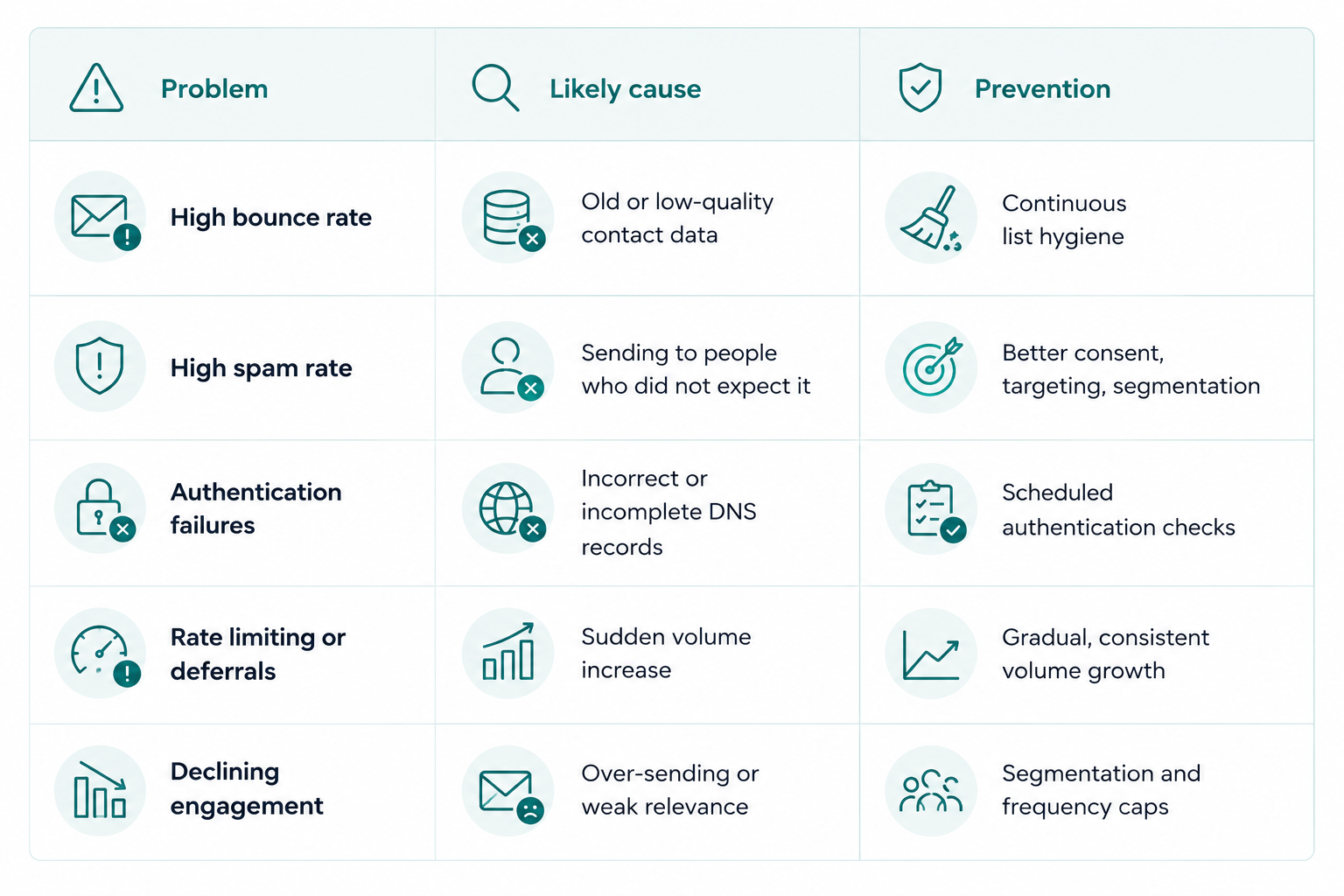
Root Causes and Prevention

common-email-deliverability-issues-and-how-to-prevent-them

Requirements also shift. Google has been increasing enforcement against non-compliant traffic, so an old compliance checklist is worth re-reading against the current sender guidelines once or twice a year.

How to Check Your Email Deliverability

To check email deliverability, use three sources together: mailbox-provider data, your email platform’s reports, and test sends. There is no single score that predicts how your emails will perform across every provider, so looking at these sources together gives you a more accurate picture.

Where to Look for Gmail Data

Google Postmaster Tools is the primary source for Gmail deliverability data. You need a Google Account and a verified sending domain. The data covers personal Gmail addresses such as @gmail.com, not Google Workspace recipients.

The dashboards show compliance status, spam rate, domain reputation, IP reputation, authentication, encryption, feedback loop data, and delivery errors. The deliverability analysis diagnostic can also surface recommendations when volume is too low, delivery is failing, spam rates are too high, or engagement is weak.

Data is typically updated within 24 hours, but delays can occur. Use it to track trends rather than as a live monitoring tool.

How to Check Delivery by Provider in HubSpot

In HubSpot, go to Marketing > Email > Delivery. On Professional and Enterprise plans, you can see delivery and engagement by mailbox provider. This can reveal a Gmail-specific problem that may be hidden by a healthy overall delivery rate.

For individual issues, check the contact record for events such as opens, clicks, and bounces. Also check your email sending domain settings to confirm authentication. Connecting your sending platform does not automatically mean your DNS records are configured correctly.

Email Deliverability vs. Email Delivery: What's the Difference?

comparison-table-email-deliverability-vs-email-delivery

What Is a Good Email Deliverability Rate?

A good email delivery rate is generally 95% or higher, with 97% to 99% considered excellent. However, delivery rate only shows whether receiving servers accepted your emails. You also need to monitor inbox placement, spam complaints, bounces, and authentication to understand your actual deliverability.

2026 Benchmarks

Benchmarks may vary because different studies measure different parts of email performance.

Delivery rate

General reading

97%–99%+

Excellent

95%–97%

Good

90%–95%

Worth monitoring

Below 90%

Possible deliverability or list-quality problem

For inbox placement, EmailToolTester found an average placement rate of 83.1%. It considers rates above 89% good, above 95% excellent, and below 80% poor.

For Gmail, spam rate is another important signal. Aim to keep it below 0.10%. Rates from 0.10% to 0.30% increase risk, and 0.30% or higher indicates a serious problem for bulk senders.

What to Aim For

A healthy email program should show several positive signals:

  • Delivery rate: 95% or higher
  • Bounce rate: Low and stable
  • Spam complaints: Below 0.10% in Postmaster Tools
  • Authentication: SPF, DKIM, and DMARC consistently passing
  • Domain reputation: Stable
  • Sending volume: Predictable
  • Engagement: Stable or improving
  • Inbox placement: Confirmed through testing

Your targets can vary based on your industry, list size, acquisition methods, and sending volume. No single metric tells the whole story. Look for multiple deliverability signals moving in the right direction.

Audit Your Sending Setup Before the Next Campaign

Pick the tip on this list where your current setup is weakest and start there. For most teams, it is authentication or list hygiene, because problems in these areas often go unnoticed until inbox placement drops.

Campaign Creators helps marketing teams improve email deliverability in HubSpot, including configuring authentication, cleaning up contact databases, and building sending practices that support long-term deliverability.

If your email performance has declined and you’re not sure why, we can help identify the issue and determine what to fix.

Frequently Asked Questions

How Often Should You Send Marketing Emails?

There is no universal cadence. The right frequency depends on what subscribers expected at signup, how relevant the content is, and how they respond.

How Do You Make It Easy for People to Unsubscribe?

Put a visible unsubscribe or preference link in every marketing email and keep the process to one step.

Does Authenticating Your Domain in HubSpot Guarantee Inbox Placement?

No. Authentication satisfies a technical requirement and helps providers trust your identity, and placement still depends on complaints, engagement, list quality, content, and volume patterns. Google also states that no third-party email provider can guarantee passage through Gmail's spam filters.

Why Are Emails Marked Delivered but Missing From the Inbox?

The message may be in spam or another filtered folder, or blocked by recipient-side security settings.

Marketing Workflows: How to Build High-Converting Automation Systems

Marketing Workflows: How to Build High-Converting Automation Systems

Every time someone visits your site, opens an email, or clicks a link, your business has a chance to respond. Marketing workflows define how that...
Read More
How to Integrate Facebook Lead Ads With Your CRM

How to Integrate Facebook Lead Ads With Your CRM

Facebook Lead Ads can produce a steady flow of prospects, but a lead sitting in Meta is not a lead your sales team can work with. Someone still has...

Read More
Best Practices for Your Re-Engagement Campaign

Best Practices for Your Re-Engagement Campaign

Re-engagement is a technique used by marketers to reach out to leads who were at some point interested in and engaged with their company, but have...

Read More