










 Campaign Creators
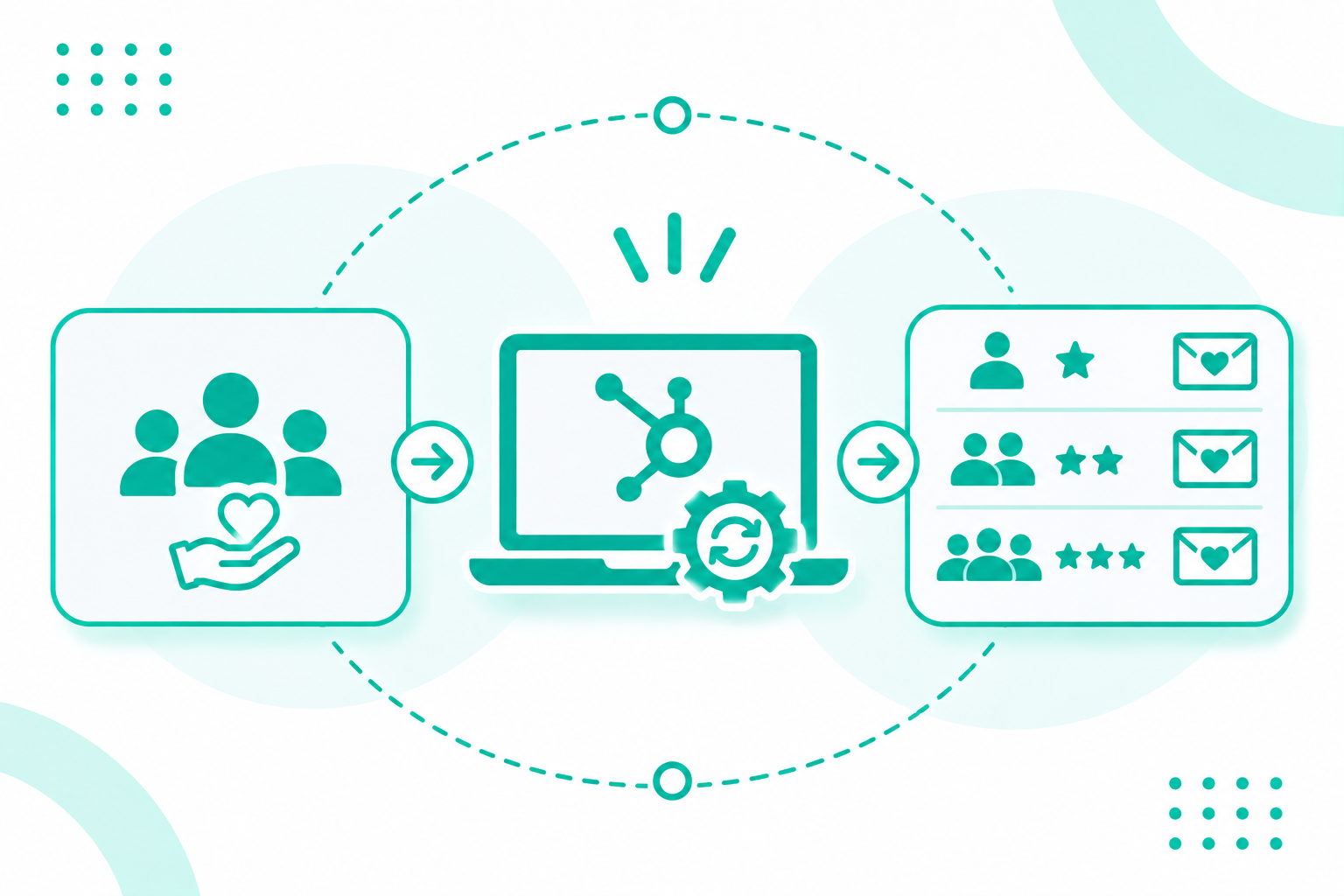
To automate donor stewardship in HubSpot, track each gift as a record in a Donations pipeline, then build a workflow that starts when a gift is received. The workflow branches by gift tier, sends the right thank-you email, creates call tasks for larger gifts, and schedules impact updates. Workflows need a Professional or Enterprise subscription.
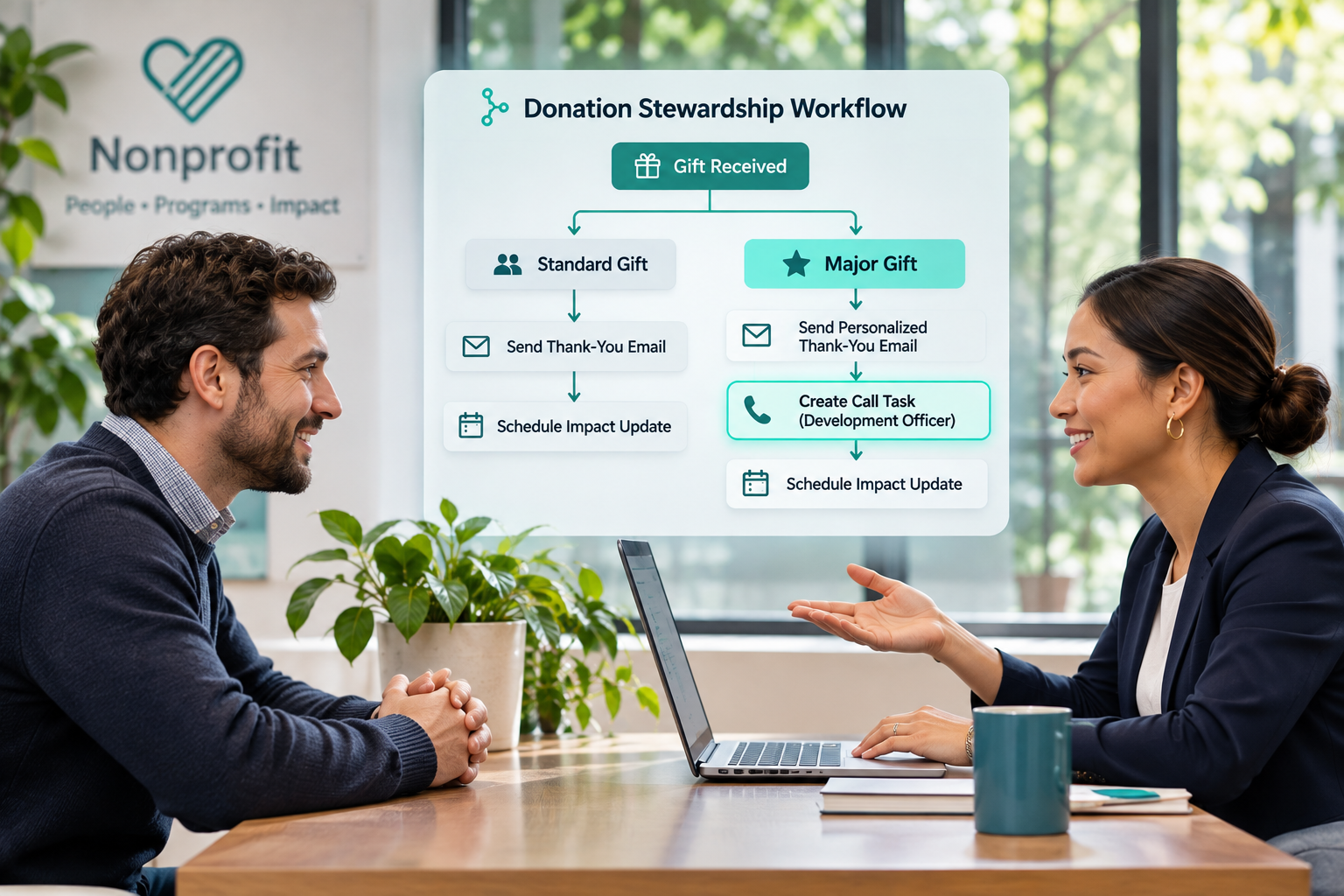
Thanking donors is easy when ten gifts arrive in a week. It gets harder during Giving Tuesday and year-end, when hundreds of gifts land at once. A $5,000 donor can then wait as long as a $25 donor for a call. A tiered playbook gives every donor a defined level of service, so a small development team can keep up during its busiest weeks.
If you're setting up a new portal for your development team, our HubSpot onboarding team can build the donation records and stewardship workflows from the start.
Key Takeaways
- Track each gift as a record in a renamed deal pipeline, so a received gift can start a stewardship workflow.
- Set three or four gift tiers, and give each tier a written service level for thank-yous, calls, and impact updates.
- Workflows handle timing and reminders, and staff still make the calls and write the notes for larger gifts.
Table of Contents
- What Should a Donor Stewardship Plan Include for Each Gift Tier?
- What HubSpot Tools Do You Need to Automate Donor Stewardship?
- How Do You Set Up Gift Data So Stewardship Workflows Can Run?
- How Do You Build a Donor Stewardship Workflow in HubSpot?
- What Other Stewardship Workflows Should You Build?
- What Should Each Stewardship Email Say?
- What Stewardship Steps Should Stay Personal?
- How Do You Keep Stewardship Emails From Overwhelming Donors?
- What Mistakes Break Donor Stewardship Automation?
- How Do You Know If Donor Stewardship Automation Is Working?
- How Can Campaign Creators Help Automate Donor Stewardship?
- Recap
- Frequently Asked Questions
What Should a Donor Stewardship Plan Include for Each Gift Tier?
A donor stewardship plan gives each gift tier a service level for the thank-you, who sends it, and the updates over the next year. Write the service levels down first, then build the automation to match them.
Set the Gift Tiers and Service Levels
Each tier needs a dollar range, a thank-you standard, a personal touch, and a follow-up plan for the next 12 months. The table below is a starting template for a small or mid-size development team.
| Tier | Example range | Thank-you | Personal touch | Follow-up over 12 months |
|---|---|---|---|---|
| Supporter | Under $250 | Automated email within an hour | None required | Impact email at 90 days and a gift anniversary email |
| Donor | $250 to $999 | Automated email with the written acknowledgment the same day | Thank-you call from staff or a board member within 3 business days | Impact email at 90 days and an event or program invitation |
| Leadership donor | $1,000 to $9,999 | Personal email from the development director within 2 business days | Call and handwritten note | Quarterly impact updates and a year-end personal note |
| Major donor | $10,000 and up | Call from the executive director within 1 business day | Gift officer owns the relationship in a major gifts pipeline | Custom impact report and an in-person visit |
The ranges above are an example. Base your tiers on your own donor pyramid, and keep the breaks round so staff can remember them.
Use the $250 Break for Receipts
The $250 break is useful for US nonprofits because contributions of $250 or more need a written acknowledgment. That acknowledgment includes the organization's name, the gift amount, and a statement about any goods or services the donor received in return.
Building that language into the Donor tier email means every qualifying gift gets a compliant receipt without anyone writing it by hand. Have your finance lead or accountant approve the receipt wording once, then reuse it in every tier at $250 and above.
Add Tracks That Run Beside the Tiers
Gift size is only one way donors differ. Three groups need their own track at any gift size.
- First-time donors get a short welcome series over the first 60 days, since the second gift is the hardest one to earn.
- Recurring donors get a monthly-giver welcome and a giving anniversary note, with fewer appeals than one-time donors receive.
- Tribute and memorial donors get a thank-you that names the person the gift honors, and the honoree or family gets a notification.
Map the First Year on One Page
A one-page stewardship calendar shows every touch a donor can expect after a gift. Staff can check it before adding a new email, and leadership can approve the whole plan in one meeting.
| Timing after the gift | Supporter | Donor | Leadership donor | Major donor |
|---|---|---|---|---|
| Day 0 to 1 | Thank-you email | Thank-you email with receipt | Personal email | Executive director call |
| Week 1 | None | Thank-you call | Call and handwritten note | Gift officer follow-up |
| Day 30 | Welcome story if first-time | Welcome story if first-time | Program update from staff | Program update from staff |
| Day 90 | Impact email | Impact email | Impact email and quarterly update | Custom impact report |
| Month 6 | Newsletter only | Event or program invitation | Quarterly update | Site visit or meeting |
| Month 11 | Gift anniversary email | Gift anniversary email | Year-end personal note | Year-end report and renewal conversation |
What HubSpot Tools Do You Need to Automate Donor Stewardship?
Automated donor stewardship needs workflows, rollup properties, and marketing emails, and all three come with Professional or Enterprise subscriptions. Marketing Hub Professional is the usual starting point, since it covers both the workflows and the stewardship emails.
| What you need | HubSpot feature | Subscription |
|---|---|---|
| A record for each gift | Deals renamed to Donations | Any plan |
| Lifetime giving and last gift date on the donor | Rollup properties | Professional or Enterprise |
| Thank-you and impact emails | Marketing emails sent from workflows | Marketing Hub Professional or Enterprise |
| Call and note reminders | Create task workflow action | Professional or Enterprise |
| Alerts for major gifts | Internal email and in-app notifications | Professional or Enterprise |
| Pledges and installments with their own stages | Custom objects | Enterprise |
Rollup properties can sum a donor's associated donation amounts and return the newest gift date, so every contact record shows lifetime giving without a spreadsheet. The full list of workflow actions covers tasks, delays, branches, and notifications.
Gift officers who manage major donors day to day may also need Sales Hub seats for one-to-one outreach and pipeline work. Custom objects only make sense on Enterprise when pledges, installments, or grants need their own records and stages.
How Do You Set Up Gift Data So Stewardship Workflows Can Run?
Stewardship workflows only run well on clean gift data, so set up a Donations pipeline and a few donor properties before you build any automation. Each gift becomes a deal record with an amount, a date, a fund or campaign, and an associated donor contact.
Build the Donations Pipeline
A short pipeline is easier to report on and easier for workflows to read. Three or four stages cover the stewardship path for a typical gift.
- Rename deals to Donations in your object settings, so staff see donor language everywhere in the portal.
- Create a Donations pipeline with the stages Pledged, Received, and Acknowledged.
- Set Received as the closed-won stage, so HubSpot stamps the close date when the gift arrives.
- Keep major gift prospects in a separate pipeline, so open asks never mix with received gifts in reports.
Create the Donor Properties
A small set of properties drives every branch, email, and report in the stewardship program. Create them before any workflow, and give each one a clear description so new staff know what it means.
| Property | Object | Type | What it does |
|---|---|---|---|
| Gift Tier | Donation | Dropdown | Groups gifts by the tiers in your stewardship plan |
| Fund or Designation | Donation | Dropdown | Records the program or fund the donor chose |
| Recurring Gift | Donation | Yes or no | Separates monthly gifts from one-time gifts |
| Tribute Name | Donation | Single-line text | Stores the person a tribute or memorial gift honors |
| Lifetime Giving | Contact | Rollup, sum | Adds up every received donation for the donor |
| Last Gift Date | Contact | Rollup, latest date | Shows the donor's most recent gift |
| Number of Gifts | Contact | Rollup, count | Counts received donations for the donor |
| First-Time Donor | Contact | Yes or no | Set by a workflow when Number of Gifts equals 1 |
Filter the rollups to received donations only. Without that filter, open pledges and lost asks inflate lifetime giving.
Connect Your Fundraising Platform
Every gift needs to land in HubSpot as a donation record without anyone typing it in. Fundraise Up, Donorbox, and GoFundMe Pro all offer HubSpot integrations. Each one should map the amount, date, fund, recurring flag, and tribute details to the properties above.
Data from other systems can feed the same records. When we worked with our client GTIA, we built a custom HubSpot and Cvent integration that keeps 230,000+ contacts in sync and updates membership status automatically. Event fee waivers now apply without manual list uploads.
Clean the Data Before You Automate
Before any workflow goes live, design your automation around clean data. A duplicate donor record can send two thank-you emails for one gift, and a gift on the wrong contact sends the thanks to the wrong person.
Merge duplicate contacts, fill in missing email addresses for recent donors, and link spouses or household members with association labels on Professional or Enterprise. Then run a test import of a few past gifts and confirm the rollups show the right totals.
How Do You Build a Donor Stewardship Workflow in HubSpot?
Build one deal-based workflow that enrolls each donation when it reaches the Received stage, then branch it by gift tier. One workflow with clear branches is easier to maintain than a separate workflow for every tier.
Build the Acknowledgment Workflow
The acknowledgment workflow is the core of the program. Every received gift passes through it, and every tier branch follows the service level in your plan.
- Create a deal-based workflow with an enrollment trigger of Deal stage is Received in the Donations pipeline.
- Add a branch based on AND/OR logic, with one branch for each tier's Amount range.
- In each branch, add an Edit record action that sets Gift Tier to that tier's value.
- Send the tier's thank-you email in every branch, and include the written acknowledgment language in the Donor tier and above.
- Add a Create task action in the Donor tier and above, assigned to the donation owner, with a due date that matches the service level.
- Send an internal notification for Major donor gifts, so the executive director and gift officer know within minutes.
- Add a 90-day delay, then send the tier's impact update email.
- Edit the record to move the donation to Acknowledged, so reports show the gifts that finished the stewardship path.
Handle Recurring and Tribute Gifts in the Same Workflow
Recurring gifts need a branch ahead of the tier branches. Without it, a $25 monthly donor gets a full thank-you email every month, and the message loses its meaning by the third one.
Send the full thank-you only on the first recurring payment, and let later payments skip to a quiet path with no email. For tribute gifts, add a branch that checks Tribute Name, then send an internal notification so staff can mail a card to the honoree or family.
Test Before You Turn It On
Create a test donation at every tier, plus one recurring gift and one tribute gift, all on internal test contacts. Check that each one gets the right email, the right task, and the right owner before any real donor enters the workflow.
Turn the workflow on with enrollment set to new gifts only. Re-enrolling a year of past gifts would send old donors a thank-you for a gift they made months ago.
What Other Stewardship Workflows Should You Build?
Three more workflows round out the program, covering first-time donors, gift anniversaries, and donors who haven't given again this year. Each one runs on contact properties, so build them as contact-based workflows.
First-Time Donor Welcome Series
The welcome series enrolls contacts when First-Time Donor is Yes. The same logic behind automated lead nurturing with lifecycle stages works for new donors, with one clear message per email and a steady pace.
| Timing | Purpose | |
|---|---|---|
| Welcome | Day 3 | Introduce the organization and the team behind the work |
| Program story | Day 21 | Show the program the gift supports through one person's story |
| Get involved | Day 45 | Invite the donor to volunteer, attend an event, or follow along on social media |
| First impact update | Day 60 | Share a result from the program the donor funded |
Add an unenrollment trigger for a second gift. A donor who gives again during the series moves into the repeat-donor path, and the welcome emails stop.
Gift Anniversary Workflow
The anniversary workflow reaches each donor about 11 months after their last gift, so the note arrives ahead of the renewal appeal. Enroll contacts when Last Gift Date is known and more than 330 days ago. Then turn on re-enrollment, so donors can enroll again after their next gift.
Supporter and Donor tiers get an anniversary email that recaps what their gift made possible. Leadership and Major donor tiers get a task for the owner to write a personal note or plan a call.
LYBUNT Reminder Workflow
LYBUNT donors gave last year but haven't given this year. A contact-based workflow can flag them in October, with enough time for a personal touch before the year-end appeal.
Enroll contacts whose Last Gift Date falls in the previous calendar year. Because Last Gift Date always holds the newest gift, these donors have no gift so far this year. Leadership and Major donors get an owner task for a call. Smaller donors move into a year-end appeal list with a "thank you for last year" opening line.
What Should Each Stewardship Email Say?
Each stewardship email should do one job, either thanking the donor, showing impact, or inviting them closer. Mixing a thank-you with a new ask in the same email weakens both messages.
Thank-You Email
The thank-you email names the gift, says what it supports, and comes from a real person. Use personalization tokens for the first name, gift amount, fund, and date, pulled from the donation and contact records.
- A subject line with the donor's first name and the word "thank you"
- One sentence on what the gift will do, tied to the fund the donor chose
- The written acknowledgment block for gifts of $250 or more
- A signature from the executive director or development director, with a reply-to address that reaches a person
Impact Update Email
The impact update arrives about 90 days after the gift and reports one specific result. One story with one number is easier to remember than a full program report.
- A short story about one person, family, or project the program served
- One result from the program, such as meals served, students tutored, or acres restored
- A photo from the program, with consent from anyone pictured
- A soft next step, such as a link to read more, with no donation button
Invitation Email
Invitations bring donors closer to the work without asking for money. Use them for Donor tier and above, timed to an event, tour, or volunteer day near the six-month mark.
Keep the invitation short, with the date, place, and one reason to come. Add a registration form so attendance lands on the contact record and staff can follow up after the event.
What Stewardship Steps Should Stay Personal?
Calls, handwritten notes, and conversations with leadership and major donors should stay personal, with HubSpot handling only the reminders and the record-keeping. Automation decides when a touch is due, and a person delivers it.
Write Tasks Staff Can Act On
A good stewardship task carries everything the caller needs, so nobody has to dig through the record first. Put the donor's name, gift amount, fund, and giving history in the task title or notes.
A task might read "Call Maria to thank her for her $1,500 gift to the Spring Appeal." Workflow task titles and notes can include personalization tokens, so details like the amount fill in on their own. The donor's full giving history sits on the associated contact record, one click away.
Decide Who Makes Each Touch
Each personal touch needs a named owner, or it gets skipped during busy weeks. The owner should match the size of the gift and the donor's existing relationships.
- Development staff or trained board members make the Donor tier thank-you calls, assigned in rotation.
- The development director writes the notes for Leadership donors and logs each one as a completed task, so nobody sends a second one.
- The gift officer who owns the relationship handles calls, visits, and reports for Major donors in the major gifts pipeline.
Keep a Weekly Review
Review open stewardship tasks every Monday, so no call slips past its service level. Sort the task queue by due date, reassign anything owned by someone who is out, and close tasks with a short note on how the conversation went.
AI agents and traditional automation each fit different jobs in HubSpot, and both work well for drafting, scheduling, and reminding. The thank-you call itself still needs a person on the phone.
How Do You Keep Stewardship Emails From Overwhelming Donors?
Keep stewardship emails welcome by giving donors clear subscription choices and by pausing appeals for a set period after each gift. A donor who just gave should hear thanks and impact before they hear the next ask.
Separate Stewardship From Appeals
Subscription types decide what a donor can opt out of. If impact updates and appeals share one subscription type, a donor who opts out of appeals also loses the updates that keep them giving.
- Create a separate subscription type for impact updates, apart from appeals and newsletters.
- Keep promotional content out of receipts. Sending receipts as transactional email, outside subscription settings, needs HubSpot's Transactional Email add-on for Marketing Hub Professional or Enterprise.
- Give donors a preference page where they can choose topics and frequency.
Pause Appeals After a Gift
Add donors who gave in the last 30 days to a suppression list for appeal emails. The list updates on its own as Last Gift Date changes, so no one has to remember to remove recent donors.
Check the stewardship schedule against Giving Tuesday and year-end sends, so a December donor doesn't get a thank-you and three appeals in the same week. A simple shared calendar of every planned send makes these overlaps easy to catch.
Plan Preferences for Different Audiences
Subscription choices get more detailed as audiences grow. When we worked with our client AVMA, we built two custom preference pages for members, non-members, and the American Veterinary Medical Foundation. Staff can update the 44 subscription categories without a developer. Start with three or four categories, then add more as your programs and audiences grow.
What Mistakes Break Donor Stewardship Automation?
Stewardship automation usually breaks for one of a few reasons, from missing gift data to workflows that nobody owns. Catching these before launch saves weeks of cleanup and keeps donors from getting the wrong message.
- Gifts entered late or by hand. If gifts reach HubSpot days after they arrive, the "within an hour" thank-you becomes a week-old thank-you. Connect the fundraising platform first.
- Rollups that count open pledges. Lifetime giving looks higher than it is, and donors land in the wrong tier. Filter every rollup to received donations.
- Re-enrolling past gifts. Turning on a workflow for existing records can send a year-old thank-yous at once. Start with new gifts only.
- Tasks without a fallback owner. Gifts with no owner create tasks for no one. Set a default owner in the Create task action.
- One workflow per campaign. A new workflow for every appeal soon leads to dozens of overlapping emails. Keep one acknowledgment workflow and use the Fund property to change the message.
- No one reviewing the results. Workflows keep running after staff change. Name one person who checks the stewardship dashboard each month.
How Do You Know If Donor Stewardship Automation Is Working?
Track second-gift rate, retention rate by tier, and on-time task completion. Together, these show if donors are coming back and if staff is keeping up with the service levels.
Know the Benchmarks
Sector numbers show why the second gift gets so much attention. Only 11.3% of donors acquired in 2025 had given again by the end of Q2 2026. Donors who gave seven or more times the year before kept giving at a 90% rate.
Retention climbs with each gift a donor makes, so the welcome series and the 90-day impact email do the most work for first-time donors.
Track Four Numbers
Each number answers a different question about the program. Calculate them the same way every month, so the trend is easy to read.
| Metric | How to calculate it | What it tells you |
|---|---|---|
| Second-gift rate | First-time donors with a second gift within 90, 180, or 365 days, divided by all first-time donors in that period | If the welcome series is working |
| Retention rate by tier | Donors who gave last year and again this year, divided by all donors from last year, split by Gift Tier | The tiers that need more attention |
| On-time task completion | Stewardship tasks completed by their due date, divided by all stewardship tasks due | If staff can keep up with the service levels |
| Unacknowledged gifts | Donations still in the Received stage after 7 days | Gifts that never finished the stewardship path |
Build the Stewardship Dashboard
Put all four numbers on one dashboard, with filters for fund, campaign, and gift owner. Add a report of overdue stewardship tasks by owner, so managers can spot a backlog before donors notice it.
Once the dashboard is in place, automate the monthly report so leadership and the board see retention next to revenue. Review the service levels each year, and adjust any tier where on-time completion keeps falling short.
How Can Campaign Creators Help Automate Donor Stewardship?
Stewardship automation tends to stall at two points: gift data that never reaches HubSpot and workflows that grow without a plan behind them. Our team maps your gift tiers to a Donations pipeline, connects your fundraising platform, and builds the thank-you emails and task reminders your staff will use. As a HubSpot Elite Solutions Partner since 2022, we've built member and supporter journeys for associations such as AVMA and GTIA.
If you want a stewardship program that keeps running through your busiest giving season, learn how our lead nurturing campaigns work.
Recap
Automating donor stewardship in HubSpot starts with gift data, a Donations pipeline, and donor rollups, followed by one deal-based workflow that branches by gift tier. Welcome, anniversary, and LYBUNT workflows extend the program across the year, and staff keep the calls and notes personal.
If you're building your first stewardship workflow, our HubSpot workflow best practices guide shows how to build and branch workflows before any donor sees them.
