






Skip to the main content.

WEBSITE GROWTH & CONVERSION

• Web Design & Development


• SEO & AEO


• Conversion Rate Optimization


• Lead Generation Strategies


HUBSPOT SUPPORT & ENABLEMENT

• HubDesk


• HubSpot Training


• HubSpot Change Management


• HubSpot AI Agent Implementation

IMPLEMENTATION & INTEGRATIONS

• Technology Consulting


• HubSpot Migration Services


• HubSpot Integration Development


• HubSpot Integration Library


• HubSpot & Aircall Integration


• HubSpot & Trustpilot Integration


• Klaviyo Onboarding and Setup


• Custom AI Agent Development

FREE TOOLS & ASSESSMENTS

• AEO Auditor


• HubSpot Al Readiness Scorecard


• HubSpot Al Solutions Design


LEARN & WATCH

• View All Resources


• Ebooks & Templates


• Webinars On-Demand


• Expert Videos

9 min read

HubSpot Work Documents: How AI and CRM Context Work Together

HubSpot Work Documents: How AI and CRM Context Work Together

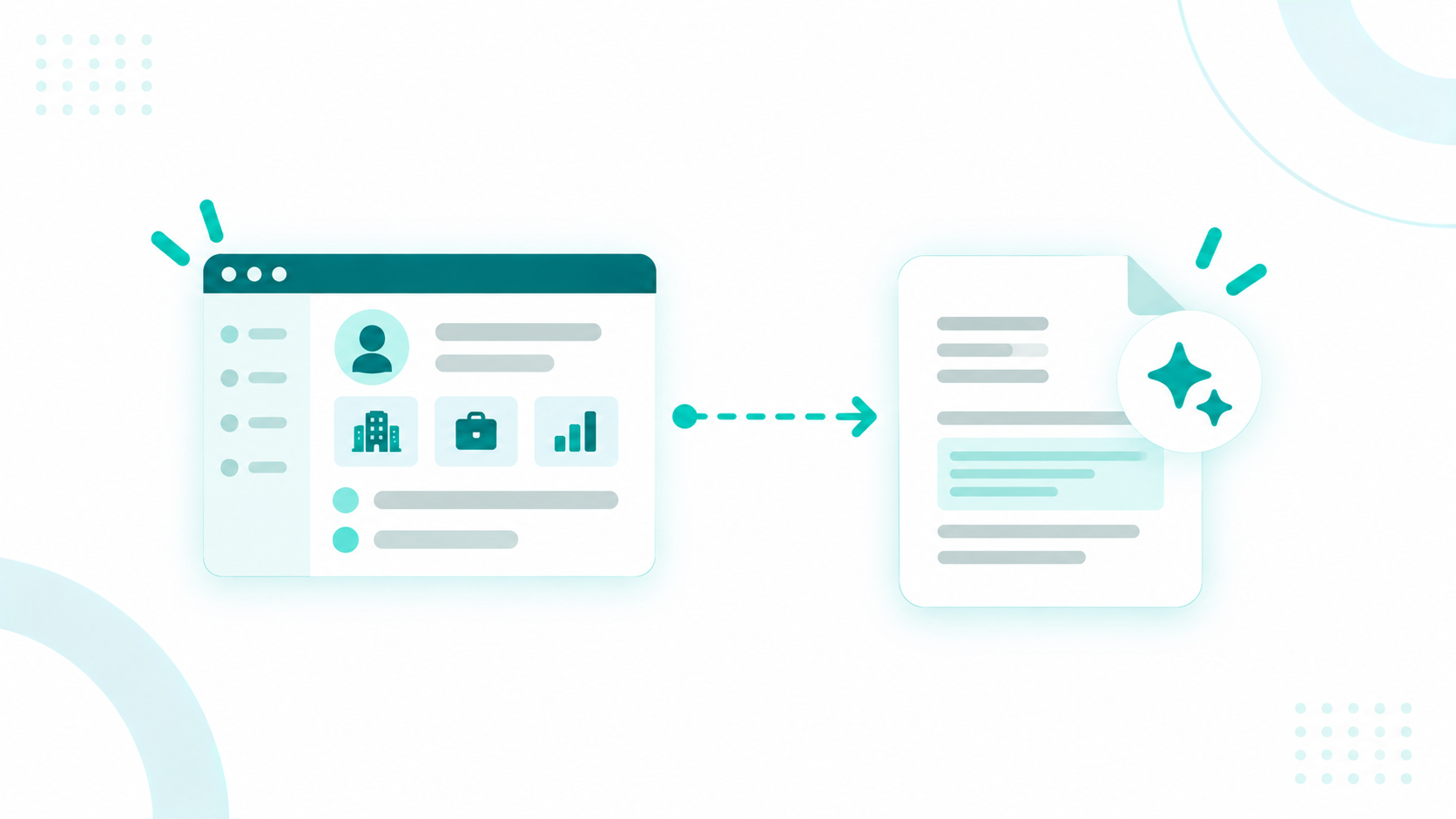
A client handoff doc usually starts the same way. Someone opens a blank page, copies deal notes out of the CRM, pastes in contact names, and hopes nothing changed since the last export. HubSpot Work starts that doc somewhere else. Documents in HubSpot Work are created inside the same platform as your contacts, deals, companies, and project tables, so the AI assistant drafts them from records it can already see.

In practice, you can describe the document you need in a prompt, reference a project table with an @ mention, and the assistant can ask clarifying questions before it writes. The draft then lives inside a project next to the tracker, form, and agent that feed it. Your team co-edits it, leaves comments, checks version history, and keeps it current as the work moves.

All of that runs on the quality of the CRM data underneath it. Campaign Creators helps teams get that foundation right through HubSpot onboarding and setup, CRM architecture, data migration, and HubSpot AI agent implementation, so tools like HubSpot Work have clean, connected context to draw from on day one.

Key Takeaways

  • HubSpot Work is an AI-first workspace, now in public beta, where documents live inside projects next to the tables, forms, and agents tied to your CRM.
  • The AI assistant drafts a document from your prompt and any tables you @ mention, and it can ask clarifying questions or show a build plan before it creates anything.
  • Drafts start from contacts, deals, companies, interaction history, and project tables, so teams skip the copy-and-paste stage.
  • Teams co-edit documents, comment with mentions, compare versions line by line, and export to Markdown for use outside HubSpot.
  • Access flows from workspace to project to document, and any single document can be set to invite-only.

How Do Documents Work in HubSpot Work?

visualization-of-hubspot-work-document-editor-with-an-ai-prompt-panel

Documents in HubSpot Work are rich-text assets that live inside a project, next to the tables, forms, and agents serving the same process. The structure has three layers.

  1. A workspace holds every project and asset for a team or a cross-functional process, such as client onboarding.
  2. A project tracks one initiative inside that workspace.
  3. Assets, including documents, carry the day-to-day work for that project.

HubSpot positions documents for information that doesn't suit a table, such as briefs, operational playbooks, and meeting recaps. A document can also serve as a summary that uses one or more project tables as its source, so a status recap is written straight from the tracker it describes.

Tables can point back to documents too. One column type links each row to a HubSpot Work document, which gives every client in an onboarding tracker a direct path to its own kickoff notes or plan.

One naming detail saves confusion later. Projects in HubSpot Work are a separate feature from the CRM projects object and from Breeze Assistant projects, even though the names overlap.

What Is HubSpot Work?

HubSpot Work is an AI-first work management product built into HubSpot, where teams and AI agents plan, run, and automate the operational work around your CRM records. HubSpot introduced it at UNBOUND 2026 in September, and partners at the product briefing reported it as the first product HubSpot designed AI-first. It is currently in public beta.

The work it targets usually sits in spreadsheets and project tools beside HubSpot, such as client onboarding, webinar coordination, deal desk requests, and content pipelines. That split costs teams real hours. Research found executives and teams spend a quarter of their workweek searching for information, and it estimates that search costs the Fortune 500 alone 2.4 billion hours a year.

Each HubSpot Work project is built from four kinds of assets. They are tables, documents, forms, and AI agents. Documents cover the written side of a process. Because they sit in the same platform as your customer data, the assistant writes them with that data already in view.

Where Does the CRM Context Come From?

HubSpot Work begins with what your portal already knows. That covers your contacts, companies, deals, and their interaction history. HubSpot calls this wider picture Growth Context, the understanding of your customers, team, and business that its AI needs to drive outcomes across marketing, sales, and customer success.

For a document, that context arrives from four places.

Context source

What it adds to the document

CRM records

Client names, key contacts, owners, deal stages, and products or services purchased

Interaction history

What has already been discussed with the customer across logged activity

Project tables

Stages, tasks, owners, dates, risks, and blockers tracked for the process, including CRM lookup columns

Imported files

Existing playbooks, SOPs, or briefs you upload when you set up a workspace

The quality of that context shows up in results. HubSpot reports that customers using AI with high-quality context generated 5x more MQLs, closed 4.7x more deals, and resolved 6.8x more tickets compared with customers working from low-quality context. At UNBOUND, HubSpot also shared data showing that AI running on poor or missing context underperforms having no AI at all. A document drafted from complete, current records needs fewer corrections before anyone can use it.

Related reading: Managing Business Work With CRM Context

How Does the AI Assistant Create a Document?

The AI assistant creates a document from a plain-language prompt typed into the prompt bar at the bottom of the Work Management screen.

  1. Open Work Management from the More menu and click the prompt bar.
  2. Describe the document, and type @ to reference a project table by name as source material.
  3. Answer any clarifying questions the assistant asks. Adding “ask me clarifying questions” to your prompt invites this step on purpose.
  4. Review the build plan. When you set up a new workspace, the assistant shows a plan you can edit and approve before it creates any content.
  5. Let it build. You can minimize the conversation, and the assistant keeps working in the background.
  6. Open the finished document from the list of actions and links the assistant returns, then refine it with follow-up prompts.

What Should a Document Prompt Include?

A strong document prompt names five things, which are the audience, the source material, the format, the tone, and who gets access. HubSpot's documentation frames these as the questions to settle before you press Enter.

Prompt element

What to specify

Audience

The team or role the document serves, such as Customer Success or Implementation

Source material

The tables you @ mention, plus any files the assistant should draw from

Format

Checklist, brief, playbook, proposal, or recap, along with the sections you expect

Tone

Plain, concise, formal, or conversational

Access

Which teams can edit, which can view, and who holds full admin control

Here is a prompt that covers all five for a sales-to-service handoff.

Create a Sales-to-CS Handoff Brief for each deal that closed this week. Use the @Closed Won Handoffs table as the source, including deal amount, products purchased, key contacts, promised timelines, and open risks. Format it as a one-page brief with a summary, a stakeholder list, commitments made during the sale, and first-30-day priorities. Keep the tone direct and plain. Give Customer Success edit access and Sales view access. Ask me clarifying questions before you build it.

The more of your real process a prompt names, the less editing the draft needs once it lands.

Which Documents Can Teams Build in HubSpot Work?

Teams build the written assets that hold a recurring process in place, from playbooks and SOPs to briefs, handoff docs, and meeting recaps. Each one draws on a different slice of CRM and project data.

Team

Document

Context it draws on

Customer Success

Client onboarding playbook organized by stage

Onboarding tracker stages, required tasks, owners, timelines, and escalation criteria

Sales and Customer Success

Handoff doc for a newly closed deal

Deal history, products purchased, key contacts, and promised dates

Sales

Account plan for each named account

Company records, deals, and meeting transcripts

Marketing

Webinar brief and run-of-show

Webinar timeline table, task owners, and deadlines

RevOps and deal desk

Request summary for a pricing or contract exception

Deal properties and the routing queue the request came through

Operations

SOP for an internal request process

Intake form submissions and the request table they feed

Any project team

Weekly status recap

Open items, risks, and blockers from the project tables

Documents also scale per record. A per-client onboarding folder, for example, gives every new customer its own set of working docs inside the same project, each tied to that client's row in the tracker.

How Do Teams Collaborate on HubSpot Work Documents?

Anyone with Project Contributor access can co-edit a document with the rest of the project. The editor covers the full review cycle.

  • Inline editing: modify and style text directly, then use the insert content button to add style elements, other documents, or media.
  • Comments and mentions: highlight a passage, leave a comment, and mention teammates so feedback reaches the right person. Comments can be resolved once someone handles them.
  • Version history: every iteration appears in a diff-style timeline, so you can compare changes line by line and restore an earlier version.
  • Export: download any document as a Markdown file to share it with people outside the workspace or outside HubSpot.

A practical pattern is to let the assistant write the first draft, then have the process owner review it through comments before the doc reaches the wider team. Version history keeps a clear record of what the AI wrote and what people changed after.

How Do Documents Connect to Tables, Forms, and Agents?

Documents sit at the end of a chain that starts with forms and tables and runs through agents. Forms collect information and send each submission to a single table, which keeps rows consistent and can trigger automations. Agents then act on that table, and documents turn the results into something people can read and share.

A client onboarding process shows how the pieces line up.

  1. A new client completes the onboarding questionnaire, and the submission creates a row in the onboarding tracker.
  2. CRM lookup columns connect that row to the client's company, key contacts, products, and owner.
  3. An onboarding agent reviews new and active rows on a schedule, adds standard tasks with due dates, and flags anything at risk.
  4. The agent or the assistant drafts the kickoff doc or status recap from that tracker, so the written record matches the data the team works from.

HubSpot describes this always-on side of the product as drafting handoff docs from deal history, routing requests based on real CRM properties, and nudging owners before deadlines slip. As the work unfolds, the assistant also recommends ways to improve the process itself.

Who Can Access a HubSpot Work Document?

A document inherits its access from the project it sits in, and the project inherits from its workspace, unless someone sets a tighter rule further down. Roles exist at both the workspace and project level.

Level

Role

What the role can do

Workspace

Admin

Change anything inside the workspace

Workspace

Member

View and contribute to projects and assets, without changing workspace settings or sharing the workspace

Project

Owner

Change the project configuration and every asset in it

Project

Contributor

Create and edit assets, including documents and agents

Project

Viewer

View the project and its assets with no editing rights

Workspaces themselves can be private, viewable by the whole organization, or editable by the whole organization. Organization-wide options only reach users who have the Work Management permission switched on in their user settings.

Sensitive documents get their own lock. Setting a single document to invite-only overrides the project's inherited access, so only the people added directly can open it. That fits pricing exceptions, contract terms, or account plans that only a few people should see.

Admins also control the AI layer itself. AI feature access and the data shared with HubSpot's AI tools are both managed in the account's AI settings.

What Do You Need to Start Using HubSpot Work?

You need an eligible subscription, an assigned seat, and a Super Admin to switch on two settings.

  • Subscription: Marketing Hub, Sales Hub, Service Hub, Data Hub, or Content Hub at Starter and up, or Smart CRM or Revenue Hub at Professional and up.
  • Seat: Each user needs an assigned Core, Sales, or Service seat.
  • Beta enrollment: A Super Admin opts the account into the HubSpot Work public beta from the Product Updates page.
  • Generative AI access: A Super Admin turns on the setting that gives users access to generative AI tools and features.
  • HubSpot Credits for agent AI steps: AI workflow actions inside a HubSpot Work agent consume credits, while rule-based actions such as updating a table value or sending an email notification don't.

Once enrollment is complete, HubSpot Work appears under More in the main navigation as Work Management.

How Should You Prepare Your CRM Before Generating Documents?

Prepare your CRM by cleaning the records, properties, and associations your documents will pull from, then pilot a single process.

  1. Run the data model health check: HubSpot's automated check reviews your data model and recommends fixes for data quality issues.
  2. Merge duplicate records: Two company records for the same client split its contacts and deal history, so a document drafted from either one tells only half the story.
  3. Standardize key properties: Deal stage, products purchased, owner, kickoff date, and renewal date should use consistent values, ideally from dropdowns.
  4. Confirm associations: CRM lookup columns in project tables depend on contacts, companies, and deals being linked correctly.
  5. Review Context Home: It shows what HubSpot knows about your business, including brand positioning, ICP, and how your team works, along with where the gaps sit. Manual edits there are protected from automated overwrites, and details pulled from uploaded documents arrive as suggestions to review.
  6. Pilot one process: Build the project and documents for a single workflow, such as client onboarding, and refine the prompts before other teams adopt the setup.

For more information about HubSpot Workspace, read this article.

Is Your HubSpot Portal Ready for HubSpot Work?

Find out before you roll HubSpot Work out to your teams. Campaign Creators' free HubSpot AI Readiness Index is a 12-question diagnostic built from the portal audits we run as a HubSpot Elite Solutions Partner. It scores your portal across five dimensions, including Data Foundation and Architecture, then names the three moves that would raise your grade fastest. It takes about three minutes and needs no portal login.

When you're ready to act on the results, talk with our team about cleaning up your data, structuring your first projects, and building documents your teams will use every week.

Frequently Asked Questions

Should Each Team Get Its Own Workspace?

HubSpot recommends one shared workspace for cross-functional processes like client onboarding and separate workspaces for unrelated work such as IT management or marketing campaign operations.

Does HubSpot Work Include Templates?

Yes, HubSpot Work offers template prompts, which appear as starting options when you set up a workspace and in a panel you open by pressing the slash key in the prompt bar.

Can an Agent Change a Document Without Permission?

You can set those limits in the agent's instructions, where HubSpot recommends spelling out what the agent should create or modify and what it must never change.

How Is a HubSpot Work Document Different From a Breeze Assistant Artifact?

A HubSpot Work document lives inside a project with its tables, forms, and agents, while a Breeze Assistant artifact is created in the assistant chat and can be shared as a password-protected link.

Where Do HubSpot Work Forms Show Up?

HubSpot Work forms appear alongside your other forms in the marketing form tool, but their submissions go to the HubSpot Work table you assigned.

HubSpot Work Projects: Managing Business Work With CRM Context

HubSpot Work Projects: Managing Business Work With CRM Context

Your contacts, deals, and tickets already live in HubSpot. The work around them often doesn't. Onboarding checklists sit in spreadsheets, webinar...
Read More
What Is HubSpot Work and How AI Is Changing Where Business Work Happens

What Is HubSpot Work and How AI Is Changing Where Business Work Happens

HubSpot Work is HubSpot’s new AI-powered workspace for managing business work alongside your CRM. It connects everyday business workflows to the data...

Read More
HubSpot Workspace: How Teams Organize AI-Powered Work

HubSpot Workspace: How Teams Organize AI-Powered Work

Sales reps, customer success managers, and support agents spend much of their day jumping between inboxes, calendars, CRM records, and reports. Every...

Read More